Best Screen Recorders for Mac: CleanShot X vs Screen Studio | Macfolio
Best Screen Recorders for Mac: CleanShot X vs Screen Studio and 7 More
CleanShot X or Screen Studio? We compare the two most popular Mac screen recorders, plus free, pay-once, and streaming alternatives from the Macfolio directory.
Every Mac ships with a perfectly decent screen recorder. Press Shift, Command, and 5, and the Screenshot app lets you record the whole screen or a selected portion, and QuickTime Player can do the same (Apple Support). For a quick bug report, that is often all you need.
The moment the recording is for someone else, though, the built-in tools start to feel thin. There is no automatic zoom, no cursor smoothing, no captions, and no shareable link. That is where dedicated Mac screen recorders come in, and the two names people compare most are CleanShot X and .
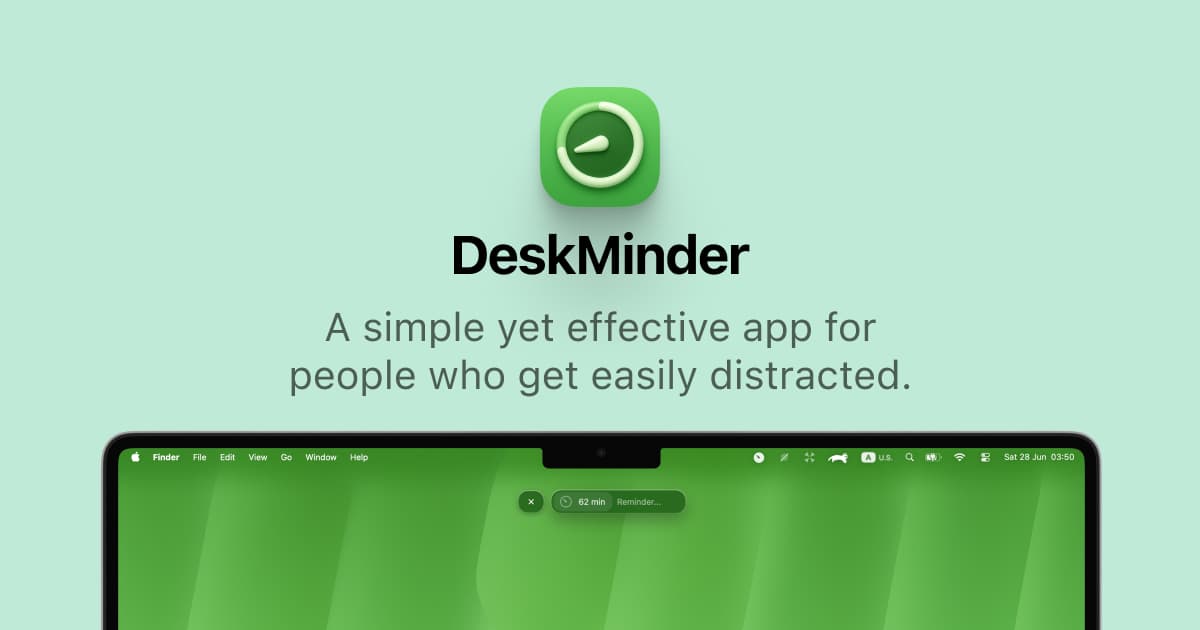
DeskMinder is a productivity software application designed for Mac users who struggle with distractions. It provides a straightforward interface for creating desktop pop-up reminders and tasks, helping users manage urgent to-dos, short breaks, and fleeting ideas. With features like full-screen notifications and Apple Reminders integration, DeskMinder aims to enhance focus and time management for i
- With features like easy-to-create desktop pop-ups for reminders and tasks, it simplifies the process of staying on top of urgent to-dos, short breaks, or fleeting ideas.
- Users can benefit from full-screen notifications, Apple Reminders integration, and flexible widget placement, making it ideal for anyone requiring a little extra help to maintain focus.
- The app includes additional shortcuts for quick reminder setups and customizable widget options, along with a history tracking feature to monitor daily progress.
Designed specifically for Mac users, DeskMinder aims to facilitate better time management and productivity for those with attention challenges, providing a seamless user experience without unnecessary complexity.
SoftwareProductivitymacOS
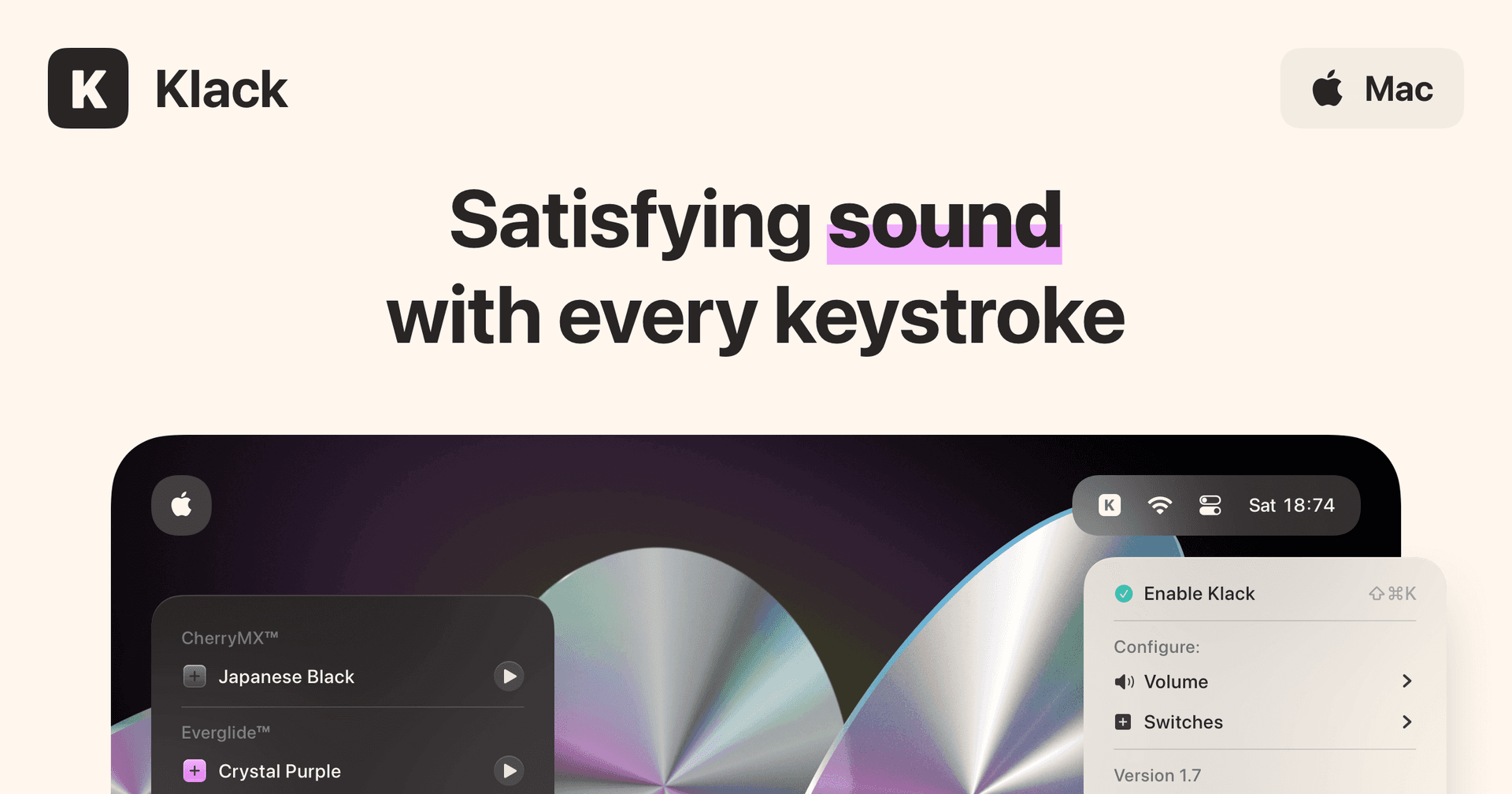
Klack
Satisfying sound with every keystroke
Paid
Klack is a macOS application designed to enhance the typing experience through high-fidelity sound for each keystroke. It provides features such as immersive spatial audio, instant feedback, and customizable sound options, making it suitable for writers, developers, and anyone who values an engaging typing environment. The app is easily accessible from the menubar and offers extensive configuratio
- Provides immersive spatial audio for enhanced typing feedback.
- Allows customization of keystroke sounds, pitch variations, and volume settings.
- Features a menubar interface for quick access to configuration options.
- Supports instant feedback with each keystroke for a more engaging experience.
- Designed for writers and developers seeking auditory feedback while typing.
Klack enhances the typing experience on Mac by providing high-fidelity sound for each keystroke.
SoftwaremacOS
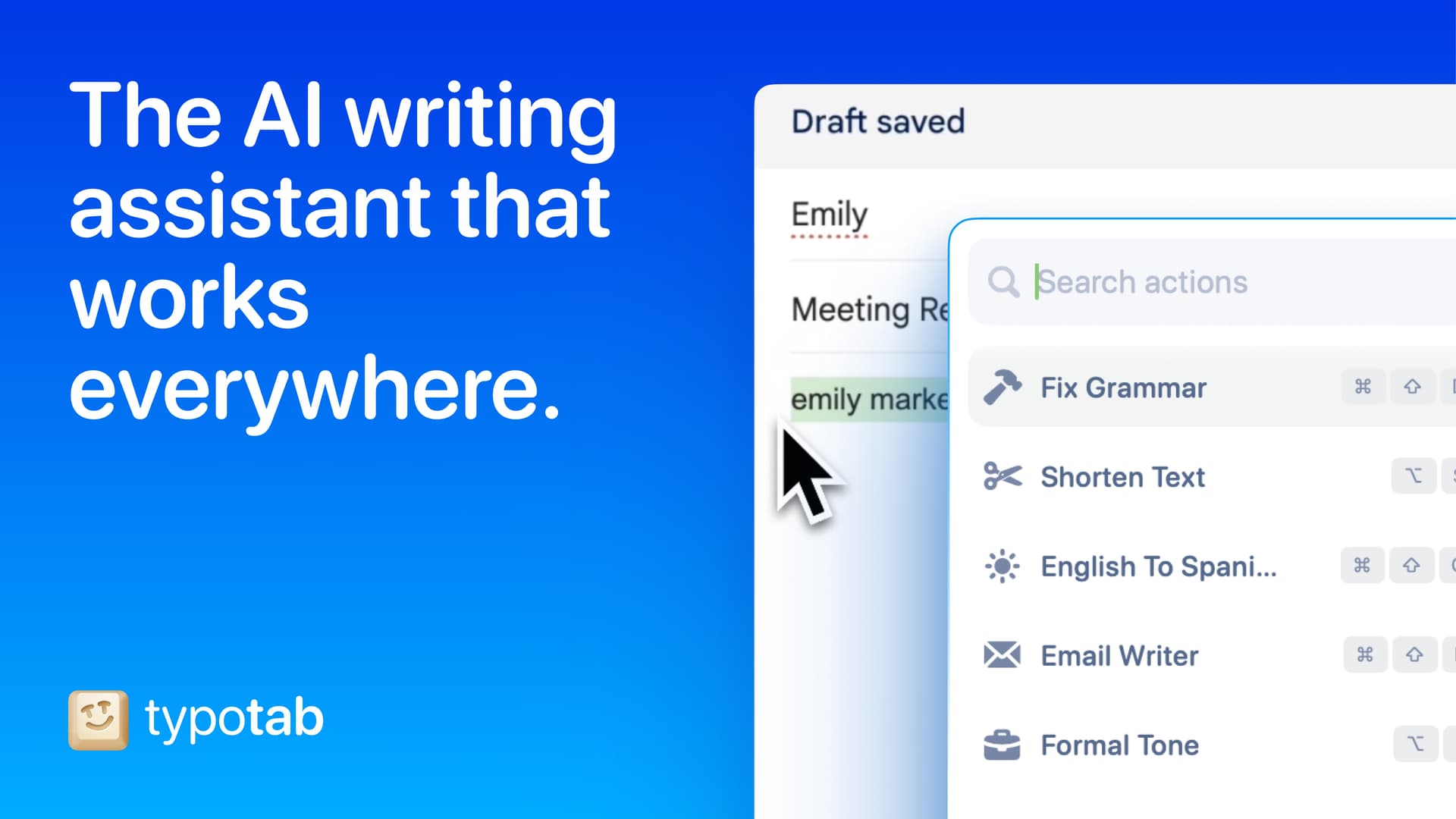
TypoTab
TypoTab, the ultimate AI writing assistant for
Paid
TypoTab is a macOS application that functions as an AI-driven writing assistant. It enhances writing efficiency by providing tools for grammar correction, text rephrasing, and content generation, all accessible from the menu bar without needing to switch applications. This tool is designed for writers, students, and professionals looking to streamline their writing process and improve productivity
- Provides grammar correction and text rephrasing directly from the menu bar.
- Allows text refinement in any application without switching contexts.
- Offers customizable actions to meet individual writing needs.
- Streamlines repetitive writing tasks for improved efficiency.
- Supports a wide range of applications, enhancing workflow across platforms.
TypoTab is a macOS application that enhances writing efficiency by providing grammar correction, text rephrasing, and content generation directly from the menu bar. It allows users to refine text in any application without switching contexts, offering customizable actions to suit individual writing needs.
SoftwareProductivitymacOS
Agent Caffeine
Keep your Mac awake for agents
One-time
Agent Caffeine is a Mac menu bar utility that prevents sleep while AI coding agents are working, then allows the Mac to sleep when work stops.
- Track activity from agents including Claude Code, Codex, and Cursor.
- Keep the Mac awake with the lid closed during active work.
- Allow a configurable grace period when an agent waits for input.
- Send notifications when agents need attention or finish.
- Pause sleep prevention or stay reachable for a set duration.
Closed-lid operation on battery requires an approved helper. Battery and temperature safeguards can release sleep prevention. Includes a seven-day trial, followed by a one-time purchase with lifetime updates.
SoftwareUtilitiesmacOS
VMPal
Run virtual machines on Apple silicon
One-time
VMPal is a virtual machine manager for Apple silicon Macs. Run macOS, Windows 11, and Linux environments alongside your Mac apps, with tools for development and AI agent workflows.
- Download and install supported operating systems.
- Share folders, clipboard contents, and files with guests.
- Save snapshots and restore earlier machine states.
- Forward ports for guest web servers and SSH.
- Connect AI agents through built-in MCP controls.
- Import virtual machines from Parallels.
Requires an Apple silicon Mac running macOS 26 or later. Perpetual licenses include one year of updates and support; renewal is optional for further updates. A trial is available.
SoftwareDevelopmentmacOS
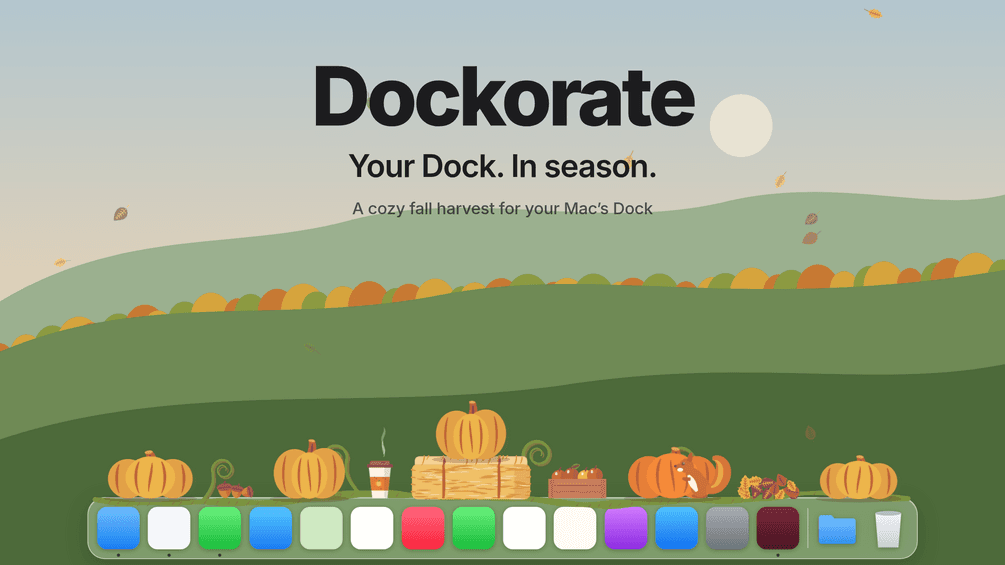
Dockorate
Decorate your Dock with seasonal scenes
One-time
Dockorate is a Mac menu bar app that adds interactive decorations along the top of your Dock. Its first edition features a fall harvest with pumpkins, leaves, and small animated details.
- Click pumpkins to smash them and watch them regrow.
- Choose decoration density and toggle individual extras.
- Follow Dock magnification, resizing, and auto-hide.
- Match light or dark appearance and respect Reduce Motion.
- Pause decorations for presentations and screen sharing.
Requires macOS 13 or later and a Dock positioned at the bottom of the screen. Optional Accessibility access improves the fit. One-time purchase with version 1 updates.
SoftwareUtilitiesmacOS
OneMacApp
Video audio image and PDF tools
One-time
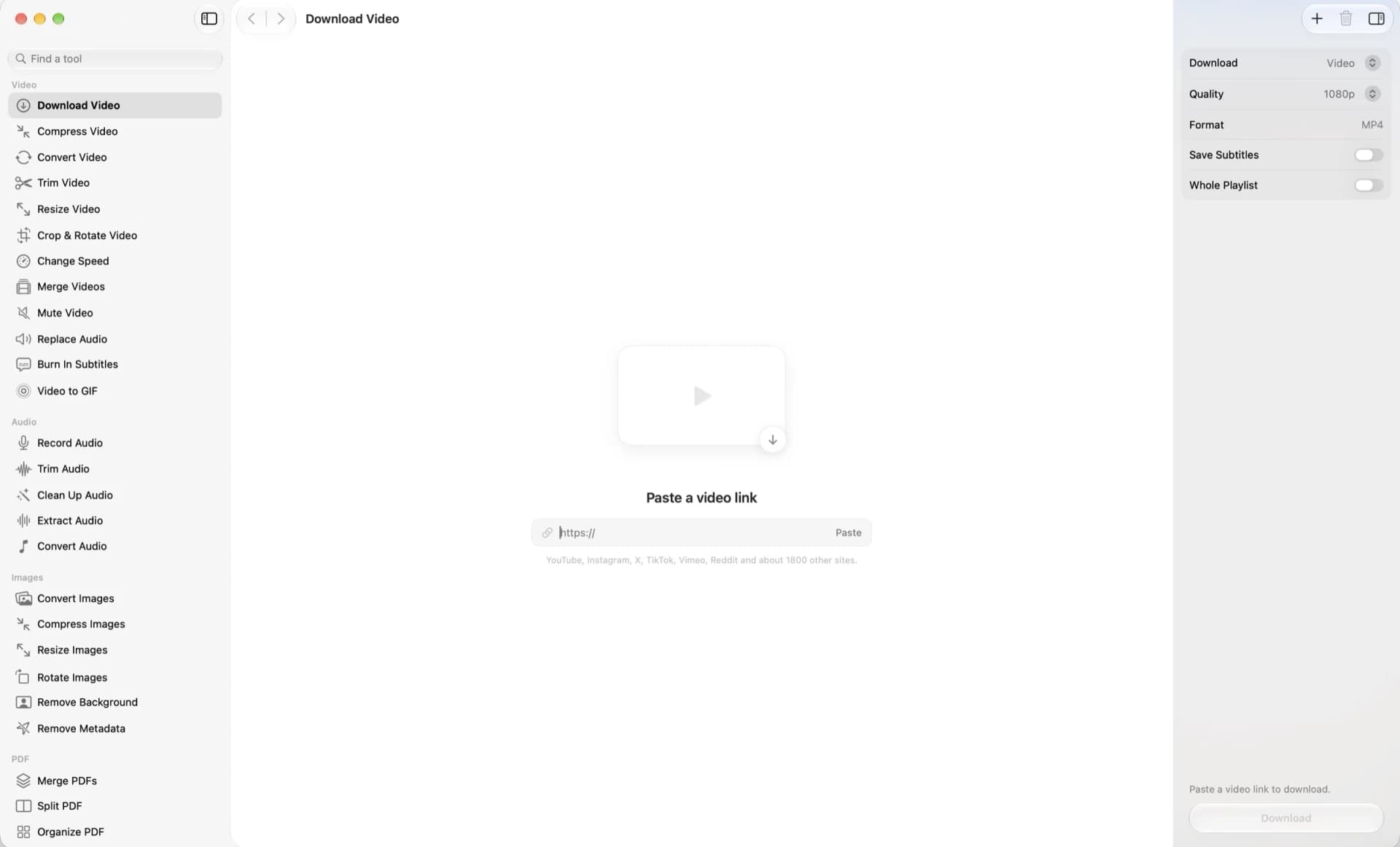
OneMacApp is a native Mac utility suite for working with video, audio, images, PDFs, and text in one interface. File processing runs locally on your Mac.
- Convert, compress, trim, and merge videos.
- Record, clean up, extract, and convert audio.
- Resize images, remove backgrounds, and strip metadata.
- Merge, split, sign, and protect PDFs.
- Transcribe, extract text, summarize, and translate with on-device Apple frameworks.
- Rename files in batches with a live preview.
A one-time purchase for macOS 26 or later. Video and audio tools require a separate FFmpeg installation; the app offers Homebrew setup. AI features depend on the required Apple models being available.
SoftwareUtilitiesmacOS
Convt
Convert files with a right-click
One-time
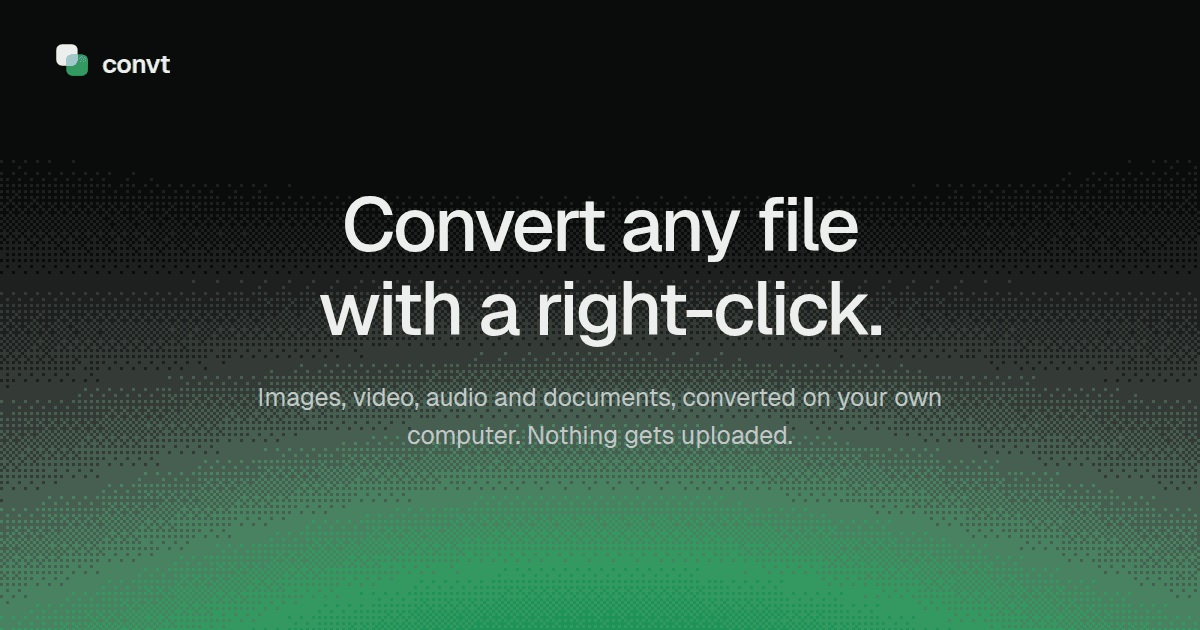
Convt is a desktop file converter for images, video, audio, and documents. Convert files on your computer through a right-click menu without uploading them.
- Convert common image formats, including HEIC, WebP, PNG, and JPEG.
- Change video and audio formats using FFmpeg.
- Convert office documents to PDF with LibreOffice.
- Export PDF pages as PNG or JPEG images.
- Process folders in batches and reuse conversion presets.
Available for macOS, Windows, and Linux with a seven-day trial. The one-time Desktop license includes 12 months of updates and continued use of that version. Pro adds optional cloud conversions and ongoing updates through a subscription.
SoftwareUtilitiesmacOS
Flyout
Notes for Mac, always within reach
One-time
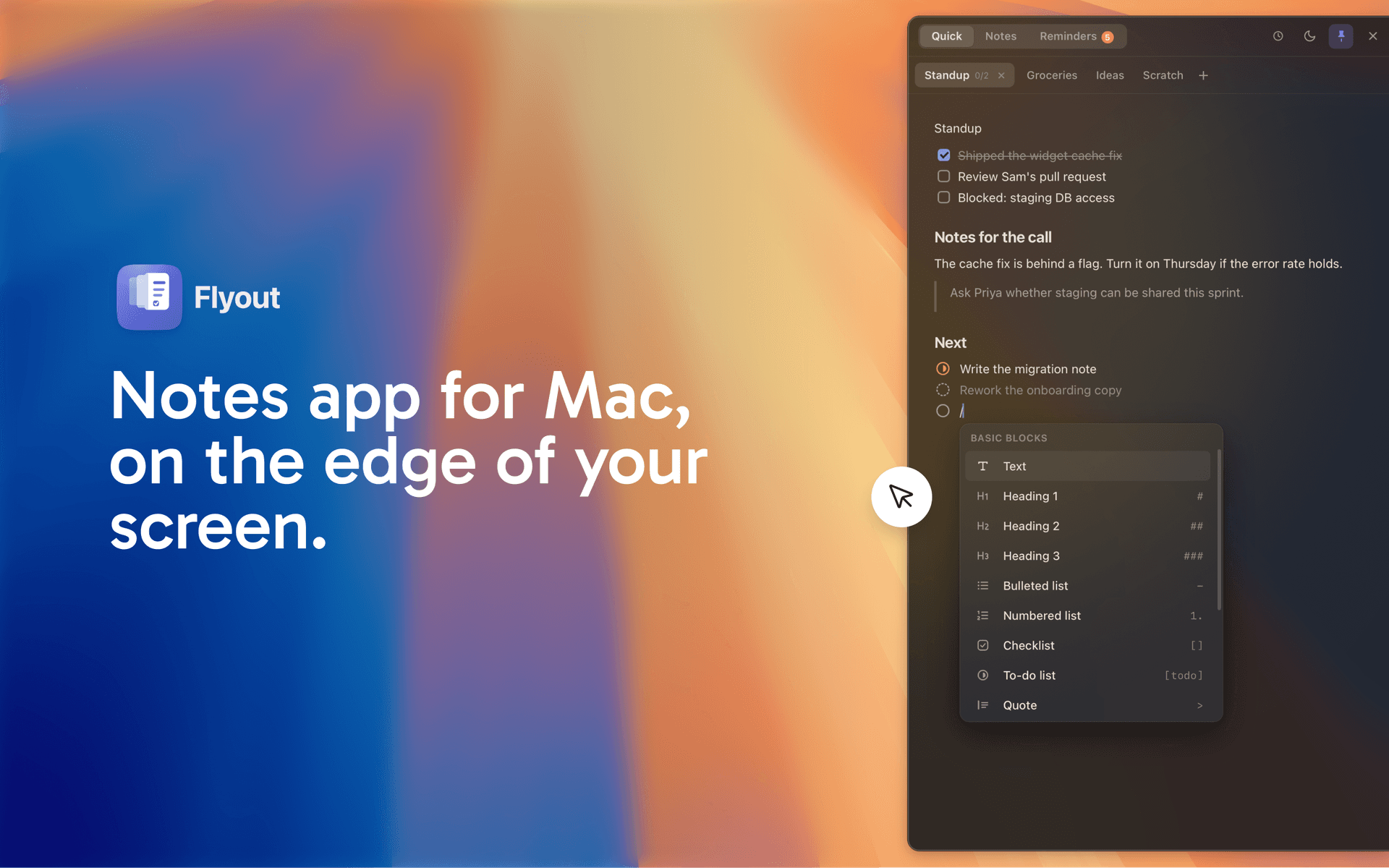
Flyout is a notes application for macOS designed to help users capture thoughts, tasks, and reminders efficiently. It allows notes to slide in from the edge of the screen, enabling quick access without interrupting the user's workflow. This tool is suitable for individuals looking to organize their ideas and tasks seamlessly while working on other applications.
- Notes slide in from the edge of the screen for quick access without disrupting your workflow.
- Supports Markdown formatting, allowing for structured notes with task lists, reminders, and code blocks.
- iCloud synchronization enables access to notes across Mac, iPhone, and iPad, with offline writing capabilities.
- Notes can be locked with a password for added security, encrypting their content.
- One-time purchase model with no subscription required, covering all devices.
Compatible with macOS 14 Sonoma and later, Flyout offers a streamlined note-taking experience directly from the edge of your screen. It allows users to capture thoughts, tasks, and reminders without disrupting their workflow. The app supports iCloud sync across devices, ensuring notes are accessible on both Mac and iPhone.
This guide covers that matchup first, then the best alternatives from the Macfolio directory, from free apps to tools that stream live. We have already compared Shotbase with both in Shotbase vs CleanShot X vs Screen Studio, so here Shotbase gets a short summary and the focus is on the wider field.
TL;DR
Best for everyday capture: CleanShot X. Screenshots, annotation, OCR, and recording in one app, now with a video editor that adds smart zooms. $35 one-time for the Basic license.
Best for polished demos: Screen Studio. Automatic zooms, cursor smoothing, transcript editing, captions, and iPhone recording over USB. Subscription only for new buyers.
Best one-time alternative to Screen Studio: Screen Charm. Auto-zoom, captions, vertical exports, and share links for $79 lifetime.
Best free picks: Screenforge (no watermark) and TinyRec (full editor, small watermark on the free plan).
Best for streaming: Videorc. Free, open source, and able to multistream, though the Mac version is still in beta.
Our take: Most people should own CleanShot X. Add Screen Studio, or one of its cheaper rivals, only if polished video is a regular part of your work.
CleanShot X vs Screen Studio: the short answer
These two overlap less than their search volume suggests. CleanShot X is a capture tool that also records video. Screen Studio is a video tool that only records video.
If you take screenshots all day, annotate them, grab text with OCR, and occasionally record a clip or GIF, CleanShot X covers it, and its recent video editor means short demos can look good too. If your main output is product demos, tutorials, or course videos that people actually watch, Screen Studio's editing workflow is deeper and more automatic, from transcript-based cuts to on-device voice cleanup.
Plenty of people use both: CleanShot X for the hundred small captures a week, Screen Studio for the few videos that matter.
Best Mac screen recorders compared
Prices are US list prices from official sites at the time of writing and may change. "Auto zoom" means zooms added automatically based on your clicks or cursor.
App
Price
Auto zoom
Standout feature
Best for
CleanShot X
$35 one-time (Basic), Pro $10/user/mo billed yearly
Smart zooms in the editor
Screenshots, OCR, and recording in one app
Everyday capture and quick clips
Screen Studio
Monthly or yearly subscription
Yes
Transcript editing, captions, iPhone and iPad recording
Polished demos and tutorials
Shotbase
$13/mo billed yearly or $25 monthly, 7-day trial
Yes
Searchable library with on-device AI tags
Screenshots and video in one library
Screen Charm
$79 lifetime, up to 3 devices
Yes
Split vertical exports for Shorts and Reels
One-time alternative to Screen Studio
TinyRec
Free with watermark, Pro $7.99/mo
Yes
Local captions and AI voice-over
Scripted tutorials on a budget
Screenforge
Free, no watermark
Yes
MP4, MOV, and WebM export
Free polished recordings
Creavit Studio
Free to try (5 exports), lifetime plan
Yes
AI agents can drive it via MCP
Developers and AI-assisted editing
Tella
7-day trial, paid from $13/mo
Yes
Mac, Windows, and browser recording
Teams and cross-platform sharing
Videorc
Free, Premium subscription
No
Multistream to 6+ platforms
Live streaming and recording
CleanShot X: the capture app most Mac users should own
CleanShot X started as a screenshot tool and remains the best all-round one on the Mac. You can capture an area, a window, the full screen, or a scrolling window in any app, annotate with a wide set of tools, pin screenshots on screen, and copy non-selectable text with OCR that runs entirely on your Mac. The Quick Access Overlay appears after every capture so you can save, copy, annotate, or drag the file straight into another app.
Recording is more capable than its reputation. CleanShot X records MP4 video or GIFs of a window, area, or full screen, with microphone and computer audio, your camera, click highlights, and keystrokes. It can turn on Do Not Disturb and hide desktop clutter while you record. Its video editor adds smart zooms that follow your cursor, cleans up shaky cursor movement, changes cursor size and click effects, places the recording on a background, and exports landscape, square, or vertical video. CleanShot 5.0 introduced Studio Mode for animated zooms with motion blur. CleanShot Cloud adds one-click upload and share links.
Pricing is refreshingly simple. CleanShot Basic is $35 once, with one year of updates (optional renewal at $19 a year) and 1 GB of Cloud storage. CleanShot Pro is $10 per user per month billed annually and adds unlimited Cloud storage, custom branding, and team features. There is no trial, but there is a 30-day money-back guarantee, and CleanShot X is included with Setapp. It requires macOS 13.0 or newer.
CleanShot XComprehensive screen capture and annotation toolVisit WebsiteCleanShot X is a comprehensive screen capturing software designed for Mac users. It offers over 50 features, including screenshot and screen recording capabilities, making it suitable for professionals and casual users alike. With tools for quick sharing, annotation, and GIF creation, it enhances productivity by streamlining the process of capturing and editing visual content. Its intuitive interf
- Our overlay makes sharing a breeze.
- Instantly save, copy or drag & drop screenshots or screen recordings to other apps.
- You can annotate your screenshots quickly and easily, making it beloved by users who seek efficient and effective communication.
- It’s an essential swiss army knife for health and education professionals as well as content creators—anyone looking for an optimized way to capture and share their screen.
- Additional features like scrolling capture, screen recording, and clean backgrounds make it versatile for all your needs.
CleanShot X offers a comprehensive suite of over 50 features for screen capturing and recording on Mac. Its intuitive interface and versatile tools, including scrolling captures, annotations, and cloud integration, make it a valuable asset for users needing efficient screenshot management and sharing capabilities.Visit Website
Screen Studio: the polished demo specialist
Screen Studio does one thing and does it very well. Its trick is technical: it records your screen without the cursor, logs your mouse movement separately, and adds the cursor back afterward. That is why you can smooth cursor movement, change its size and style, and even make it loop back to its starting point after you have finished recording.
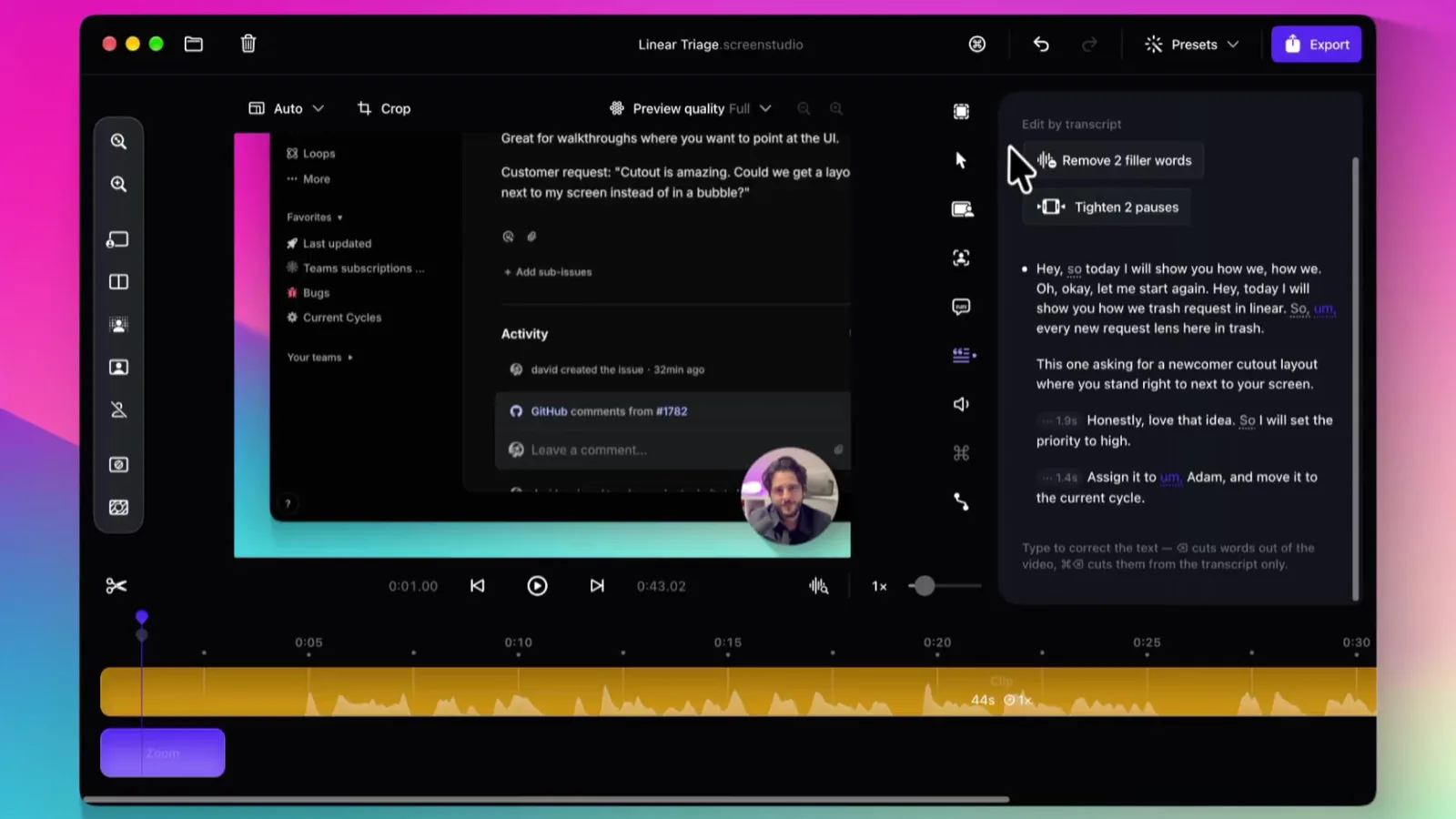
Zooms are automatic, based on where you clicked, and you can add manual zooms on the timeline. Your webcam can sit as an overlay, go full screen, or appear as a cutout with the background removed on your Mac, and it can step aside when you stop talking. Editing works like a document: delete a sentence from the transcript to cut it, and clear filler words and long pauses in one pass. Noise reduction and a Podcast voice preset clean up your microphone locally. Captions are generated on your Mac, and one take can become a wide, square, or vertical video with zooms and captions adjusting automatically.
Screen Studio's transcript panel removes filler words and long pauses in one click. Image: Screen Studio
You can record a connected iPhone or iPad over USB and get the matching device frame. Sharing covers browser links in 1080p at 60 fps for videos up to 30 minutes, MP4 exports up to 4K at 60 fps, GIFs, and editable projects you can hand to a teammate. Screen Studio says recordings are stored and processed locally.
The catch is the price model. Screen Studio is now sold only as a monthly or yearly subscription. One-time licenses were sold in the past and remain valid, but new buyers cannot get one. Students and educators get 40% off. It is Mac only, and macOS 13.1 or later is recommended.
Screen StudioPolished screen recordings with automatic zoomVisit WebsiteScreen Studio is a Mac screen recorder and editor for product demos, tutorials, courses, and social videos. It automatically adds zooms and smooth cursor motion to make recordings easier to follow.
- Zoom in on actions automatically, then adjust zooms on the timeline.
- Smooth cursor movement and change cursor size after recording.
- Record your screen, webcam, microphone, and system audio together.
- Capture a connected iPhone or iPad over USB and add device frames.
- Customize backgrounds, spacing, shadows, and horizontal or vertical layouts.
- Trim clips, generate local transcripts and subtitles, and export video or GIFs.
Available for macOS through monthly or annual paid subscriptions. Exports support up to 4K at 60 fps, with shareable links for sending recordings.Visit Website
Shotbase: capture plus a searchable library
Shotbase sits between the two: screenshots, scrolling and webpage captures, and screen recordings with automatic zooms, all stored in a searchable library called Base. On Apple silicon Macs, optional on-device AI names, tags, and summarizes captures so you can find them later. It costs $13 a month billed yearly or $25 month to month, with a 7-day free trial, and it only runs on Macs with Apple silicon. For the full three-way breakdown, read our Shotbase vs CleanShot X vs Screen Studio comparison.
ShotbaseCapture, edit, organize, and share in oneVisit WebsiteShotbase is a comprehensive tool designed to capture and manage all your screen-based content effortlessly. With features like stunning screenshot capabilities, recording options that include cinematic effects, and an intuitive organizational structure powered by local AI, you can easily keep your multimedia assets organized and accessible. Shotbase not only allows you to capture specific areas, windows, or full screens on your Mac but also enables you to edit and enhance your captures with backgrounds, frames, and annotations. The integrated AI ensures your captures are automatically named and tagged for easy searching, making it an excellent choice for anyone looking to enhance their productivity and creativity in one seamless workspace.Visit Website
The best Screen Studio alternatives
Screen Charm: pay once instead
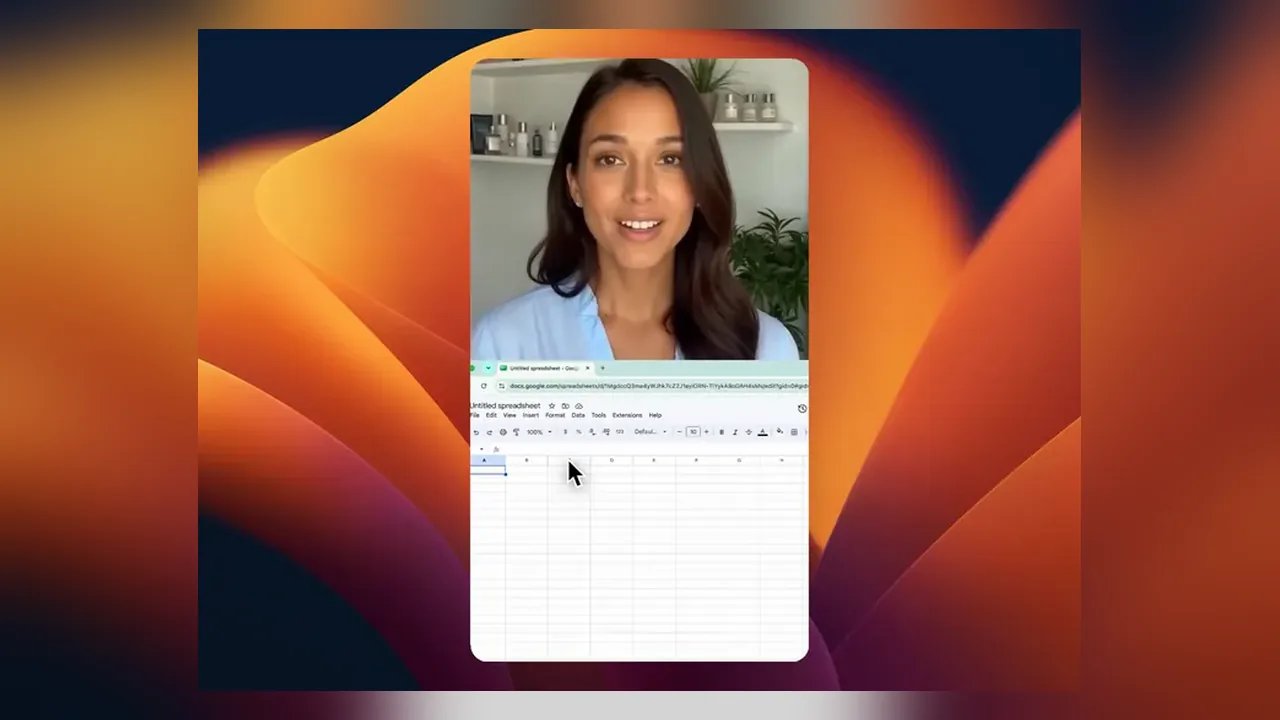
Screen Charm is the closest one-time-purchase rival to Screen Studio. It applies zooms automatically after every click (each one editable), smooths the cursor, records camera, microphone, and system audio, and generates captions from your narration. Its standout is a split vertical export for Reels, Shorts, and TikTok, with your camera on one side and the screen on the other, following your cursor. You also get blur regions for private details, per-clip speed changes, background music, noise removal, MP4 export up to 4K, and one-click cloud links. It is $79 for lifetime access on up to three devices, with free lifetime updates and a 14-day money-back guarantee.
Screen Charm's split vertical export puts your camera above the screen for Reels, Shorts, and TikTok. Image: Screen Charm
Screen CharmPolished screen recordings for MacVisit WebsiteScreen Charm is a screen recording software for Mac that enables users to create clear and polished videos. It features smart zoom, camera and microphone capture, system audio recording, 4K export, and the ability to generate sharable links. This tool is designed for founders, developers, course creators, and SaaS teams who need to produce demos and instructional content efficiently.
- Records high-quality screen videos with 4K export capability.
- Captures system audio, microphone input, and webcam footage simultaneously.
- Features smart zoom for focused video presentations.
- Generates sharable links for easy distribution of recorded content.
- Streamlines video creation for demos, tutorials, and presentations.
Screen Charm provides a comprehensive solution for users needing to create high-quality screen recordings on Mac. Its features cater specifically to professionals in various fields, allowing for efficient production of instructional and promotional content.Visit Website
TinyRec: a free plan with the full editor
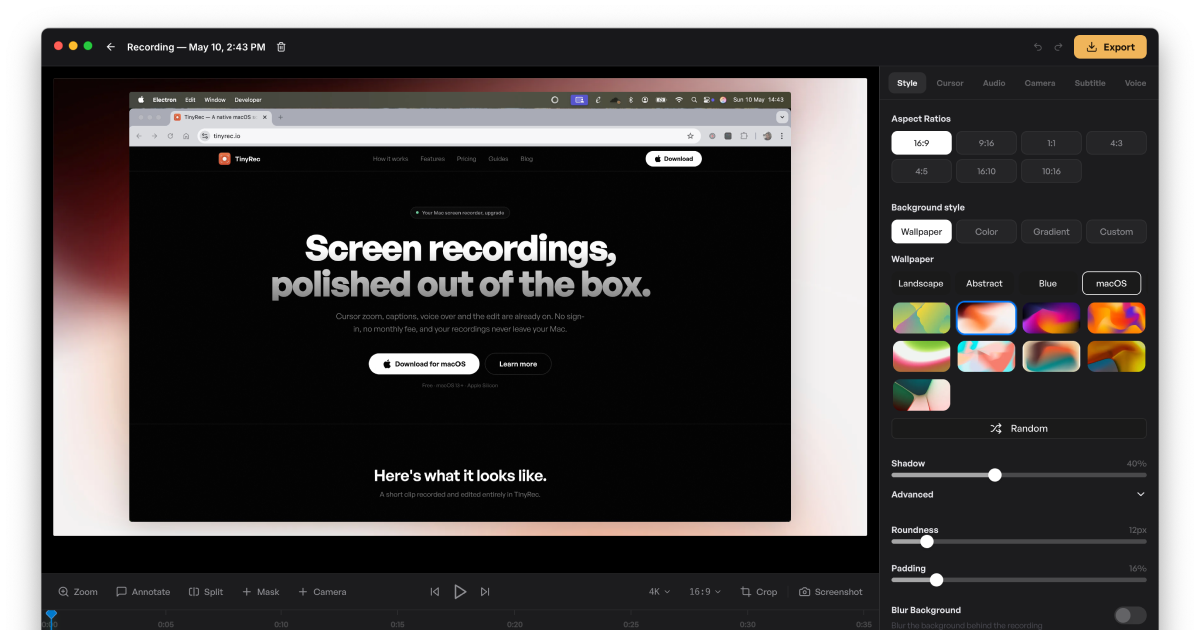
TinyRec, built by solo developer David, records at 60 fps using Apple's native capture and adds motion-tracked cursor zoom, captions transcribed locally with Whisper, and AI voice-over from typed text. You can plan a video as scenes and re-record any one without touching the rest, record an iPhone over USB with a device bezel, add annotations and masks, and export up to 4K. Everything runs on your Mac. The free plan includes every feature, unlimited recordings, and 1,000 voice credits, but exports carry a small watermark. Pro is $7.99 a month and removes it. TinyRec supports macOS 13 Ventura or later, with Apple silicon recommended for 4K.
TinyRecCinematic screen recordings in minutesVisit WebsiteTinyRec is a screen recording software for macOS that enables users to capture high-quality video at 60 frames per second. It is designed for individuals and professionals who need a straightforward tool for creating polished recordings without the need for cloud storage or subscriptions.
- Records desktop, application windows, and iPhone screens via USB in high-quality 60fps.
- Features auto-zoom for cursor tracking, local transcription for captions, and AI voice-over capabilities.
- Provides editing tools for annotations, masks, and custom styling before exporting videos in up to 4K resolution.
- Operates entirely on the user's machine without requiring sign-up or cloud storage.
- Supports unlimited recordings and durations with a small watermark in the free version.
TinyRec is compatible with macOS 13 and later, supporting both Apple Silicon and Intel Macs. The application allows users to record, edit, and export high-quality videos locally without any sign-up or monthly fees. All recordings remain on the user's device, ensuring privacy and control over content.Visit Website
Screenforge: free and watermark-free
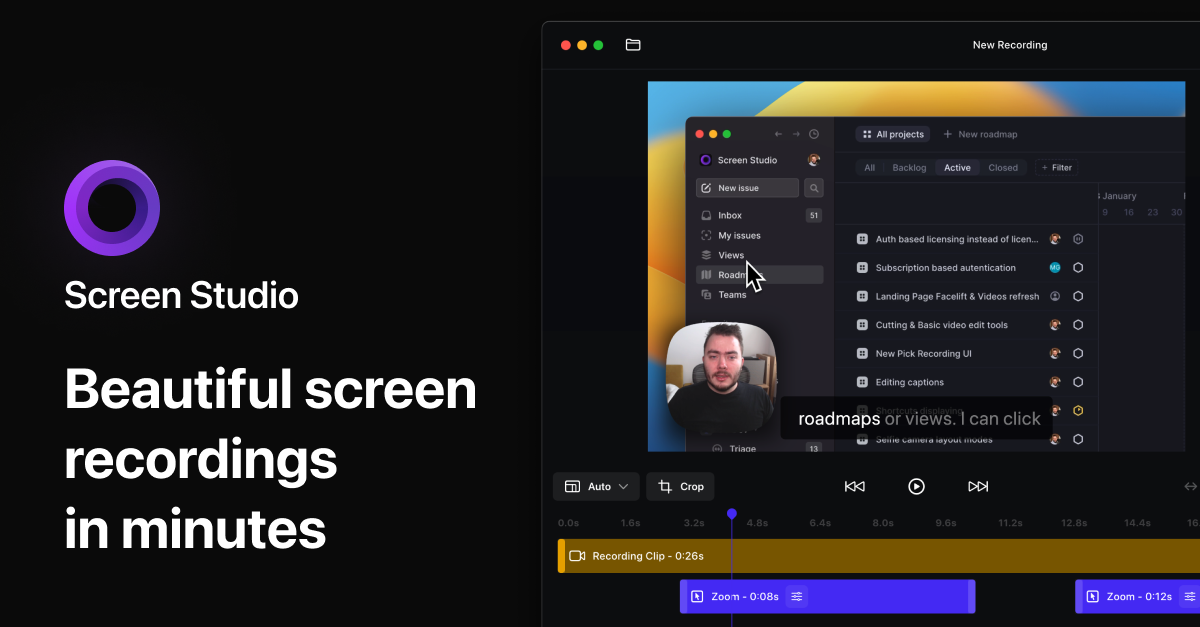
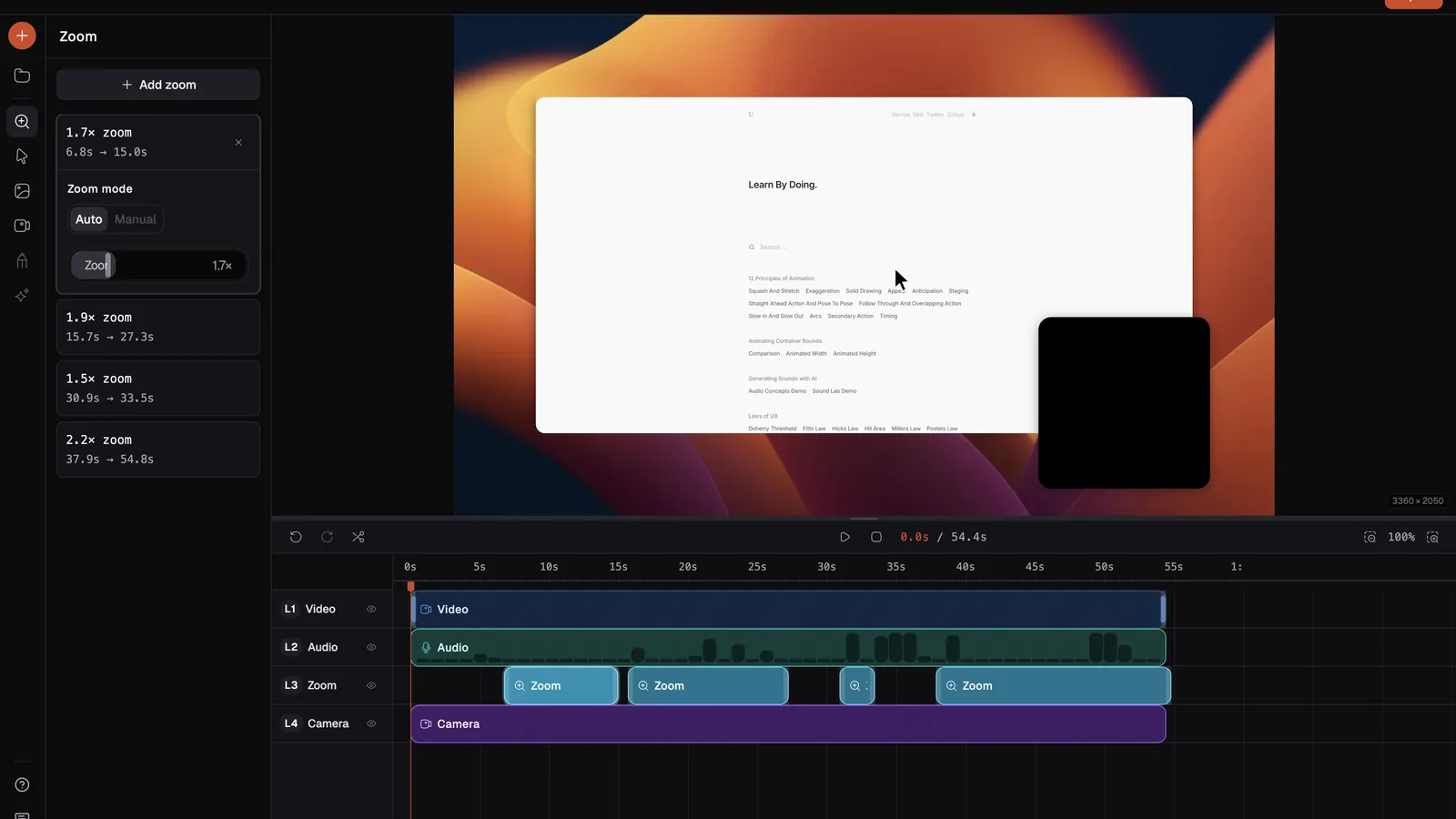
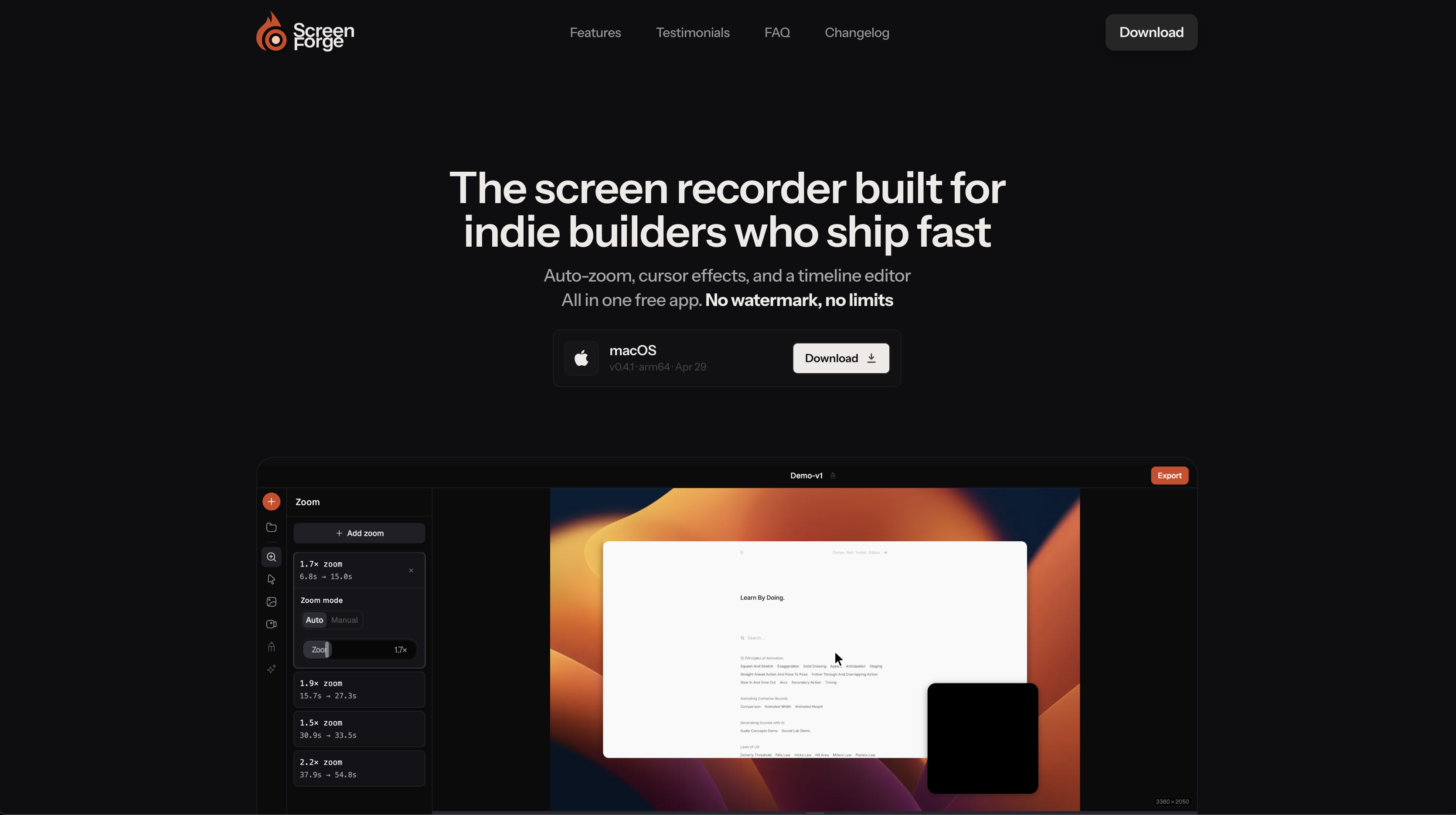
Screenforge is the pick if you want polished recordings without paying anything. It detects where your cursor activity is densest and places zoom clips automatically on their own track, so you can move or delete them without touching the recording. You get cursor scaling, backgrounds, padding, rounded corners, a face cam, microphone recording, and a timeline editor. Exports go to MP4, MOV, or WebM at 24, 30, or 60 fps, processed locally, with no watermark. The developer says premium features are coming but the core experience will stay free. It is on macOS now, with Windows and Linux listed as coming soon.
Screenforge places automatic zooms on a separate track you can move or delete. Image: Screenforge
ScreenforgeFrom capture to clean videoVisit WebsiteScreenforge is a free screen recording software for macOS. It enables users to capture their screens, webcams, and audio while providing features like auto-zoom, cursor effects, and a timeline editor.
- Automatically detects cursor movement to apply zoom effects where needed.
- Records screen, webcam, and audio simultaneously without watermarks.
- Features a built-in timeline editor for non-destructive clip editing.
- Offers customizable backgrounds and cursor animations for professional presentations.
- Exports recordings in multiple formats, including MP4, MOV, and WebM.
Screenforge is a free screen recording software designed for macOS, offering features such as automatic zoom detection, cursor effects, and a built-in timeline editor. Users can record screens, webcams, and audio without watermarks or limitations.Visit Website
Creavit Studio: built for AI-assisted editing
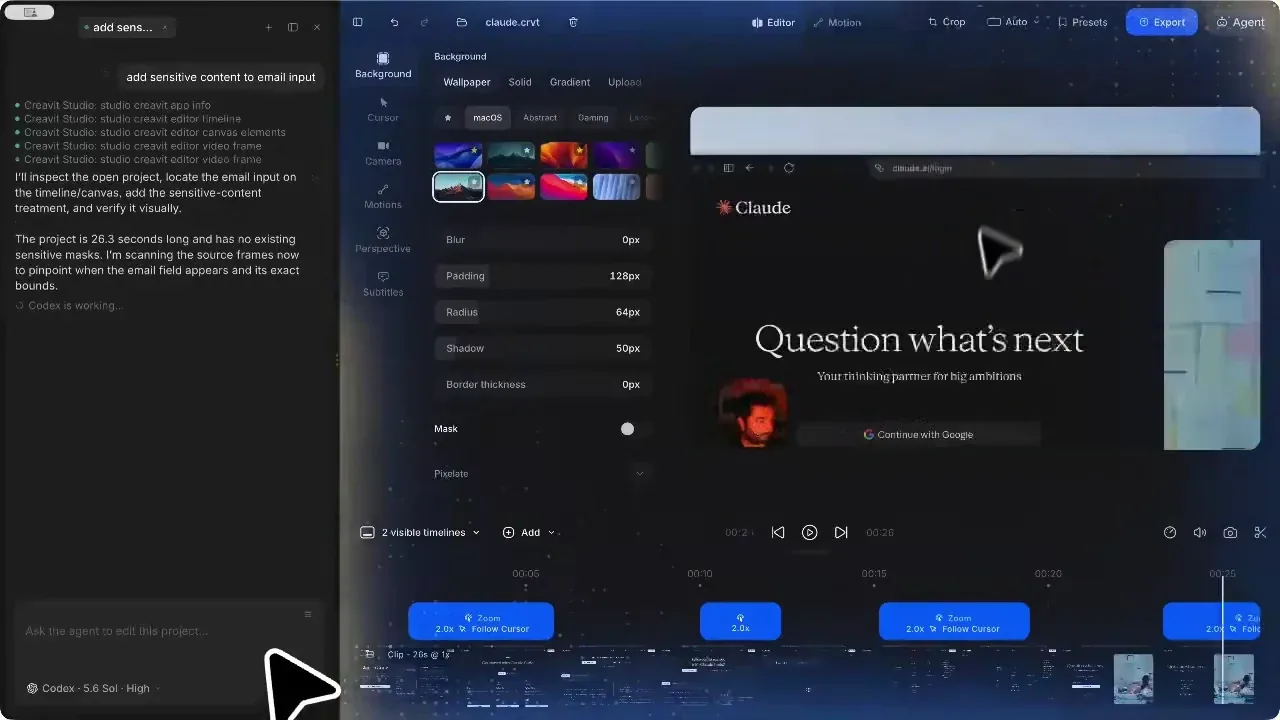
Creavit covers the usual polish (automatic and manual zooms, cursor styling, camera background removal, transcript-based editing, 4K exports at 60 fps, and even transparent exports), but its real hook is AI. A built-in Agent panel runs the Claude Code or Codex CLI already on your Mac, and an open MCP server lets tools like Claude Code, Codex, or Cursor drive the app: describe a website flow and your agent can record it, then add zooms, blur, and a background. It also records an iPhone over USB and keeps projects in a visual library. You can try it without signing up, with 5 free exports, and a lifetime plan covers up to five Macs.
Creavit Studio's Agent panel lets Codex or Claude Code edit the open project for you. Image: Creavit Studio
CreavitTurn recordings into polished videosVisit WebsiteCreavit Studio is a macOS software tool for screen recording and editing. It allows users to capture their screen and enhance the recordings with features such as zooms, camera layouts, backgrounds, and cursor effects.
- Record your screen and edit in a single application for streamlined workflow.
- Add smooth zooms, camera layouts, and backgrounds to enhance video quality.
- Apply cursor effects for clearer demonstrations and tutorials.
- Export videos in high quality for professional presentations and social media.
- Designed for product demos, tutorials, and customer support videos.
Creavit Studio provides a comprehensive solution for users needing to create and edit screen recordings on macOS. Its integrated features facilitate the production of high-quality videos suitable for various applications, including tutorials and product demonstrations. By streamlining the recording and editing process, it enhances user efficiency and supports clear communication in visual content.Visit Website
Tella: for teams and Windows users
Tella is the option if not everyone on your team uses a Mac. It records on Mac, Windows, or in the browser, with a Chrome extension too. Screen and camera are recorded as separate tracks, so you can switch between side-by-side, picture-in-picture, and full-screen layouts after recording. It adds zooms, subtitles, and backgrounds automatically, offers AI cleanup and transcript editing, shares instantly as a link, and exports up to 4K. Every account starts with a 7-day trial of Pro, and paid plans start at $13 a month.
TellaThe all-in-one screen recorder.Visit WebsiteTella is the ultimate solution for recording, editing, and sharing videos for your business. It enables seamless creation of video messages, demos, and tutorials. With intuitive editing tools designed for everyone, not just video experts, you can easily manage audio enhancements, remove filler words, and even utilize an embedded teleprompter for script support. Tella also offers instant uploads so your video is ready immediately after recording. Designed to work on macOS, web, and with a Chrome extension, Tella simplifies video creation, making it accessible for teams looking to collaborate and innovate using video content.Visit Website
For live streaming and on-camera presenting
Videorc: record and multistream for free
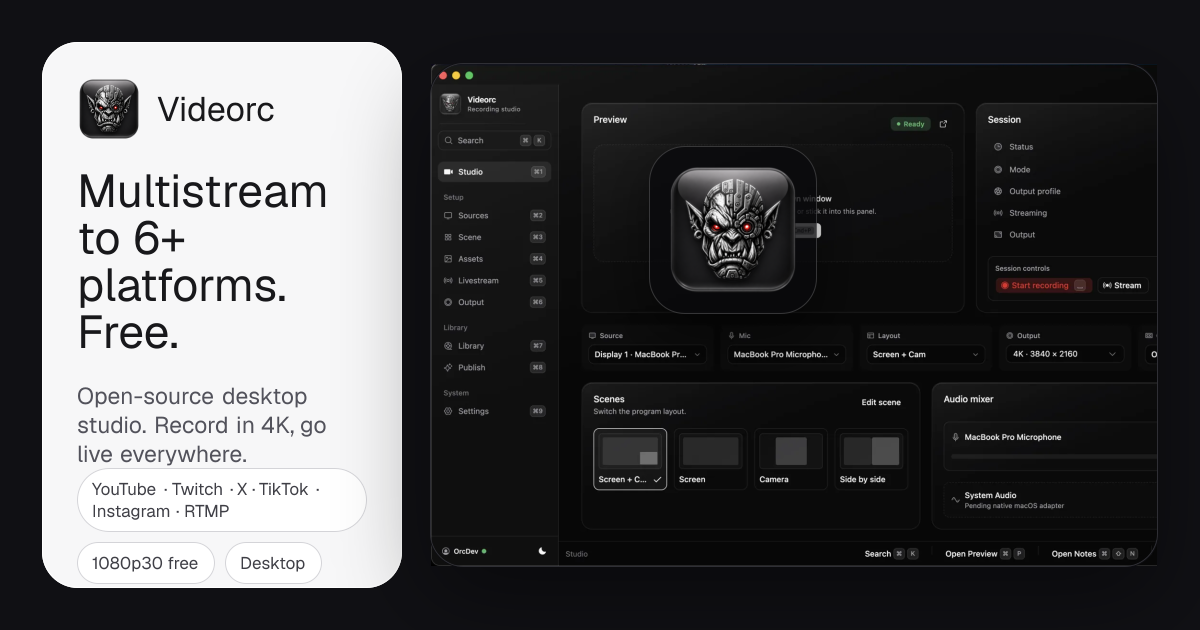
Videorc is a different kind of tool: an open-source desktop studio for recording and live streaming. The free version records your screen, camera, and microphone locally at up to 4K and 60 fps on the macOS beta, captures system audio, and can stream to YouTube, Twitch, X, TikTok, Instagram, or any RTMP server, to 6+ destinations at once at 1080p30. A paid Premium plan adds higher-quality single-destination streaming, live captions, the Orcle AI assistant, and Clean cut, which removes silences and retakes automatically. The Mac version is still a beta and several Premium features are early alpha, so test it before anything important. You need to sign in to download it.
VideorcRecord screens and stream across platformsVisit WebsiteVideorc is an open-source desktop studio for screen, camera, and microphone recording and live streaming. The Mac version is currently in beta.
- Record locally at up to 4K on supported Mac builds.
- Arrange capture sources and preview your broadcast.
- Stream to multiple destinations at 1080p30 on the free plan.
- Keep recordings in a local library.
- Upgrade for higher-quality single-destination streaming and AI publishing tools.
Free studio with a paid Premium subscription. Live captions and the Orcle chat assistant are early-stage features; support varies by build and platform.Visit Website
FaceScreen: add your face to any recorder
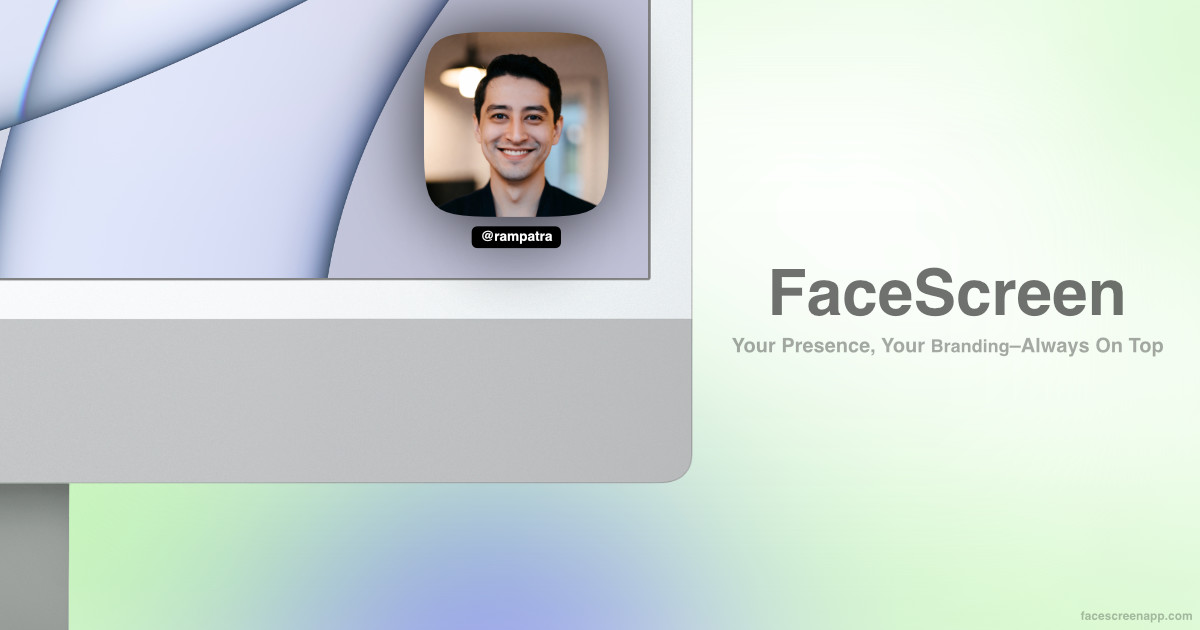
FaceScreen is not a recorder, but it solves a common gap. It floats a customizable camera view above all your windows, with text overlays for your name, website, or social handle, and it can turn your screen into a soft ring light. Because it sits on top of everything, it works with whichever recorder you use, including the built-in macOS tools. It is a one-time purchase with lifetime updates and needs macOS 15 or later. There are also standalone iPhone and iPad versions for iOS and iPadOS 26.
FaceScreenAdd camera and text screen overlaysVisit WebsiteFaceScreen adds a floating camera view and text overlays to your screen for presentations, recordings, and calls.
- Show your face above other windows.
- Add your name, website, or social handle.
- Customize camera shape, size, filters, and overlay styling.
- Control the Mac app with keyboard shortcuts.
- Use the Mac ring light or mobile Picture in Picture camera.
One-time purchase with lifetime updates. Requires macOS 15 or later, or iOS and iPadOS 26 or later.Visit Website
FAQ
Is CleanShot X or Screen Studio better?
It depends on what you make. CleanShot X is better for screenshots, annotation, OCR, and quick recordings, and its video editor now handles simple demos well. Screen Studio is better when the video is the finished product, thanks to transcript editing, automatic captions, voice cleanup, and iPhone recording. If you only buy one and record videos occasionally, buy CleanShot X.
Does CleanShot X have auto zoom like Screen Studio?
Yes. CleanShot X's video editor can add smart zooms that follow your cursor, and CleanShot 5.0 introduced Studio Mode for animated zooms with motion blur. Screen Studio's zooms are generated automatically from your clicks and sit alongside a deeper set of cursor and editing tools.
Is there a one-time purchase alternative to Screen Studio?
Yes. Screen Charm is a $79 lifetime purchase for up to three devices, CleanShot X Basic is $35 once, and Creavit Studio offers a lifetime plan. Screen Studio itself no longer sells one-time licenses to new buyers.
What is the best free screen recorder for Mac?
For simple recordings, the built-in Screenshot app (Shift, Command, 5) and QuickTime Player are free and already on your Mac. For polished results, Screenforge is free with no watermark, and TinyRec's free plan includes its full editor with a small watermark on exports. Videorc is free if you also want to stream.
Can I record my iPhone screen on a Mac?
Yes. Screen Studio, TinyRec, and Creavit Studio can all record a connected iPhone over USB, and Screen Studio and TinyRec wrap the recording in a matching device frame.
Which Mac screen recorder keeps recordings private?
Screen Studio, TinyRec, Screenforge, and Creavit Studio all say recording and processing happen locally on your Mac. CleanShot X's OCR runs on-device, and cloud upload is optional. Check each app's sharing settings before you send links.
Do I need a separate app to show my webcam?
Not usually. Most recorders here record your camera directly. FaceScreen is useful when you want a floating camera and name overlay that works the same across every app, including live calls and presentations.
Verdict
If you are choosing a single screen recorder for Mac, start with CleanShot X. It is the most useful capture app on the platform, it is a one-time purchase, and its video editor now covers more than quick clips. If polished video is part of your job, Screen Studio is still the most refined option, as long as you are fine with a subscription. If you are not, Screen Charm is the strongest pay-once alternative, and Screenforge and TinyRec prove you can get auto-zoom demos for free. For streaming, try Videorc, and add FaceScreen whenever you want your face on screen.
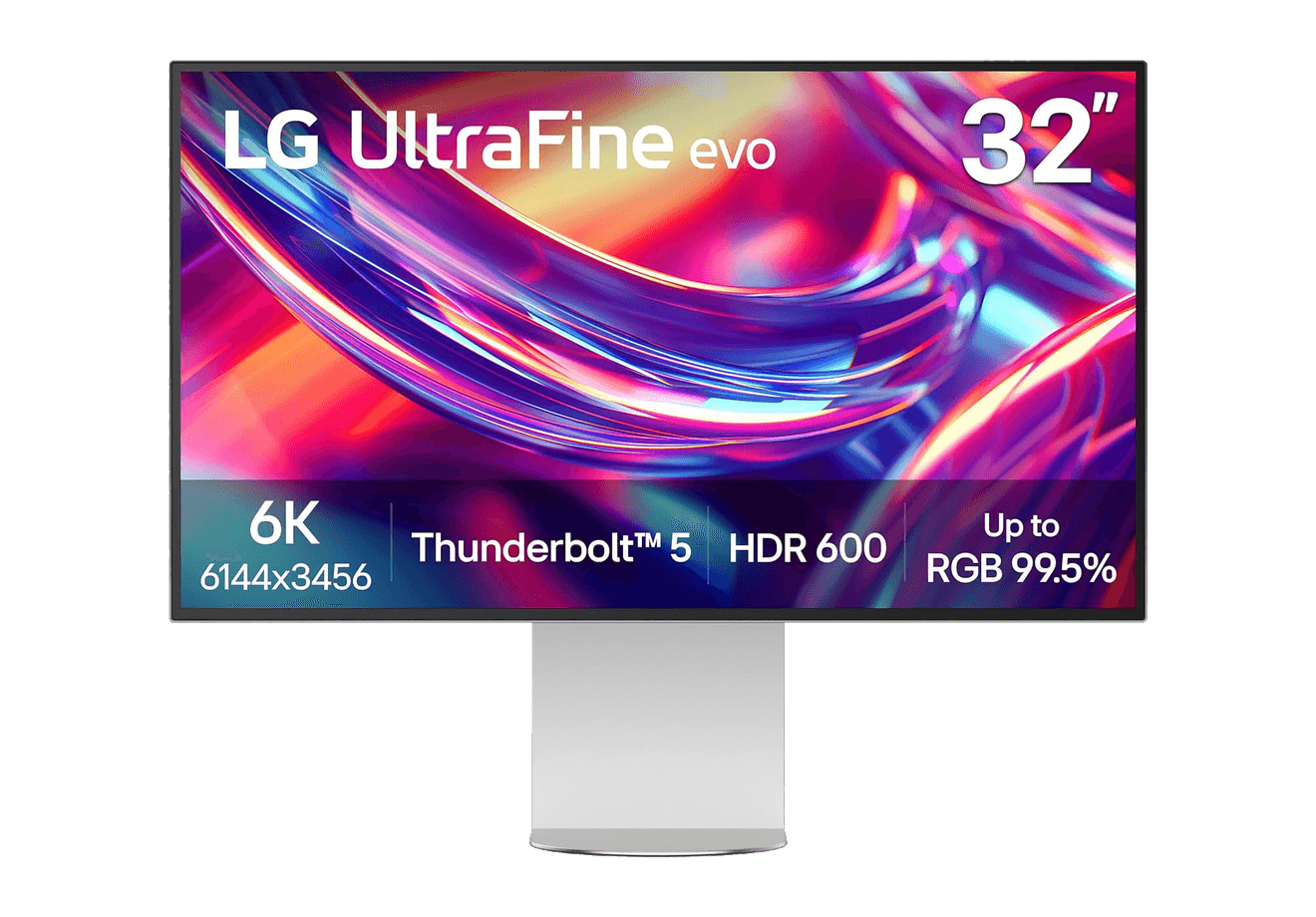
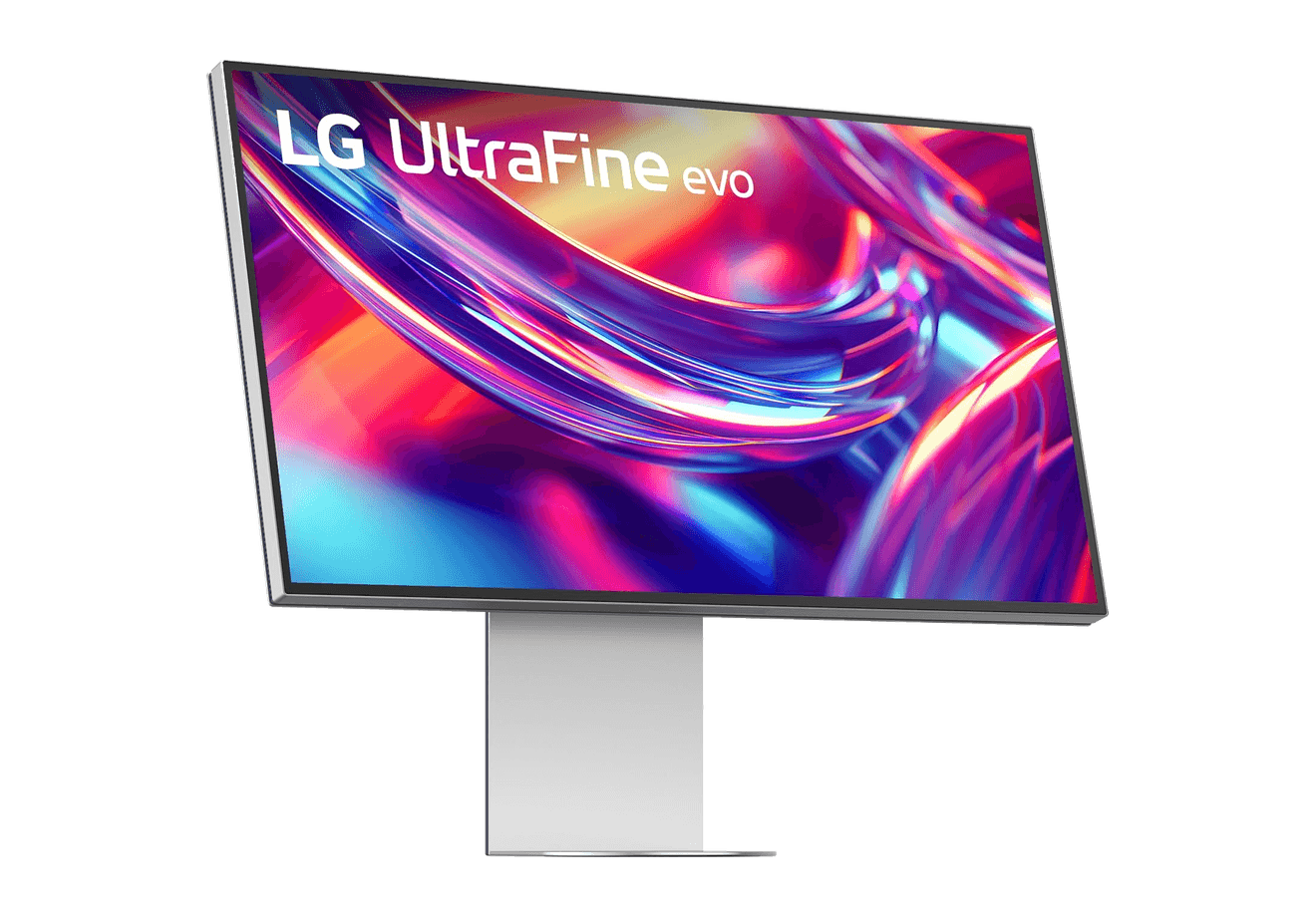
A 32-inch 6K Thunderbolt 5 display built for Mac creators.
WorkspaceDisplays
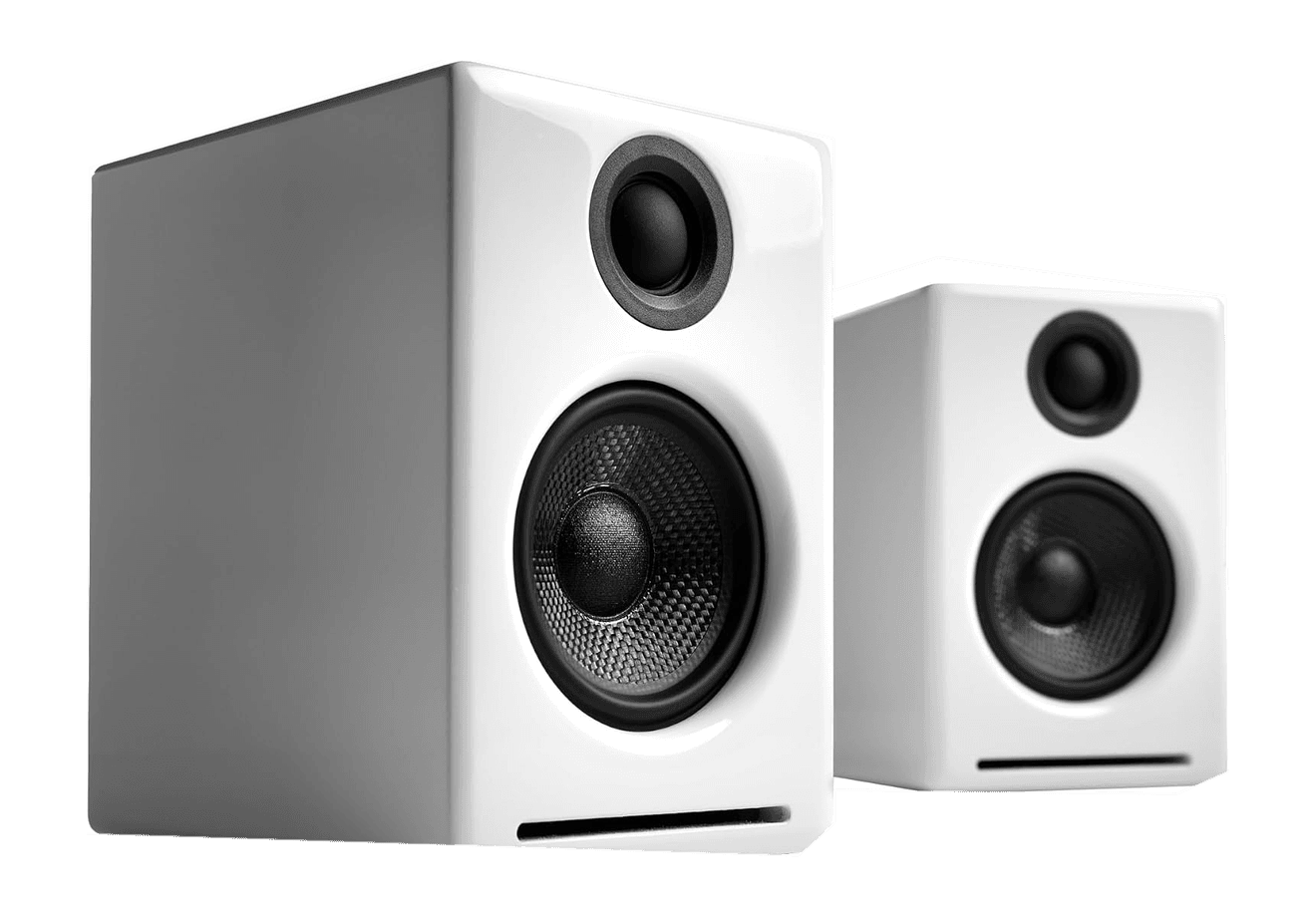
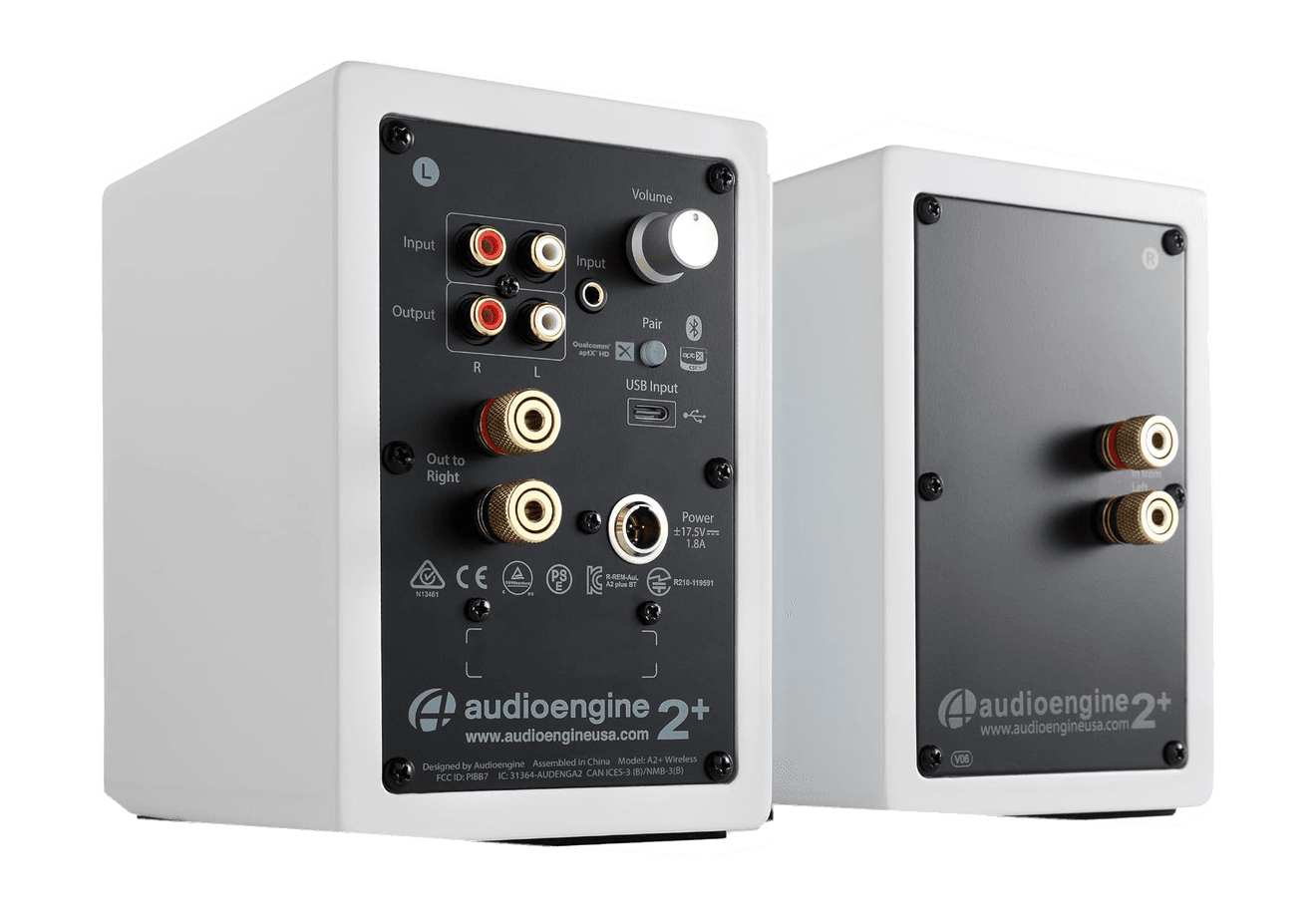
A2+ Wireless Speakers
Compact wireless desktop speakers with 24-bit audio for Mac.
HardwareAudioiOS & macOS
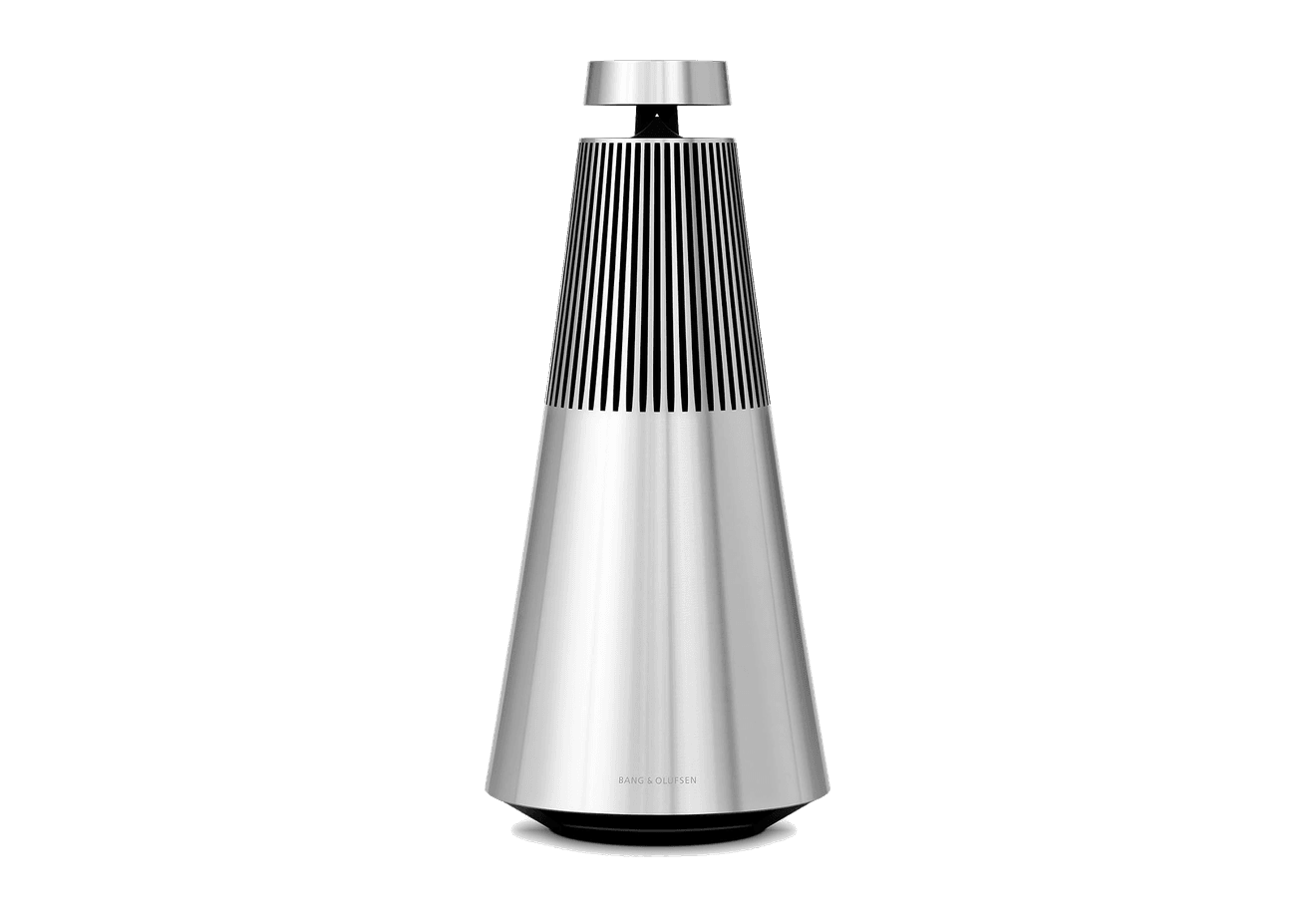
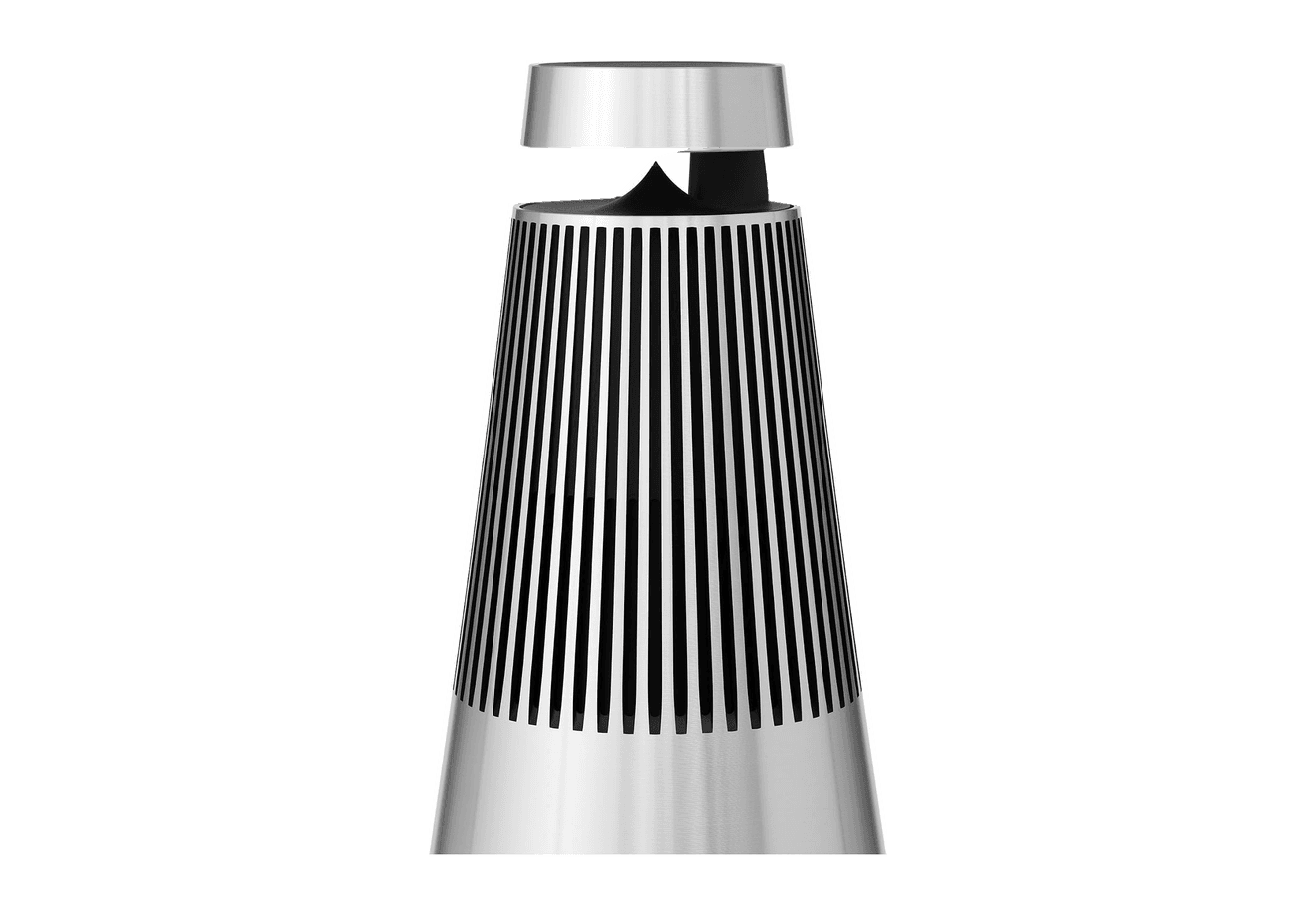
Beosound 2
A sculptural 360-degree wireless speaker with AirPlay 2.
HardwareAudioiOS & macOS
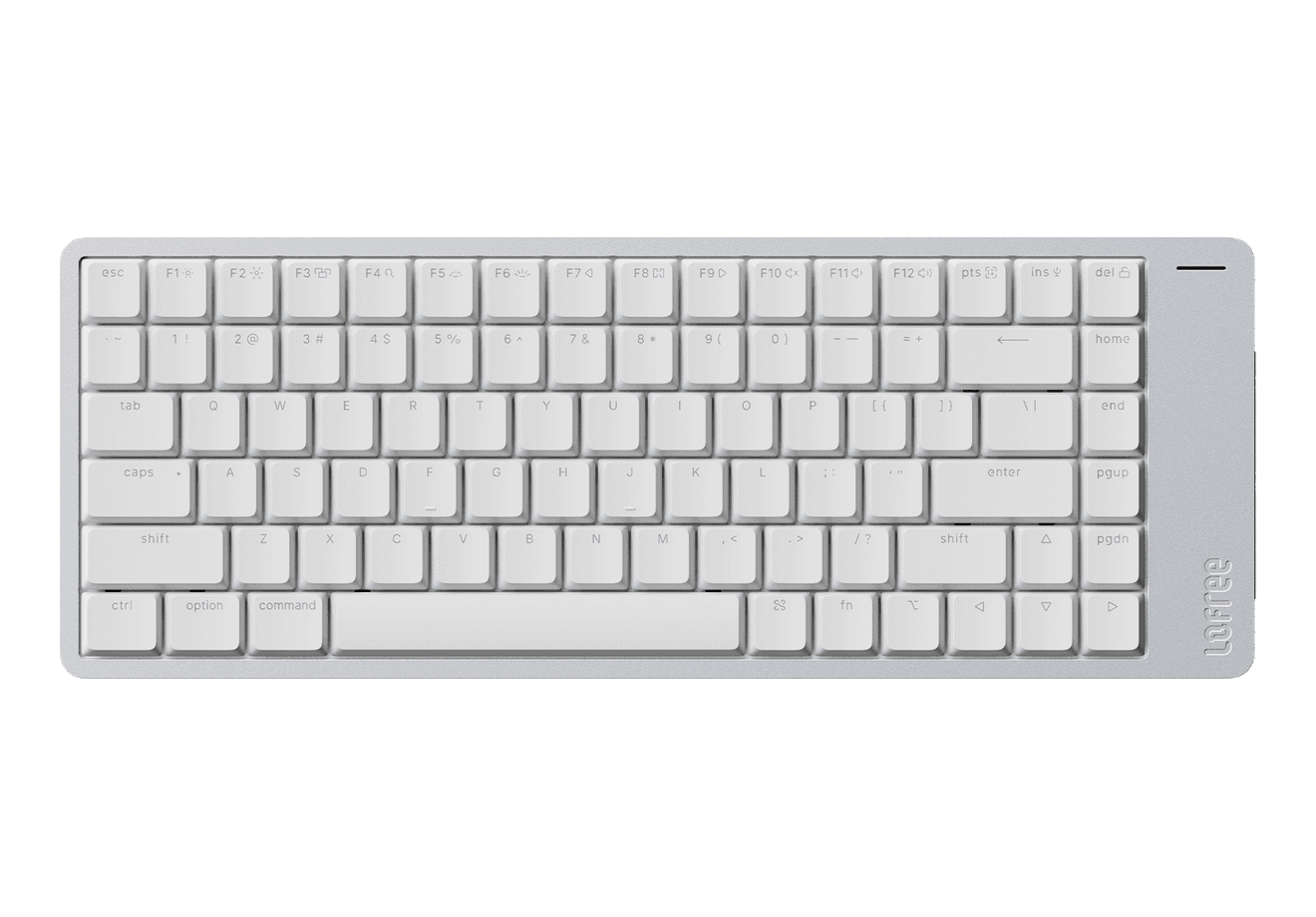
Flow 2
A CNC aluminum low-profile keyboard with cloud-soft switches and VIA.
HardwareKeyboards & MiceiOS & macOS
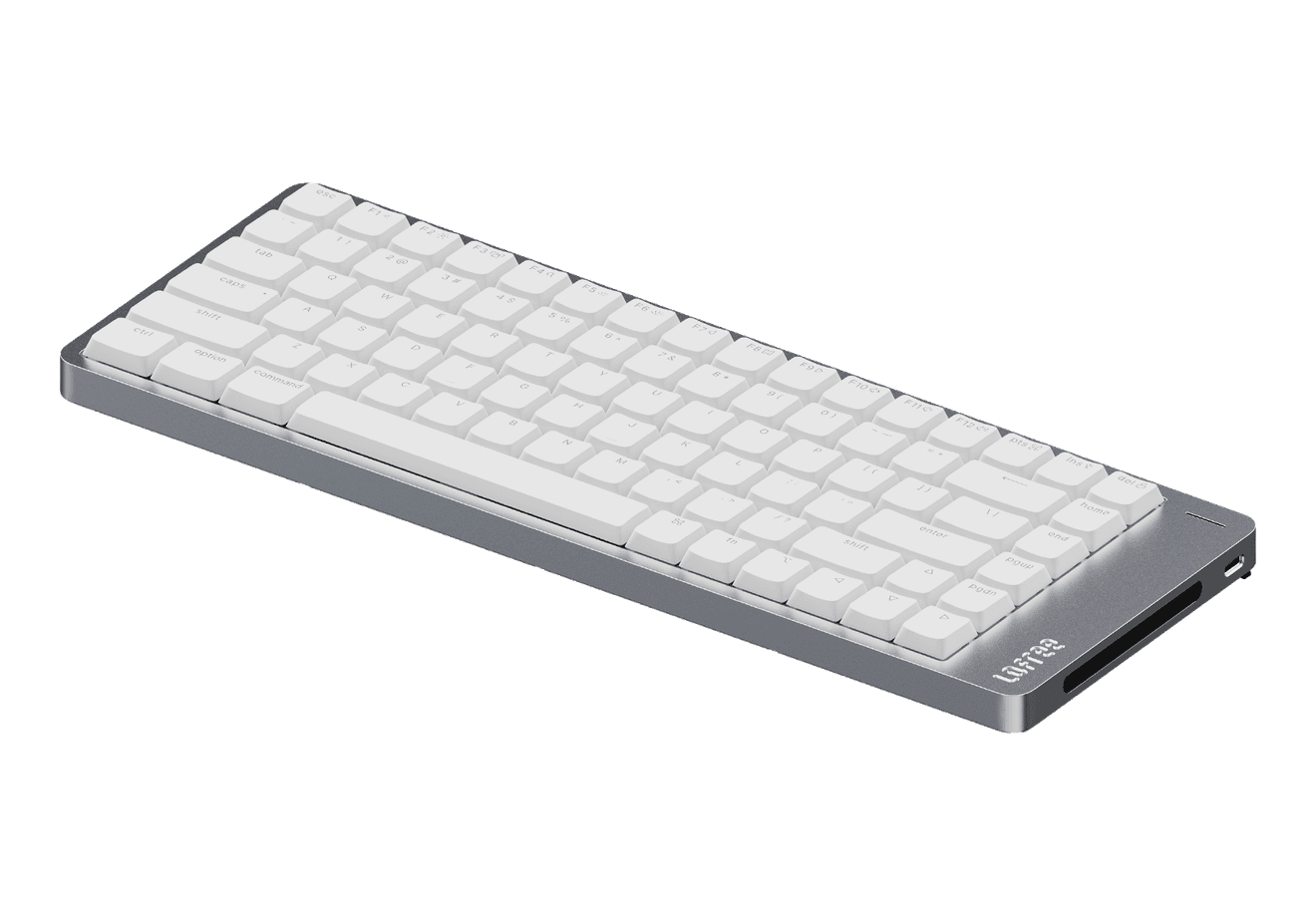
Flow Lite84
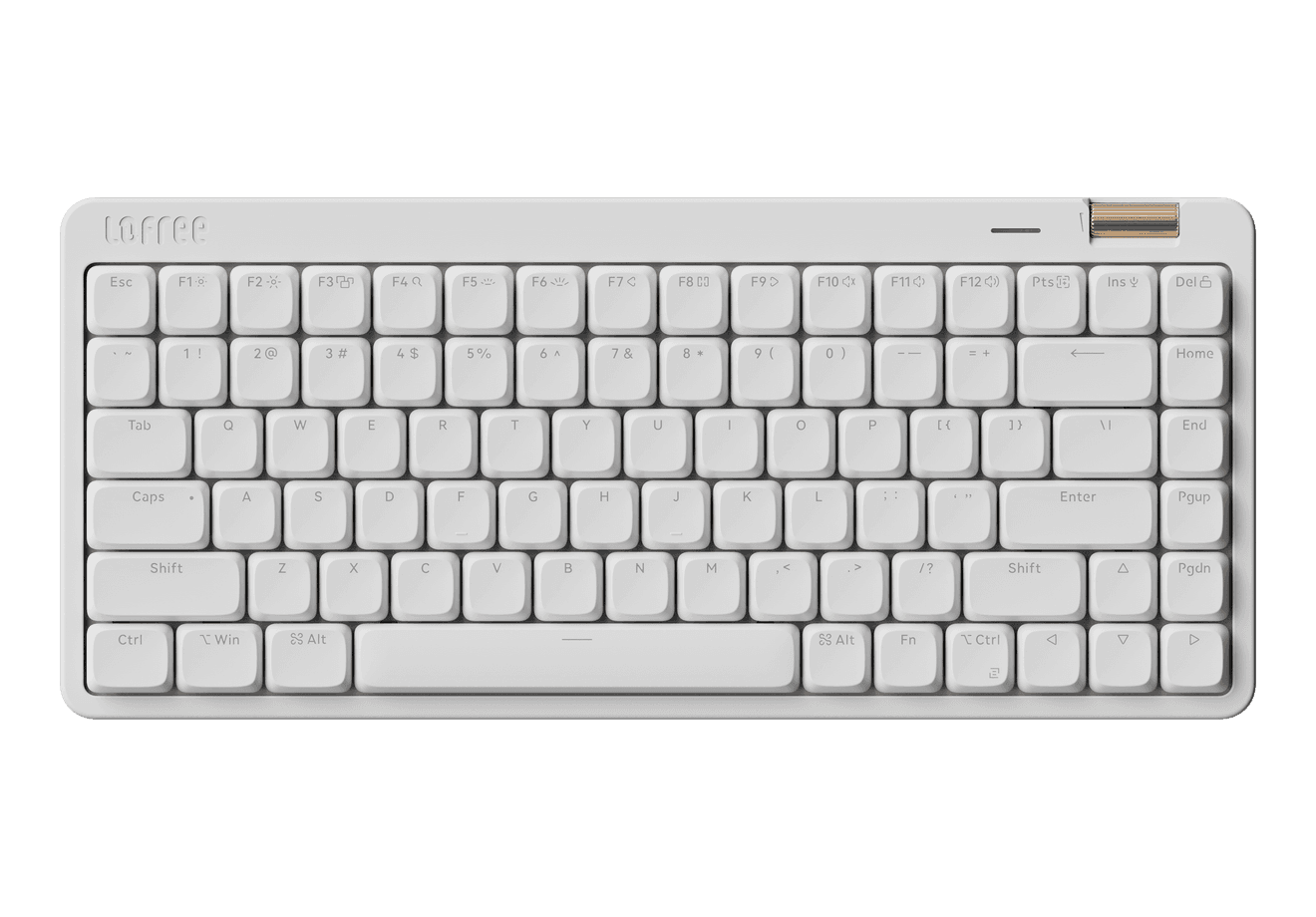
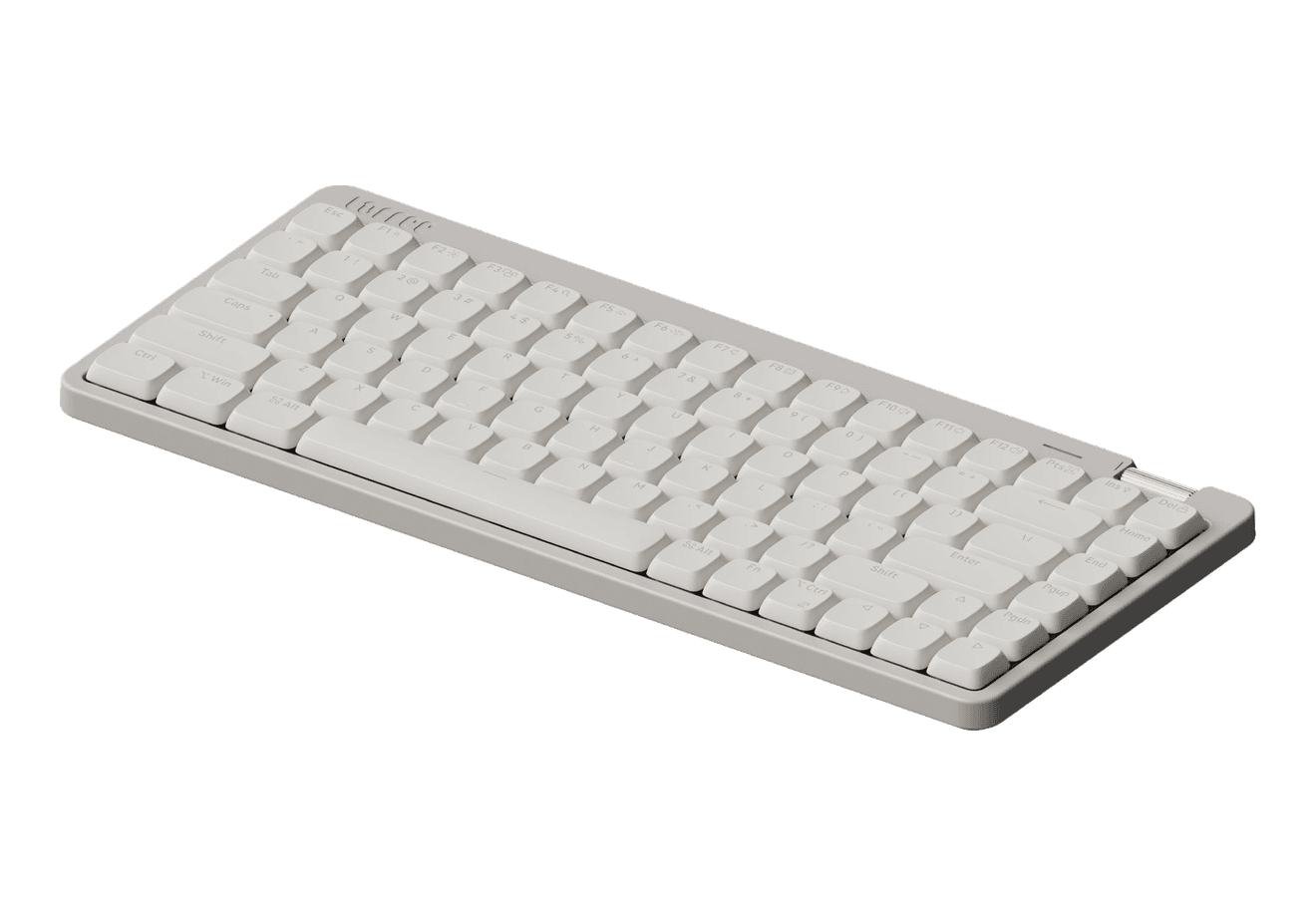
A slim tri-mode mechanical keyboard built for comfortable Mac typing.
HardwareKeyboards & MiceiOS & macOS
Agent Caffeine
Keep your Mac awake for agents
One-time
Agent Caffeine is a Mac menu bar utility that prevents sleep while AI coding agents are working, then allows the Mac to sleep when work stops.
- Track activity from agents including Claude Code, Codex, and Cursor.
- Keep the Mac awake with the lid closed during active work.
- Allow a configurable grace period when an agent waits for input.
- Send notifications when agents need attention or finish.
- Pause sleep prevention or stay reachable for a set duration.
Closed-lid operation on battery requires an approved helper. Battery and temperature safeguards can release sleep prevention. Includes a seven-day trial, followed by a one-time purchase with lifetime updates.
SoftwareUtilitiesmacOS
Q15 Max
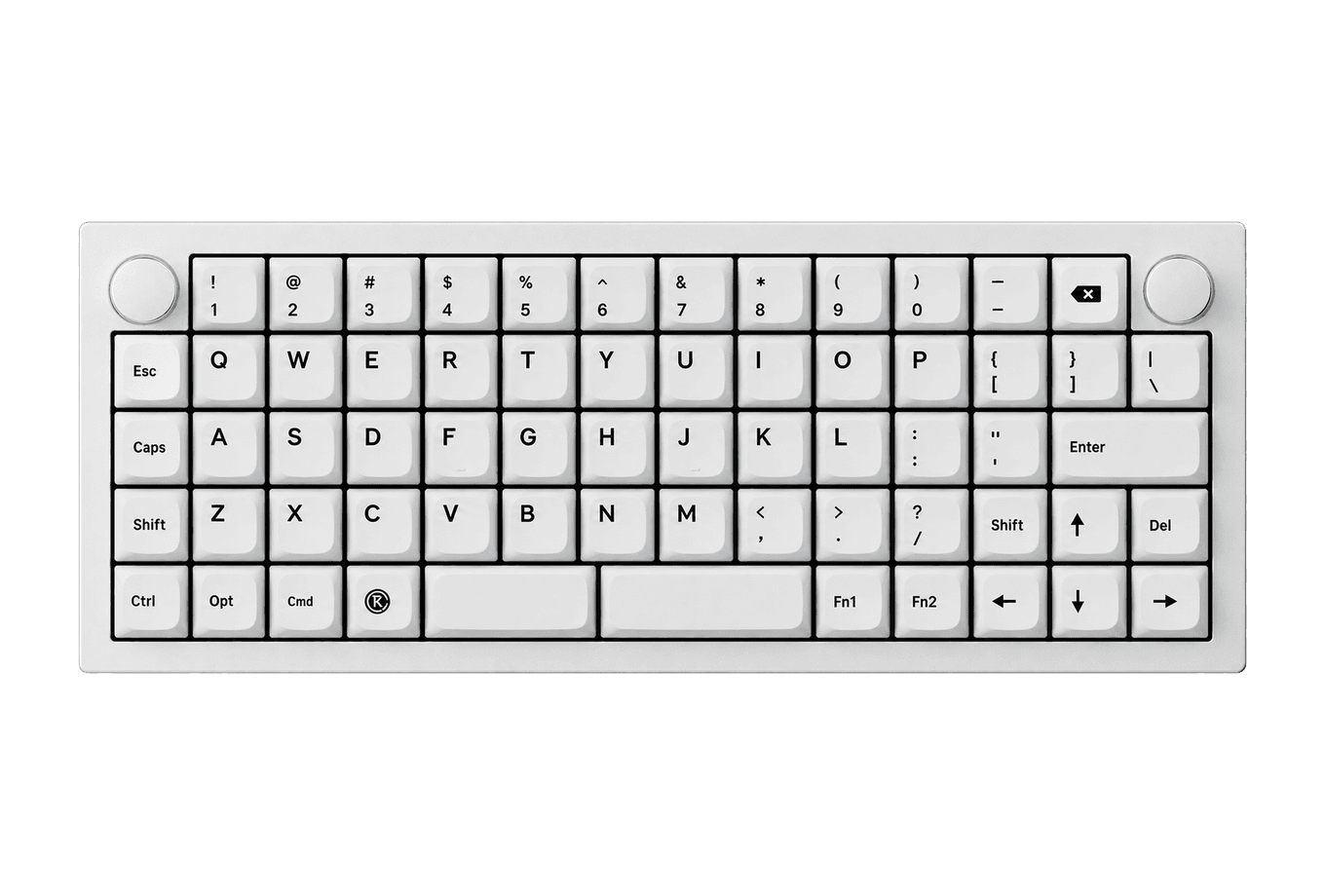
A premium wireless ortholinear keyboard for Mac.
HardwareKeyboards & MicemacOS
K3 Ultra-slim
An ultra-slim 75% mechanical keyboard built for Mac.
HardwareKeyboards & MiceiOS & macOS
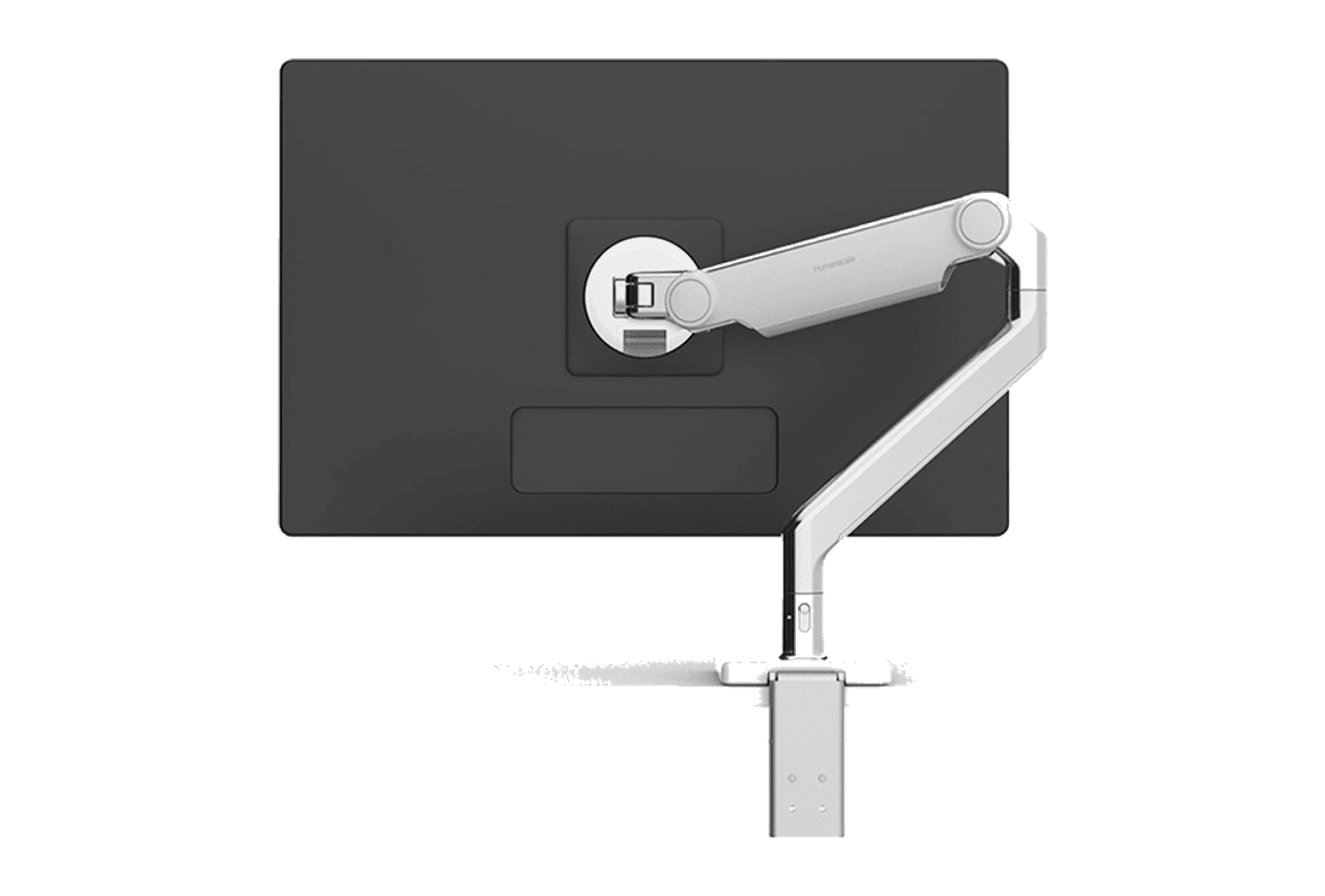
M2.1 Monitor Arm
A slim, adjustable monitor arm for a cleaner ergonomic desk.
 Dudu
Dudu