Mac Keyboard Shortcuts for Windows Users (Cheat Sheet) | Macfolio
Mac Keyboard Shortcuts for Windows Users: Ctrl to Command Cheat Sheet
Swap Ctrl for Command and most Windows shortcuts work on a Mac. This cheat sheet covers the ones that do not: Alt-F4, Alt-Tab, Print Screen, Home and End, rename, and file cut.
On a Mac, swap Ctrl for Command and most Windows shortcuts just work: Command-C copies, Command-V pastes, Command-Z undoes, Command-F finds. The exceptions are the ones that trip people up in week one: Alt-F4, Alt-Tab, Ctrl+Alt+Delete, Print Screen, Home and End, F2 rename, and cutting files in Finder. This cheat sheet maps each one to its Mac equivalent, checked against Apple Support.
If you also want the apps that fill the gaps macOS leaves, start with our guide to the best Mac apps for Windows switchers. Everything below works on a stock Mac with no installs.
What is the Mac equivalent of Ctrl, Alt, and the Windows key?
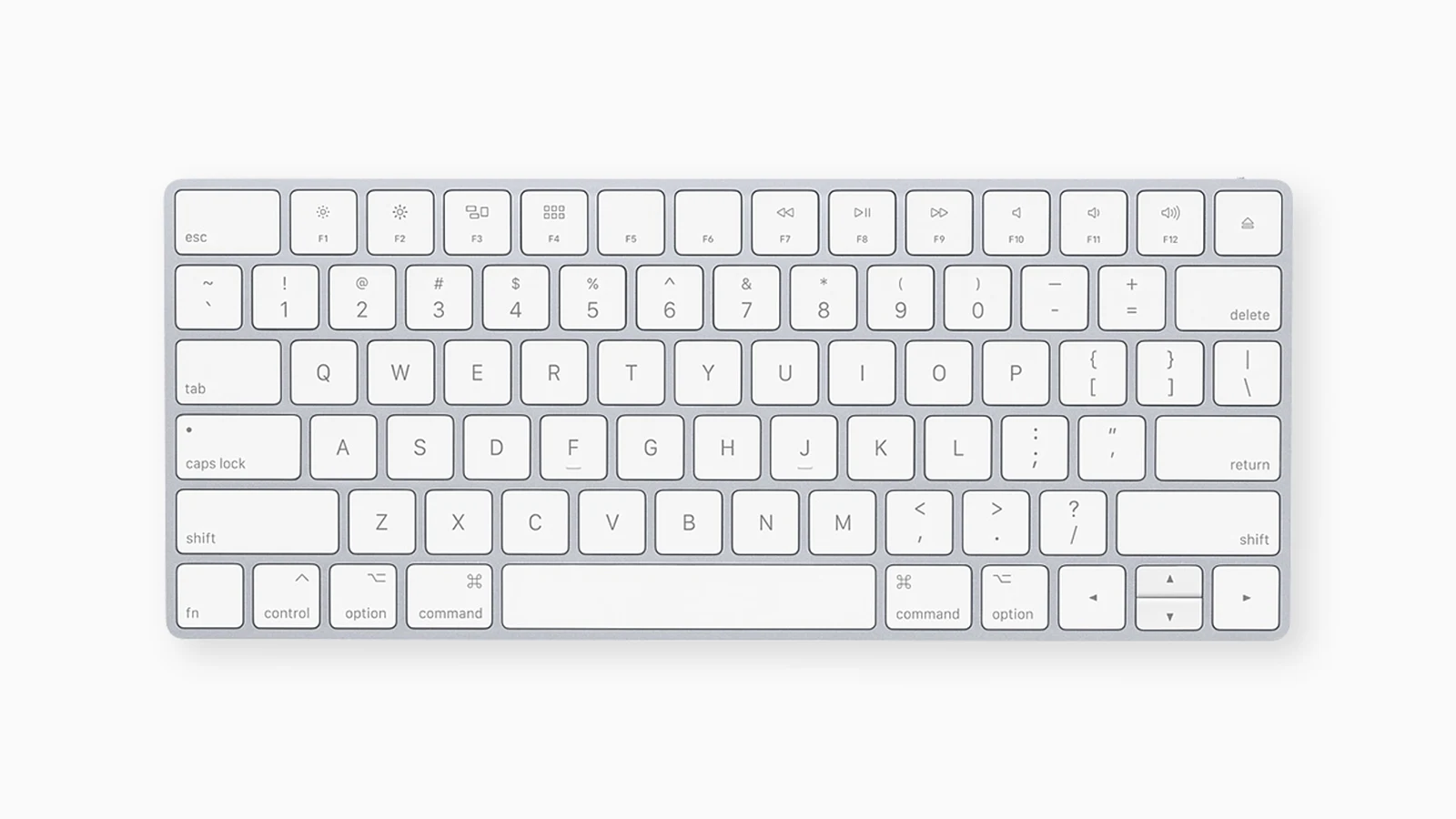
Command (⌘) takes the place of Ctrl in almost every shortcut. Option (⌥) is the Mac's Alt, and Control (⌃) is a separate key used for system shortcuts and a few text edits. On a Windows keyboard plugged into a Mac, the Windows key usually acts as Command and Alt acts as Option, and you can change that per keyboard in System Settings.
The Mac modifier keys: Control, Option, and Command. Image: Apple
Windows to Mac keyboard shortcuts cheat sheet: the basics
Shotbase is a comprehensive tool designed to capture and manage all your screen-based content effortlessly. With features like stunning screenshot capabilities, recording options that include cinematic effects, and an intuitive organizational structure powered by local AI, you can easily keep your multimedia assets organized and accessible. Shotbase not only allows you to capture specific areas, windows, or full screens on your Mac but also enables you to edit and enhance your captures with backgrounds, frames, and annotations. The integrated AI ensures your captures are automatically named and tagged for easy searching, making it an excellent choice for anyone looking to enhance their productivity and creativity in one seamless workspace.
SoftwareCreativemacOS
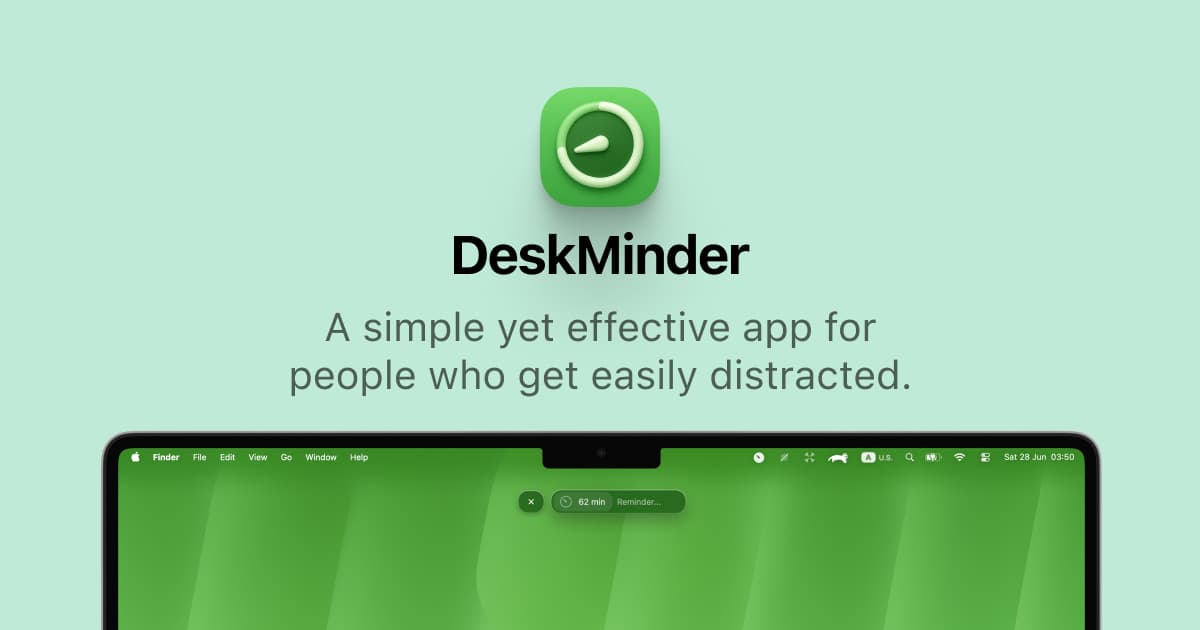
DeskMinder
For Easily Distracted Minds
Freemium
DeskMinder is a productivity software application designed for Mac users who struggle with distractions. It provides a straightforward interface for creating desktop pop-up reminders and tasks, helping users manage urgent to-dos, short breaks, and fleeting ideas. With features like full-screen notifications and Apple Reminders integration, DeskMinder aims to enhance focus and time management for i
- With features like easy-to-create desktop pop-ups for reminders and tasks, it simplifies the process of staying on top of urgent to-dos, short breaks, or fleeting ideas.
- Users can benefit from full-screen notifications, Apple Reminders integration, and flexible widget placement, making it ideal for anyone requiring a little extra help to maintain focus.
- The app includes additional shortcuts for quick reminder setups and customizable widget options, along with a history tracking feature to monitor daily progress.
Designed specifically for Mac users, DeskMinder aims to facilitate better time management and productivity for those with attention challenges, providing a seamless user experience without unnecessary complexity.
SoftwareProductivitymacOS
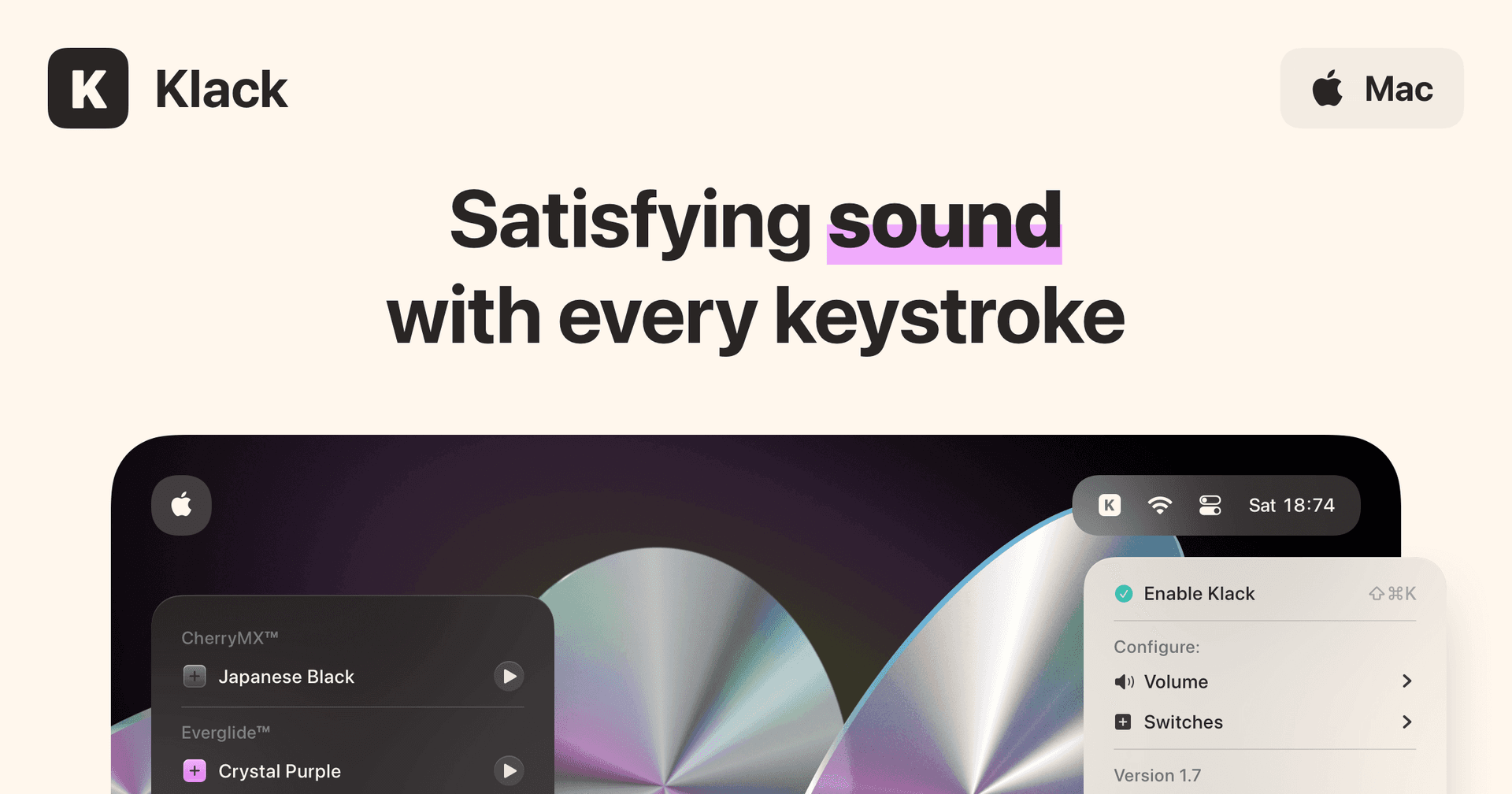
Klack
Satisfying sound with every keystroke
Paid
Klack is a macOS application designed to enhance the typing experience through high-fidelity sound for each keystroke. It provides features such as immersive spatial audio, instant feedback, and customizable sound options, making it suitable for writers, developers, and anyone who values an engaging typing environment. The app is easily accessible from the menubar and offers extensive configuratio
- Provides immersive spatial audio for enhanced typing feedback.
- Allows customization of keystroke sounds, pitch variations, and volume settings.
- Features a menubar interface for quick access to configuration options.
- Supports instant feedback with each keystroke for a more engaging experience.
- Designed for writers and developers seeking auditory feedback while typing.
Klack enhances the typing experience on Mac by providing high-fidelity sound for each keystroke.
SoftwaremacOS
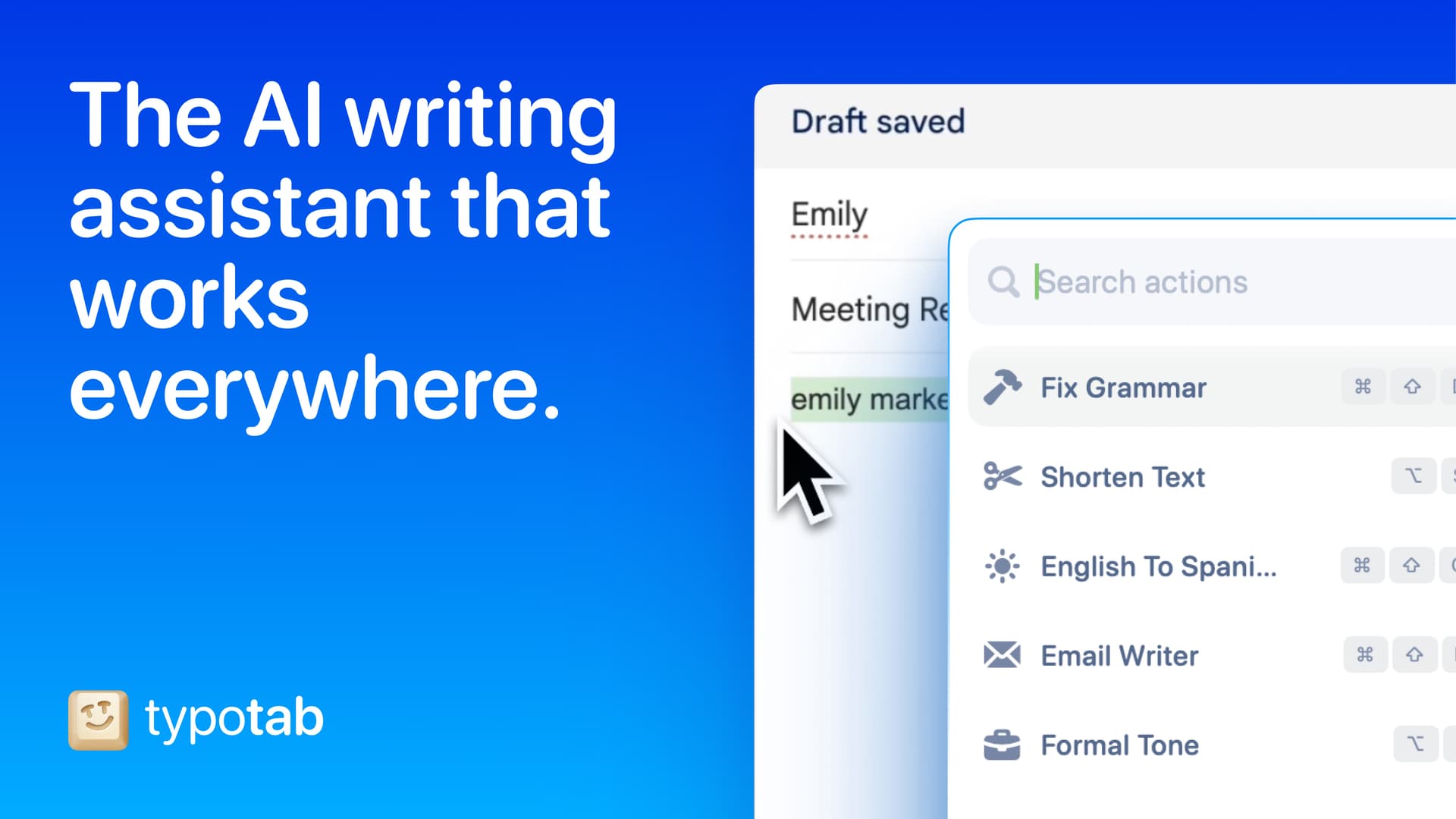
TypoTab
TypoTab, the ultimate AI writing assistant for
Paid
TypoTab is a macOS application that functions as an AI-driven writing assistant. It enhances writing efficiency by providing tools for grammar correction, text rephrasing, and content generation, all accessible from the menu bar without needing to switch applications. This tool is designed for writers, students, and professionals looking to streamline their writing process and improve productivity
- Provides grammar correction and text rephrasing directly from the menu bar.
- Allows text refinement in any application without switching contexts.
- Offers customizable actions to meet individual writing needs.
- Streamlines repetitive writing tasks for improved efficiency.
- Supports a wide range of applications, enhancing workflow across platforms.
TypoTab is a macOS application that enhances writing efficiency by providing grammar correction, text rephrasing, and content generation directly from the menu bar. It allows users to refine text in any application without switching contexts, offering customizable actions to suit individual writing needs.
SoftwareProductivitymacOS
MAO
Coordinate coding agents on a shared canvas
One-time
MAO is a desktop workspace for developers who use more than one coding agent. Connect agents on a canvas to hand work from a planner to a builder or reviewer. Each agent uses its own CLI and your existing provider login.
- Give parallel tasks separate Git worktrees so agents can edit different branches of the same project.
- Send one prompt to selected agents and see which sessions need input or approval.
- Connect a browser to an agent so it can test a form and capture the result.
- Schedule recurring prompts, or save a team’s roles and connections for another project.
- Open a remote workspace over SSH to run agents on a Linux server from your desktop.
Runs on Apple silicon and Intel Macs, Windows, and Linux. The seven-day trial covers one project. A one-time license costs $20 in most countries and unlocks unlimited projects, saved teams, and remote workspaces.
SoftwareDevelopmentmacOS
Dabbit
Pick screen colors and turn them into Figma palettes
One-time
Dabbit is a Mac color picker for designers and developers. Sample a pixel on any display, save it to a palette, and use the same colors in your code and Figma files.
- Copy a color as hex, RGB, OKLCH, or SwiftUI. Set a preferred format for each app.
- Revisit earlier picks by time and source app, or keep a floating palette above your work.
- Build an 11-step OKLCH shade scale from one color and check text contrast with WCAG and APCA.
- Import colors from an image, website CSS, or a tokens file. Export palettes for Tailwind or SwiftUI.
- Send a palette to Figma as variables, color styles, or a labeled swatch sheet using the included plugin.
Requires an Apple silicon Mac running macOS 14 or later. A $19 single-Mac license includes 12 months of updates; the purchased version keeps working afterward. A five-day trial includes all features.
SoftwareDesignmacOS
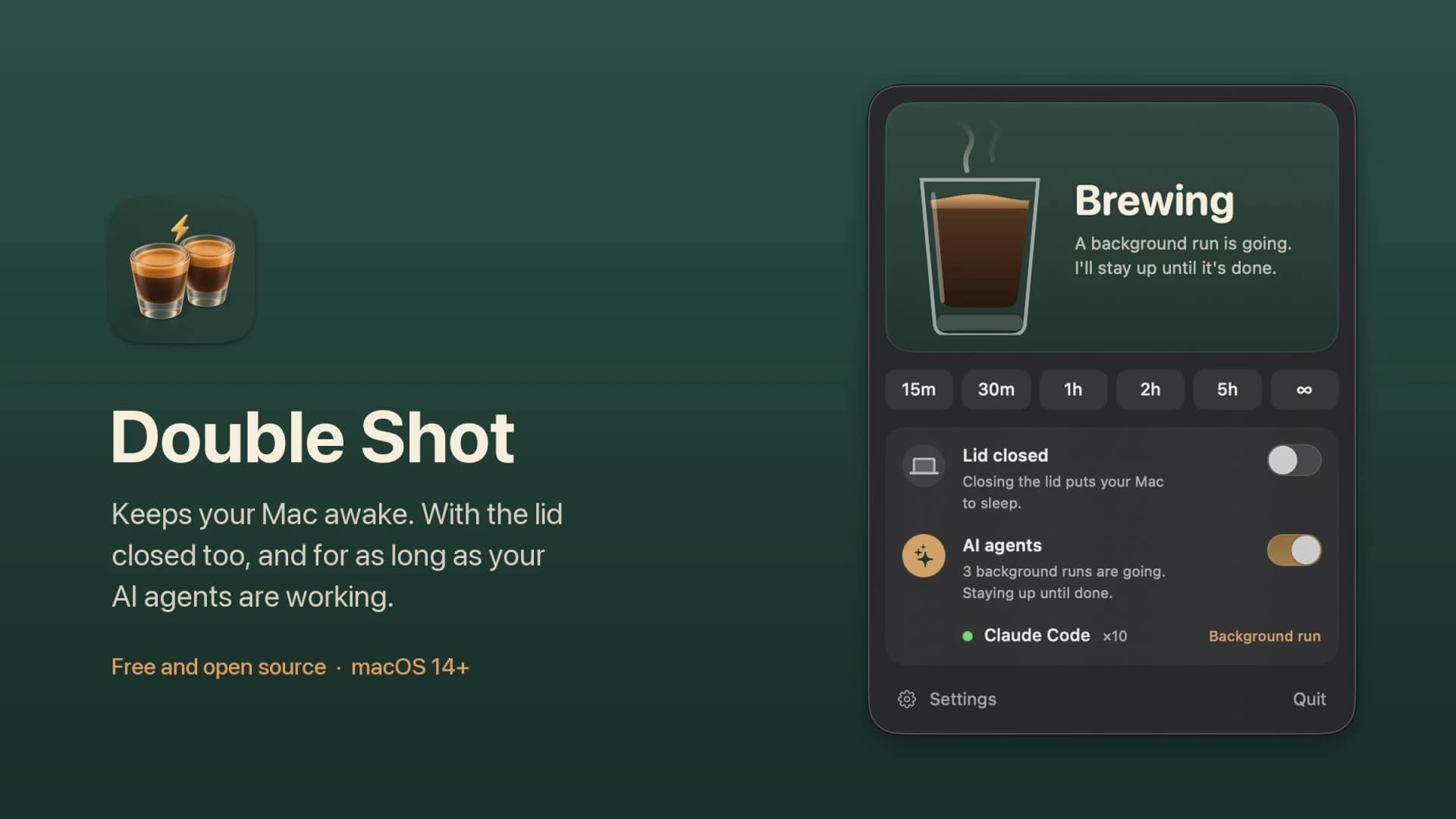
Double Shot
Free open-source Mac app that keeps your Mac awake for AI agents
Free
Double Shot is a free, open-source macOS menu bar app that keeps your Mac awake, with the lid closed too, and for as long as your AI coding agents are working.
- Detects when Claude Code, Codex, Gemini CLI, Cursor Agent, Copilot CLI, OpenCode, Amp or Aider are actually working, not just open.
- Lid closed mode uses pmset disablesleep, with a one-time password prompt that adds a sudoers rule.
- Stops at the first warm level, turns the dark display off, switches on Low Power Mode on battery, and lets go when the battery gets low.
- Quick picks from 15 minutes to 5 hours, or until you turn it off.
- MIT licensed. Install with Homebrew or download from GitHub. Not notarized by Apple yet, and it needs macOS 14 or later.
Double Shot suits anyone who starts a long agent run, closes the lid and expects the work to carry on.
SoftwareUtilitiesmacOS
Peek
Glance at websites and widgets with a shortcut
Free
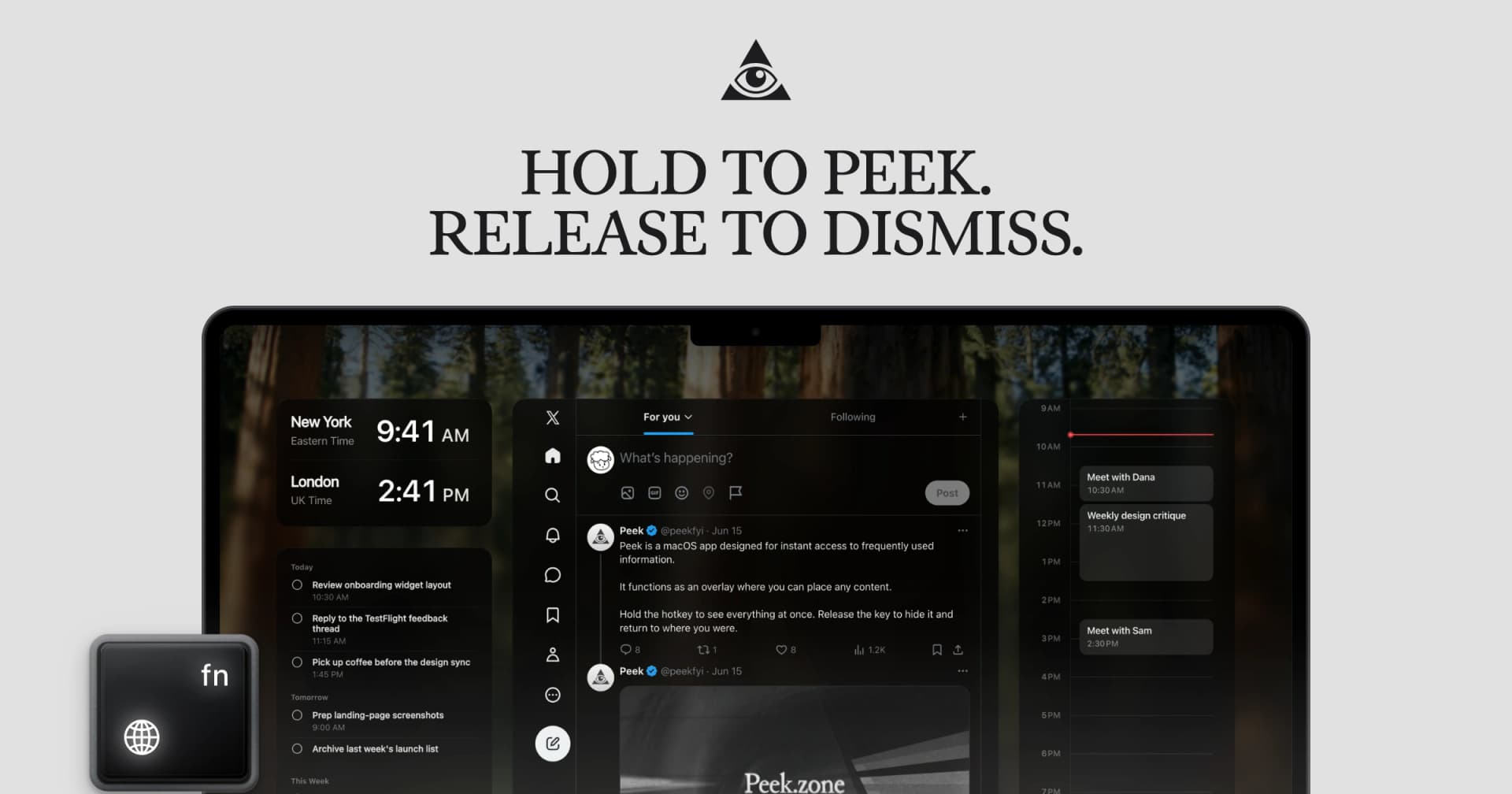
Peek is a native Mac app that brings frequently checked information into a personal overlay. Hold a shortcut to glance at it, release to return to your work, or tap the shortcut to keep it open and interact.
Combine websites, local PDFs, and widgets such as Calendar, Reminders, and time zones in one space. Arrange and resize content freely, or use Flow mode to organize your layout. Hide unwanted page elements and block ads, trackers, and cookie banners.
Set custom keyboard shortcuts, including separate left and right modifier keys. Peek works across multiple monitors and full-screen spaces, with per-display layouts or synced widgets. Optional auto-refresh keeps pages current, and you can open content in its default app when you want to continue outside the overlay. The site also lists passkey support and experimental web extensions.
Use it to check analytics beside your calendar, review GitHub pull requests and Linear issues while coding, or gather visual references from websites without switching away from your current app.
Available free on the Mac App Store. Requires macOS 14.2 or later.
SoftwareProductivitymacOS
Cap
The open source screen recorder
Freemium
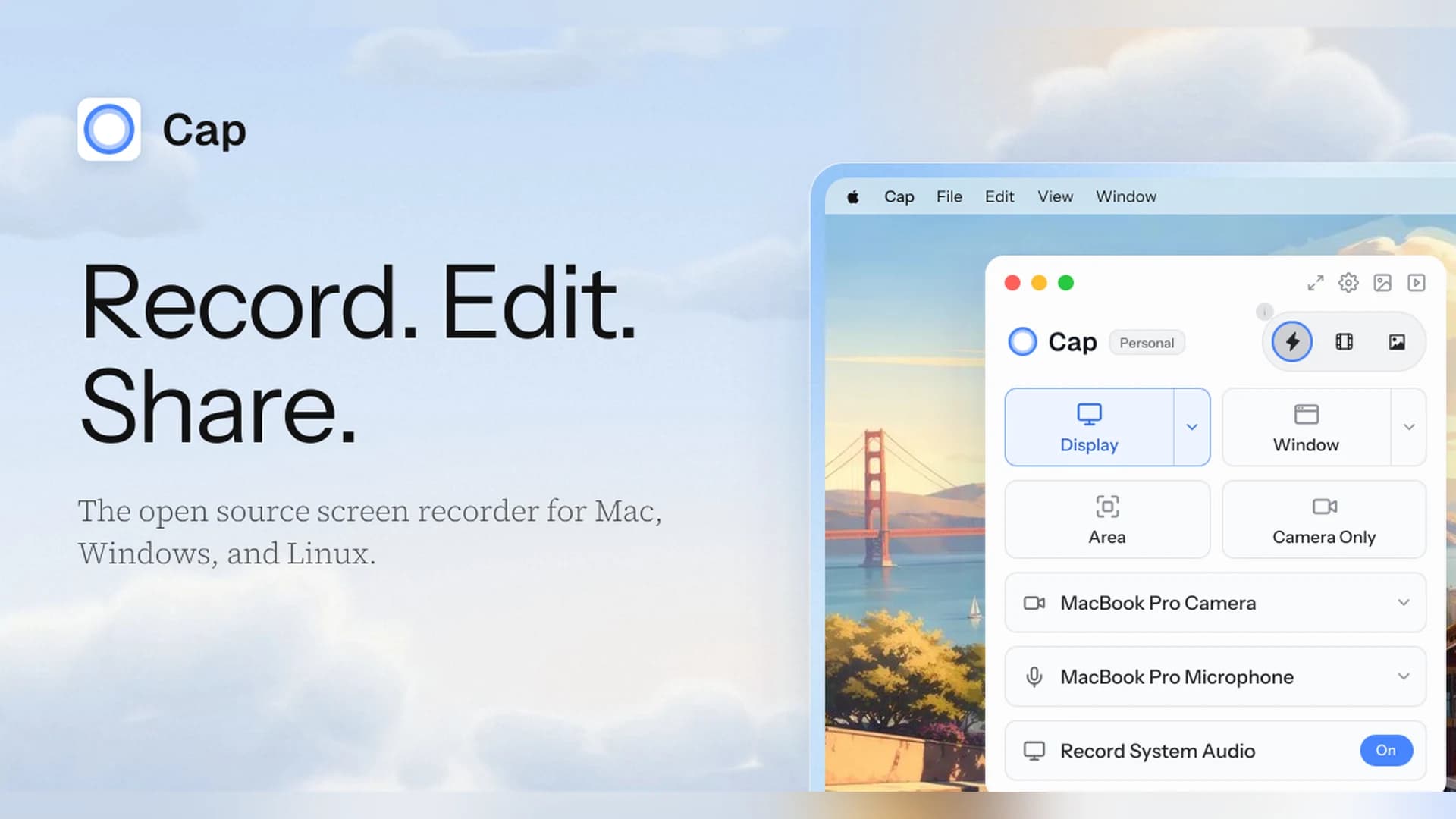
Cap is an open-source screen recorder for Mac, Windows, and Linux that works as a Loom alternative, with instant share links and a local Studio Mode.
- Instant Mode records and uploads at once so you get a shareable link as you stop.
- Studio Mode records locally with a full editor and exports up to 4K at 60 fps.
- Free for personal use. A Desktop License ($29 a year, or $58 once) adds commercial rights, and Cap Pro ($12 per user a month) adds unlimited cloud sharing.
- Open source, with a self-hosting option.
Cap suits people who want a Loom-style workflow without being locked into one vendor.
SoftwareCreativemacOS
Mac
What it does
Ctrl+C
Command-C
Copy
Ctrl+X
Command-X
Cut (text and most apps)
Ctrl+V
Command-V
Paste
Ctrl+Z
Command-Z
Undo
Ctrl+Y
Shift-Command-Z
Redo
Ctrl+A
Command-A
Select all
Ctrl+F
Command-F
Find
Ctrl+S
Command-S
Save
Ctrl+P
Command-P
Print
Ctrl+N / Ctrl+T / Ctrl+W
Command-N / Command-T / Command-W
New window, new tab, close window or tab
Ctrl+Shift+V
Option-Shift-Command-V
Paste and match style (plain text in many apps)
Win+I
Command-Comma
Open settings for the app you are in
What is the Mac equivalent of Alt+Tab, Alt+F4, Win+D, and Win+L?
Windows
Mac
Notes
Alt+Tab
Command-Tab
Switches between apps, not windows
Alt+Tab (windows of one app)
Command-`
Cycles windows of the front app
Alt+F4
Command-Q
Quits the app. Command-W only closes the window
Win+Tab (Task View)
Control-Up Arrow
Opens Mission Control
Win+D (show desktop)
Fn-H or Fn-F11
Command-Mission Control also works on keyboards with that key
Win+L (lock)
Control-Command-Q
Locks the screen
Win key or Win+S (search)
Command-Space
Opens Spotlight
Win+. (emoji)
Control-Command-Space or Fn-E
Opens the Character Viewer
Win+Down (minimize)
Command-M
Minimizes the front window
The big difference is Alt+F4. Closing the last window of a Mac app often leaves the app running, which is why Command-Q exists. If you want Windows-style previews when you switch, AltTab adds them on Option-Tab. We cover it in the switchers app guide.
What is the Mac equivalent of Ctrl+Alt+Delete and Task Manager?
Press Option-Command-Esc to open Force Quit Applications, pick the frozen app, and click Force Quit. That is the closest match to Ctrl+Alt+Delete or Ctrl+Shift+Esc when something hangs.
Mac has no single shortcut that opens Task Manager. For CPU, memory, and per-process details, open Activity Monitor with Command-Space, type "Activity Monitor," and press Return.
How do I Print Screen on a Mac?
There is no Print Screen key. Use these instead, all from Apple's screenshot guide:
Windows
Mac
What it does
Print Screen
Shift-Command-3
Capture the whole screen
Win+Shift+S
Shift-Command-4
Drag to capture an area
Alt+Print Screen (active window)
Shift-Command-4, then Space, then click
Capture one window
Snipping Tool
Shift-Command-5
Opens the screenshot toolbar, including screen recording
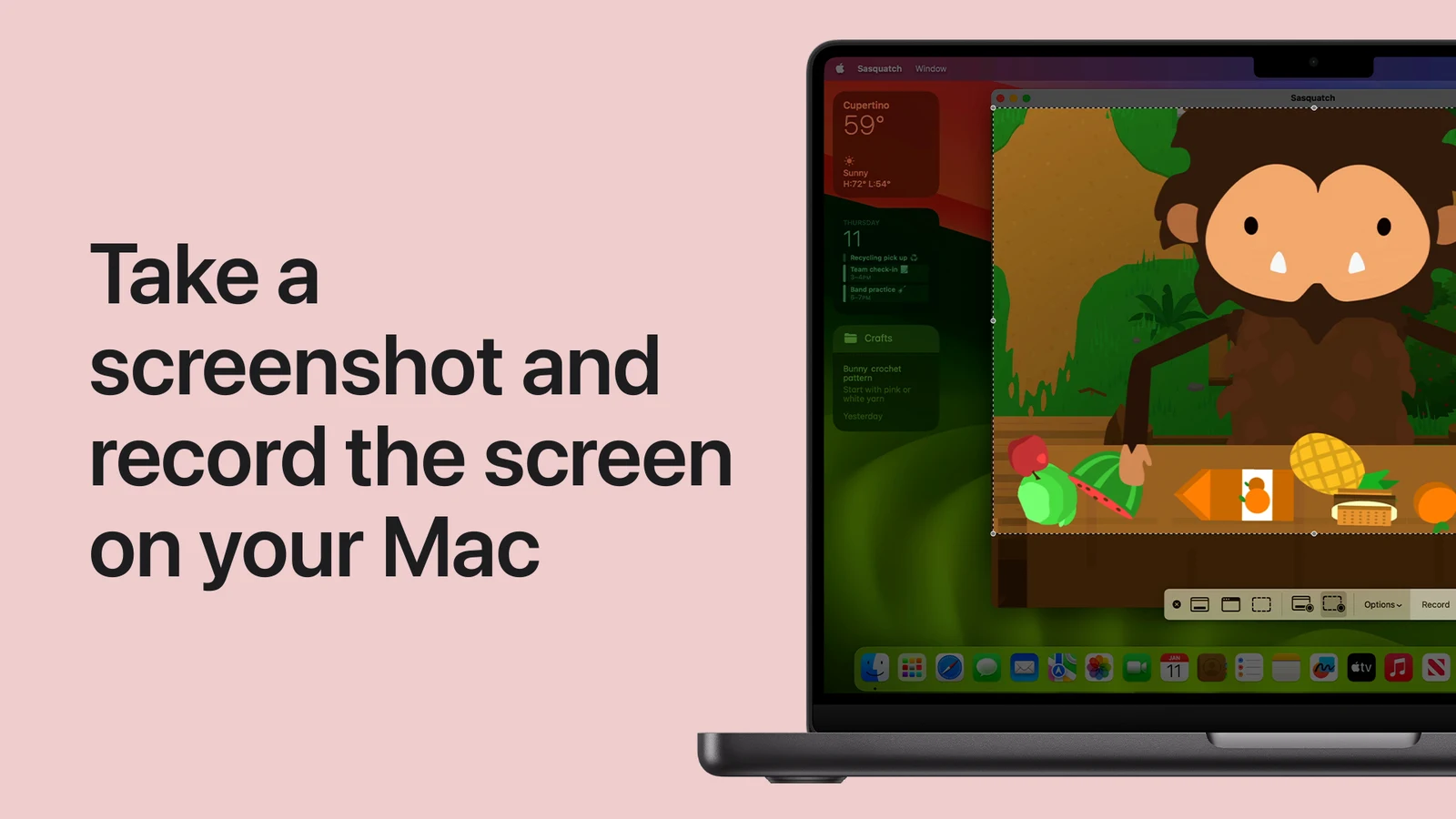
Hold Control while you capture to copy the screenshot to the clipboard instead of saving a file. When you capture a window, hold Option as you click to leave out the drop shadow.
Shift-Command-5 opens Apple's screenshot and screen recording toolbar. Image: Apple Support
What is the Mac equivalent of Win+E and File Explorer shortcuts?
Win+E has no default Mac equivalent. Click the Finder icon in the Dock, or switch to Finder and press Command-N for a new window. The File Explorer shortcuts you use all day mostly carry over with Command in place of Ctrl:
Windows (File Explorer)
Mac (Finder)
F2 (rename)
Return
Delete (send to Recycle Bin)
Command-Delete
Empty Recycle Bin
Shift-Command-Delete
Alt+Enter (Properties)
Command-I
Ctrl+L or Alt+D (address bar)
Shift-Command-G (Go to Folder)
Ctrl+Shift+N (new folder)
Shift-Command-N
Alt+Up (up one level)
Command-Up Arrow
Alt+Left / Alt+Right
Command-[ / Command-]
Enter (open)
Command-O or Command-Down Arrow
Ctrl+Shift+1 to 6 (views)
Command-1 to Command-4
Space (preview)
Space (Quick Look)
The surprise is rename. In Finder, pressing Return renames the selected file, and Command-O opens it. It feels backwards for a week and then stops bothering you.
How do I cut and paste files on a Mac?
Finder has no Cut command for files. The workaround is to copy the file with Command-C, go to the destination folder, and press Option-Command-V. That moves the file instead of copying it. You can also drag with Command held to move across drives, or with Option held to copy. This question comes up constantly, including a long-running r/MacOS thread titled "Windows switcher: I can cut and paste text but not files?".
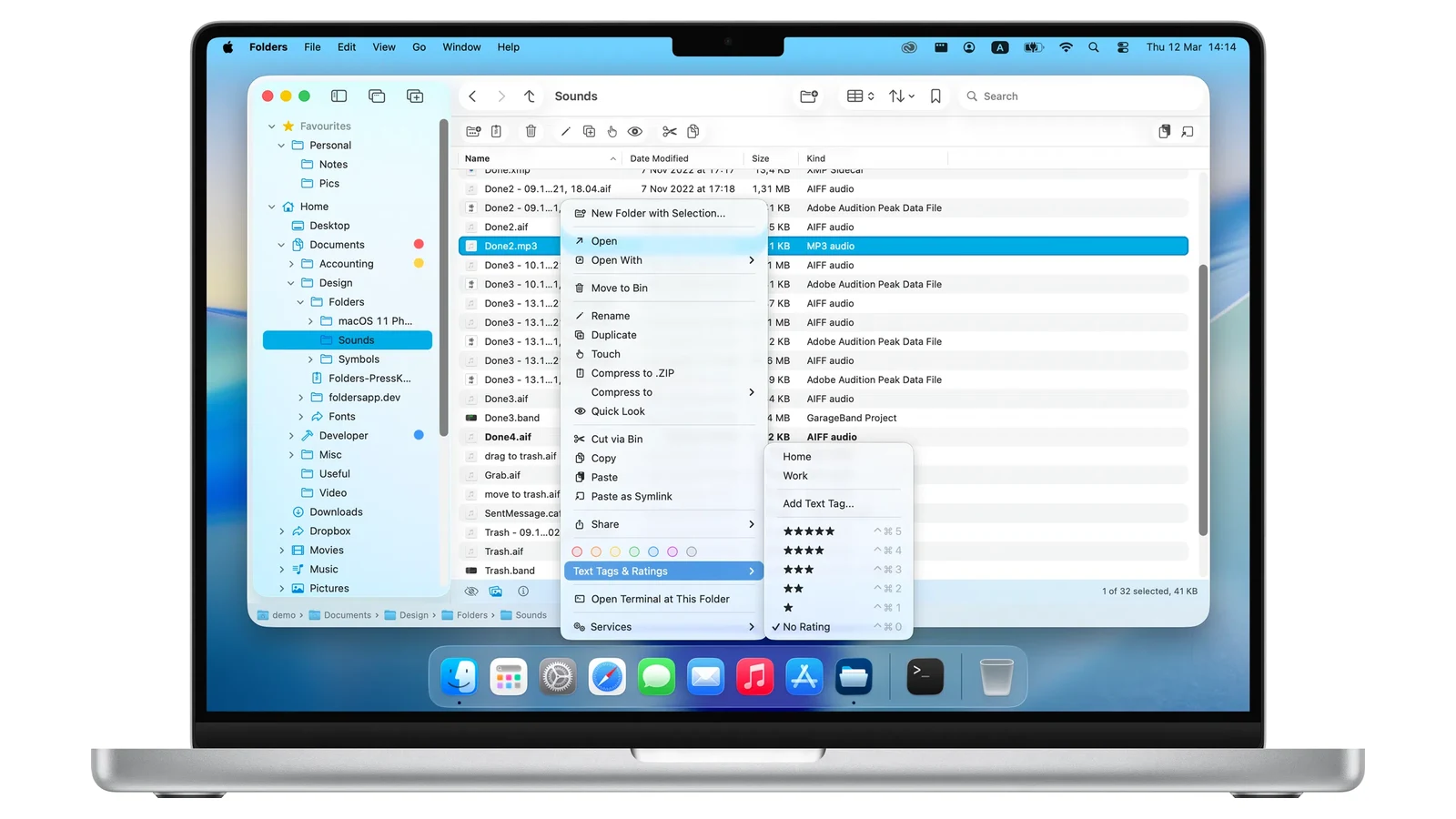
If you want a real Command-X in the file manager, Folders adds it. It is a Finder alternative with one folder tree, F2 to rename, and an option to make the Return key open files like Enter does in File Explorer. Its Command-X moves items to the Trash right away and puts them on the clipboard, and you can turn that off in Settings.
Folders adds Cut to the file context menu. Image: Folders
FoldersA file manager for Windows switchersVisit WebsiteFolders is a file manager application for macOS that provides a folder tree layout, catering specifically to users transitioning from Windows. It offers a range of features including easy navigation, comprehensive file operations, and integration with cloud storage services. Designed for both new and experienced users, Folders aims to enhance file management efficiency on Mac systems.
- Provides a folder tree layout for intuitive navigation, similar to Windows Explorer.
- Supports batch renaming and file conflict resolution for efficient file management.
- Integrates with iCloud Drive and other cloud storage services for centralized access.
- Offers multiple viewing options: Table, List, Icons, and Gallery.
- Includes a powerful search function with Spotlight integration and saved searches.
- Allows customization of themes and folder icons for personalized organization.
Folders is a file manager for macOS that emulates the folder tree structure familiar to Windows users. It offers a range of features including comprehensive file operations, customizable themes, and powerful search capabilities. Users can manage files across various cloud services and utilize batch renaming and conflict resolution tools.Visit Website
Pricing: Folders is $14.99 one time after a 14-day trial.
What are the Mac equivalents of Home, End, Delete, and Backspace?
Windows
Mac
What it does
Home / End
Command-Left Arrow / Command-Right Arrow
Start or end of the current line
Ctrl+Home / Ctrl+End
Command-Up Arrow / Command-Down Arrow
Start or end of the document, in text
Home / End (scrolling a page)
Fn-Left Arrow / Fn-Right Arrow
Scroll to the top or bottom
Page Up / Page Down
Fn-Up Arrow / Fn-Down Arrow
Scroll one page
Ctrl+Left / Ctrl+Right
Option-Left Arrow / Option-Right Arrow
Jump one word
Backspace
Delete
Delete the character to the left
Delete (forward delete)
Fn-Delete or Control-D
Delete the character to the right
Ctrl+Backspace
Option-Delete
Delete the word to the left
The Home and End keys are the most complained-about switch. Threads like r/MacOS's "Home end keys - my biggest complaint since switching from windows" exist because the keys scroll the page in some apps and move the cursor in others. The table above is the reliable version. On a laptop, the Delete key is Backspace, so forward delete needs Fn-Delete.
How do I snap windows on a Mac like Win+Arrow?
macOS Sequoia 15 and later has built-in tiling. Press Fn-Control-Left Arrow or Fn-Control-Right Arrow to tile a window to that half of the screen, and Fn-Control-F to fill the screen. Fn-Control-C centers the window, and Fn-Control-R returns it to its previous size. There are no built-in shortcuts for quarters.
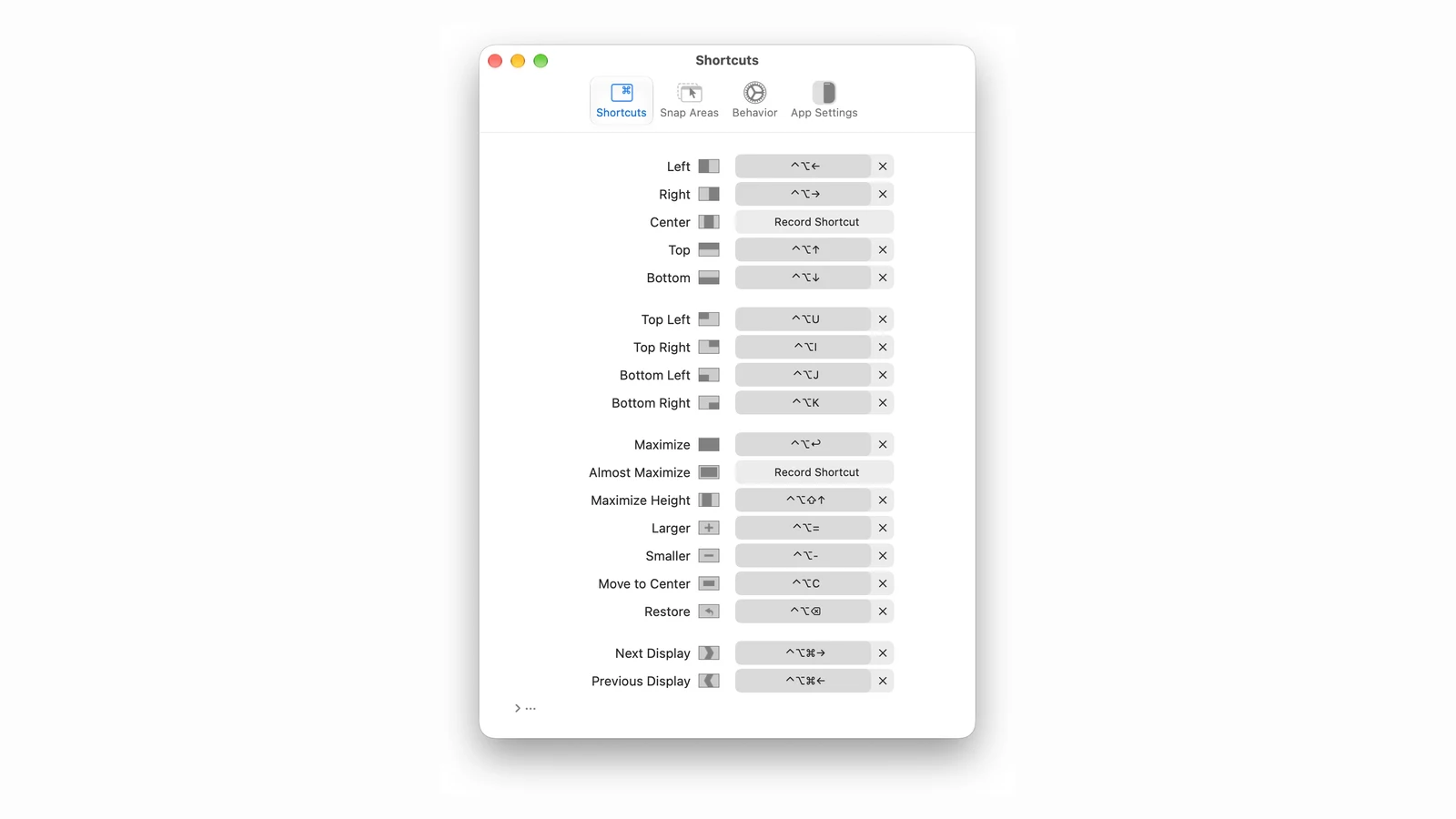
Rectangle adds quarters, thirds, and more, mostly on Control-Option plus the arrow keys. It is free, and it works on older macOS versions too.
Rectangle's shortcut list, with Control-Option defaults. Image: Rectangle
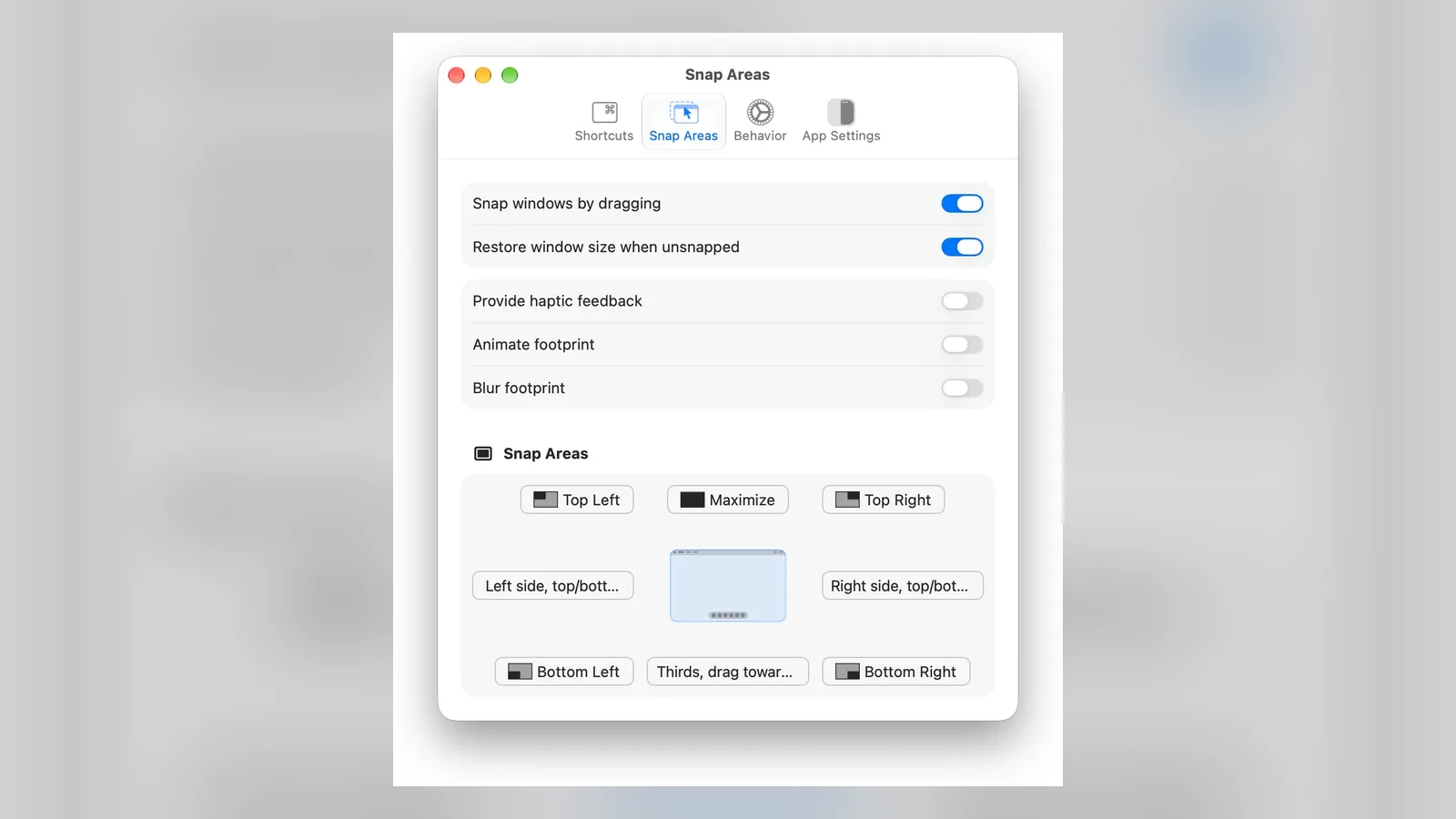
RectangleMove and snap windows with shortcuts or dragVisit WebsiteRectangle is a free, open-source window manager that adds Windows-style snapping to macOS, using keyboard shortcuts or screen-edge snap areas.
- Snap windows to halves, thirds, quarters, or full screen.
- Drag a window to an edge or corner to snap it, like Windows Snap.
- Move windows between displays with a shortcut.
- Free. Rectangle Pro is a one-time upgrade with more features.
Rectangle suits people who want fast window layouts without the setup of a tiling manager.Visit Website
Pricing: Rectangle is free, with a Pro tier at $9.99.
Can I make a Mac keyboard use Windows shortcuts?
Partly. System Settings has a Modifier Keys panel (Keyboard, then Keyboard Shortcuts, then Modifier Keys) where you can swap Control, Option, and Command for each connected keyboard. That fixes physical key positions on a Windows keyboard, but it does not change what the shortcuts do.
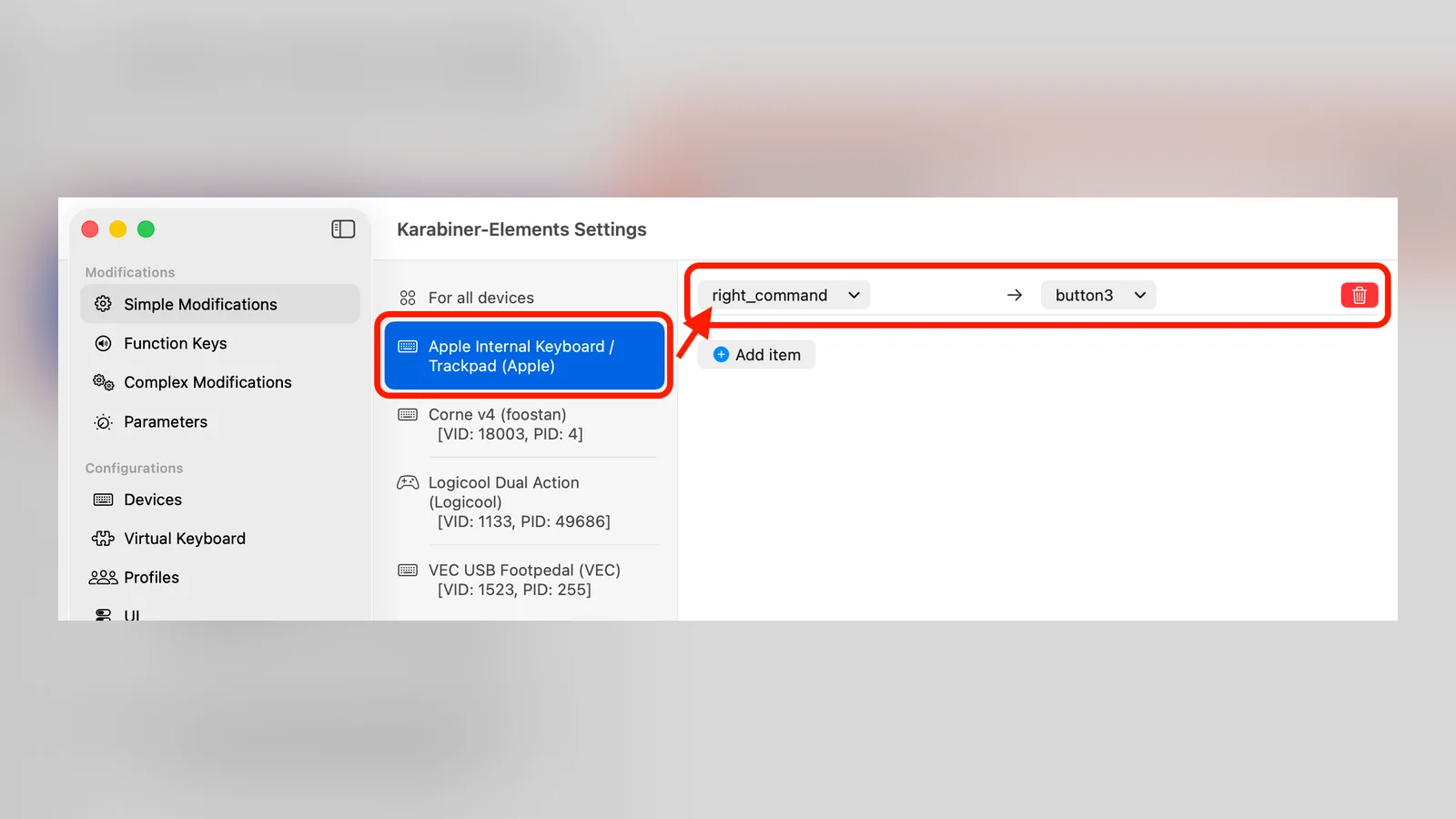
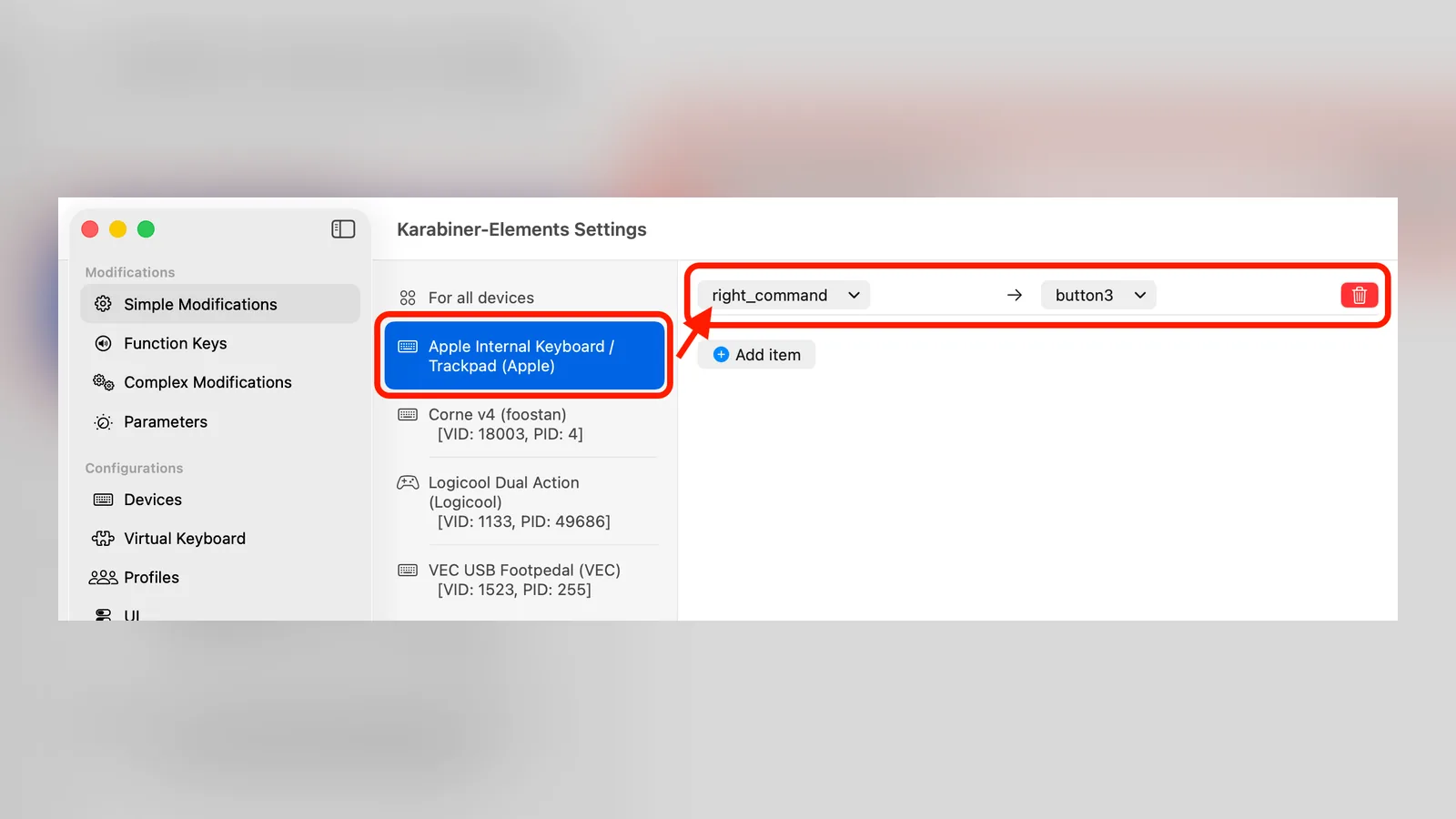
For key-level changes, Karabiner-Elements is a free, open-source remapper. Its simple modifications swap one key for another, and its complex modifications gallery includes community rules for Windows-style keyboards and Windows-like word movement. Install it only if you are fighting muscle memory, and start with one swap. As one switcher wrote on X: "Beware the switch cost of automatic hands that do what they know, not what you say."
Karabiner-Elements simple modifications swap one key for another. Image: Karabiner-Elements
Karabiner-ElementsPowerful, free keyboard customizer for macOSVisit WebsiteKarabiner-Elements is a free keyboard customizer for macOS that remaps keys and builds complex modifications.
- Swap Command, Option, and Control to match Windows muscle memory.
- Remap single keys or create rules that apply per app or per keyboard.
- Import community rule sets from its Complex Modifications library.
- Free and open source, with releases for recent and older macOS versions.
Karabiner-Elements suits people who type on a Windows keyboard or want Windows-style shortcuts.Visit Website
Pricing: Karabiner-Elements is free and open source.
FAQ
What is the Mac equivalent of Ctrl+Alt+Delete?
Option-Command-Esc opens Force Quit Applications. For a Task Manager-style view, open Activity Monitor from Spotlight.
Is Command the same as Ctrl on a Mac?
For most shortcuts, yes. Command-C, V, X, Z, A, S, and F match their Ctrl versions on Windows. Control on a Mac is used for system shortcuts such as Mission Control and Lock Screen.
How do I copy and paste without formatting on a Mac?
Use Option-Shift-Command-V in apps that support Paste and Match Style. Some apps use Shift-Command-V for the same thing instead.
How do I lock my Mac screen like Win+L?
Press Control-Command-Q. Your Mac stays on, and you need your password or Touch ID to get back in.
How do I show the desktop on a Mac like Win+D?
Press Fn-H or Fn-F11, or Command-Mission Control if your keyboard has that key.
Why does the Delete key work like Backspace on a Mac?
On Mac keyboards, the Delete key deletes the character to the left, which is what Windows calls Backspace. For forward delete, press Fn-Delete or Control-D.
MAO is a desktop workspace for developers who use more than one coding agent. Connect agents on a canvas to hand work from a planner to a builder or reviewer. Each agent uses its own CLI and your existing provider login.
- Give parallel tasks separate Git worktrees so agents can edit different branches of the same project.
- Send one prompt to selected agents and see which sessions need input or approval.
- Connect a browser to an agent so it can test a form and capture the result.
- Schedule recurring prompts, or save a team’s roles and connections for another project.
- Open a remote workspace over SSH to run agents on a Linux server from your desktop.
Runs on Apple silicon and Intel Macs, Windows, and Linux. The seven-day trial covers one project. A one-time license costs $20 in most countries and unlocks unlimited projects, saved teams, and remote workspaces.
SoftwareDevelopmentmacOS
Dabbit
Pick screen colors and turn them into Figma palettes
One-time
Dabbit is a Mac color picker for designers and developers. Sample a pixel on any display, save it to a palette, and use the same colors in your code and Figma files.
- Copy a color as hex, RGB, OKLCH, or SwiftUI. Set a preferred format for each app.
- Revisit earlier picks by time and source app, or keep a floating palette above your work.
- Build an 11-step OKLCH shade scale from one color and check text contrast with WCAG and APCA.
- Import colors from an image, website CSS, or a tokens file. Export palettes for Tailwind or SwiftUI.
- Send a palette to Figma as variables, color styles, or a labeled swatch sheet using the included plugin.
Requires an Apple silicon Mac running macOS 14 or later. A $19 single-Mac license includes 12 months of updates; the purchased version keeps working afterward. A five-day trial includes all features.
SoftwareDesignmacOS
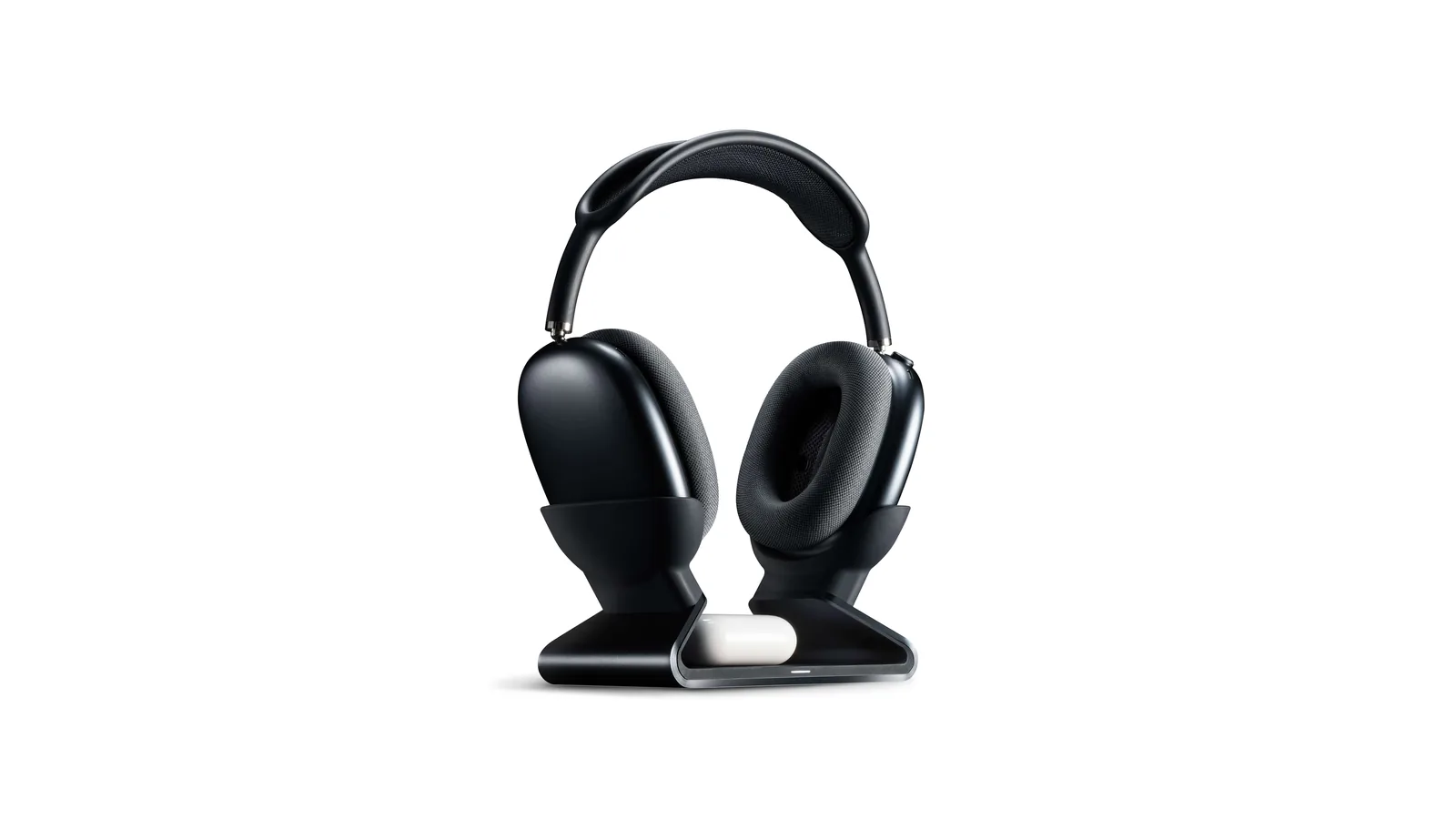
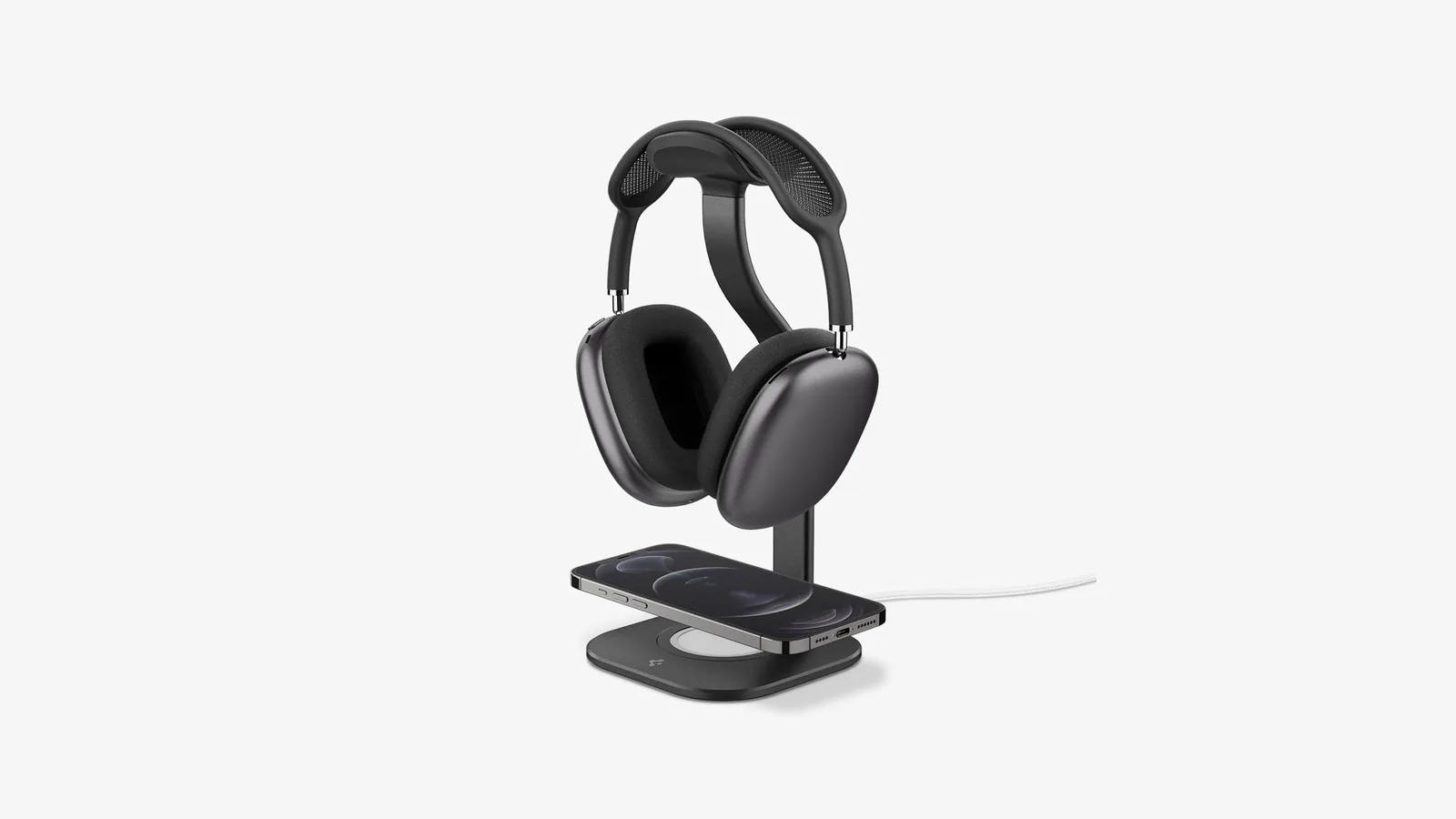
Max Stand
A floating AirPods Max stand that charges through a magnetic port connector.
HardwareDesk SetupmacOS
Max Charging Stand
An AirPods Max charging stand with sleep mode and a Qi pad for earbuds.
HardwareDesk SetupmacOS
Nanotac AirPods Max Stand (MagFit)
An aluminum AirPods Max stand with a MagSafe charger slot for an iPhone.
HardwareDesk SetupmacOS
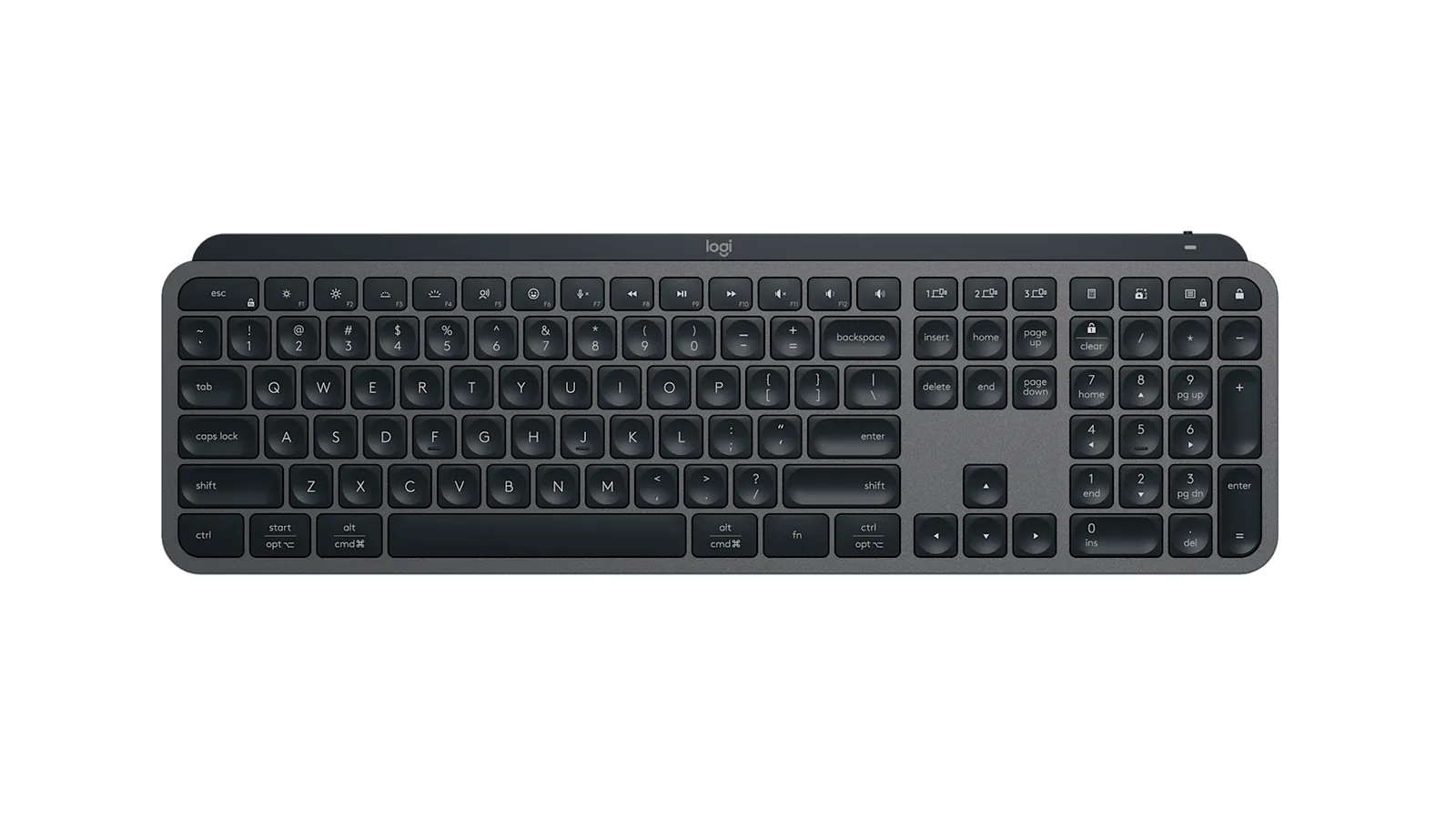
MX Keys S
A full-size wireless keyboard with smart backlighting and three-device switching.
HardwareKeyboards & MicemacOS
Double Shot
Free open-source Mac app that keeps your Mac awake for AI agents
Free
Double Shot is a free, open-source macOS menu bar app that keeps your Mac awake, with the lid closed too, and for as long as your AI coding agents are working.
- Detects when Claude Code, Codex, Gemini CLI, Cursor Agent, Copilot CLI, OpenCode, Amp or Aider are actually working, not just open.
- Lid closed mode uses pmset disablesleep, with a one-time password prompt that adds a sudoers rule.
- Stops at the first warm level, turns the dark display off, switches on Low Power Mode on battery, and lets go when the battery gets low.
- Quick picks from 15 minutes to 5 hours, or until you turn it off.
- MIT licensed. Install with Homebrew or download from GitHub. Not notarized by Apple yet, and it needs macOS 14 or later.
Double Shot suits anyone who starts a long agent run, closes the lid and expects the work to carry on.
SoftwareUtilitiesmacOS
Peek
Glance at websites and widgets with a shortcut
Free
Peek is a native Mac app that brings frequently checked information into a personal overlay. Hold a shortcut to glance at it, release to return to your work, or tap the shortcut to keep it open and interact.
Combine websites, local PDFs, and widgets such as Calendar, Reminders, and time zones in one space. Arrange and resize content freely, or use Flow mode to organize your layout. Hide unwanted page elements and block ads, trackers, and cookie banners.
Set custom keyboard shortcuts, including separate left and right modifier keys. Peek works across multiple monitors and full-screen spaces, with per-display layouts or synced widgets. Optional auto-refresh keeps pages current, and you can open content in its default app when you want to continue outside the overlay. The site also lists passkey support and experimental web extensions.
Use it to check analytics beside your calendar, review GitHub pull requests and Linear issues while coding, or gather visual references from websites without switching away from your current app.
Available free on the Mac App Store. Requires macOS 14.2 or later.
SoftwareProductivitymacOS
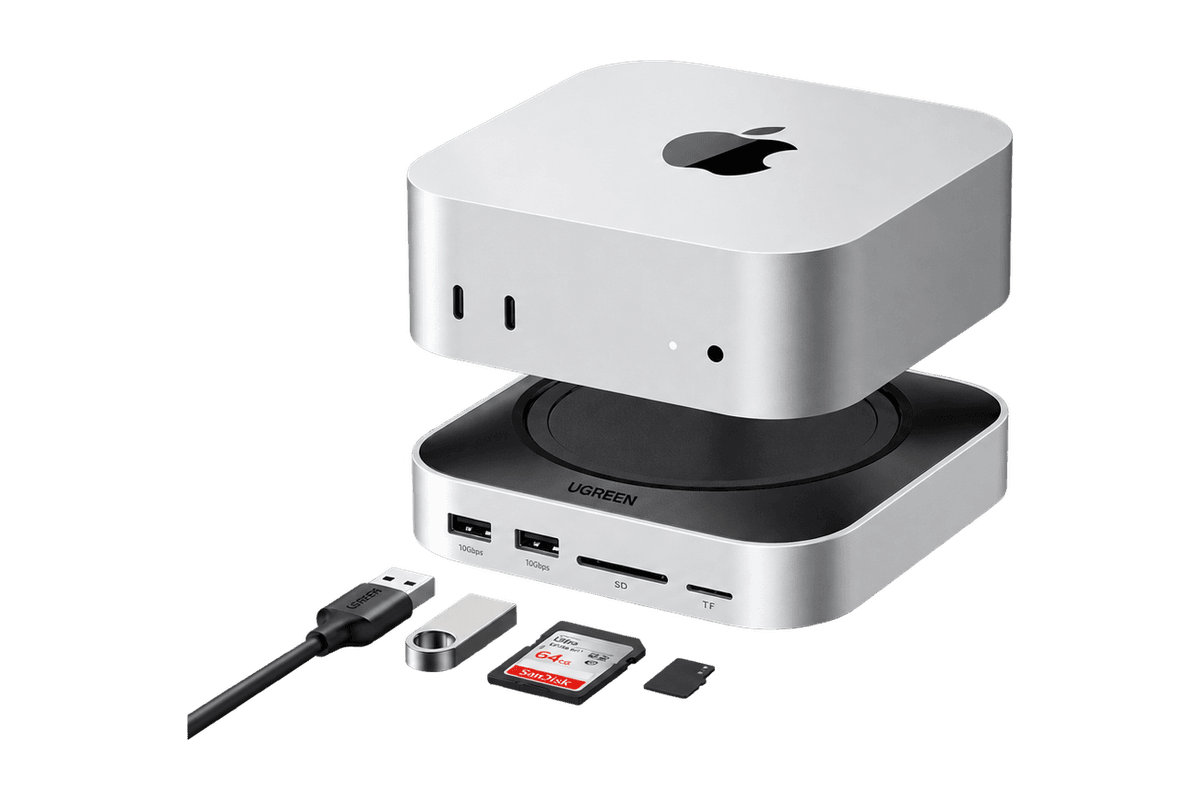
Mac mini 11-in-1 Docking Station
A Mac mini M4 dock with an 8TB-capable NVMe slot and card readers.