Created November 23, 2026Updated November 23, 2026
To screenshot on a Mac, press Shift-Command-3 to capture the whole screen, Shift-Command-4 to capture part of it, or Shift-Command-5 to open the Screenshot toolbar. These shortcuts work the same on a MacBook Air, MacBook Pro, MacBook Neo, iMac and Mac mini.
Below you'll learn every built-in way to take a screenshot on a Mac, where screenshots are saved, how to crop and edit them, and which screenshot app to get when the built-in tool is not enough.
Quick answers:
Whole screen: Shift-Command-3.
Part of the screen: Shift-Command-4, then drag.
One window: Shift-Command-4, then press Space and click the window.
Screenshot toolbar and screen recording: Shift-Command-5.
Copy to the clipboard instead of saving: add Control, like Control-Shift-Command-4.
Best screenshot app:Shotbase, which replaces a screenshot tool, a mockup tool, a screen recorder and a webpage capture tool in one app.
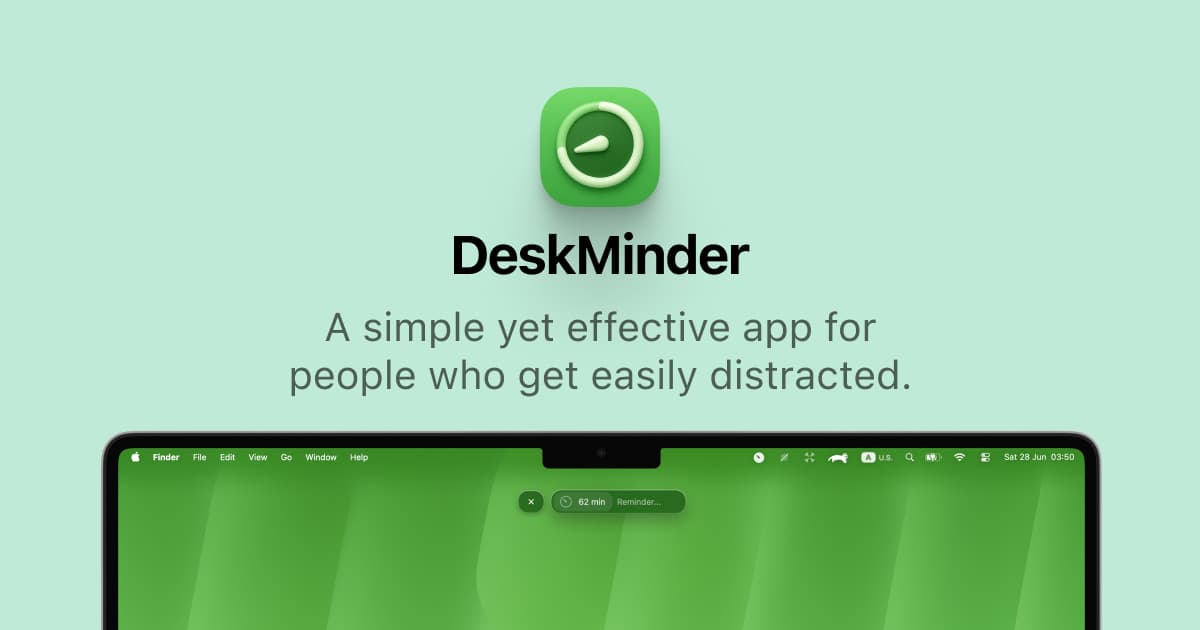
DeskMinder is a productivity software application designed for Mac users who struggle with distractions. It provides a straightforward interface for creating desktop pop-up reminders and tasks, helping users manage urgent to-dos, short breaks, and fleeting ideas. With features like full-screen notifications and Apple Reminders integration, DeskMinder aims to enhance focus and time management for i
- With features like easy-to-create desktop pop-ups for reminders and tasks, it simplifies the process of staying on top of urgent to-dos, short breaks, or fleeting ideas.
- Users can benefit from full-screen notifications, Apple Reminders integration, and flexible widget placement, making it ideal for anyone requiring a little extra help to maintain focus.
- The app includes additional shortcuts for quick reminder setups and customizable widget options, along with a history tracking feature to monitor daily progress.
Designed specifically for Mac users, DeskMinder aims to facilitate better time management and productivity for those with attention challenges, providing a seamless user experience without unnecessary complexity.
SoftwareProductivitymacOS
Klack
Satisfying sound with every keystroke
Paid
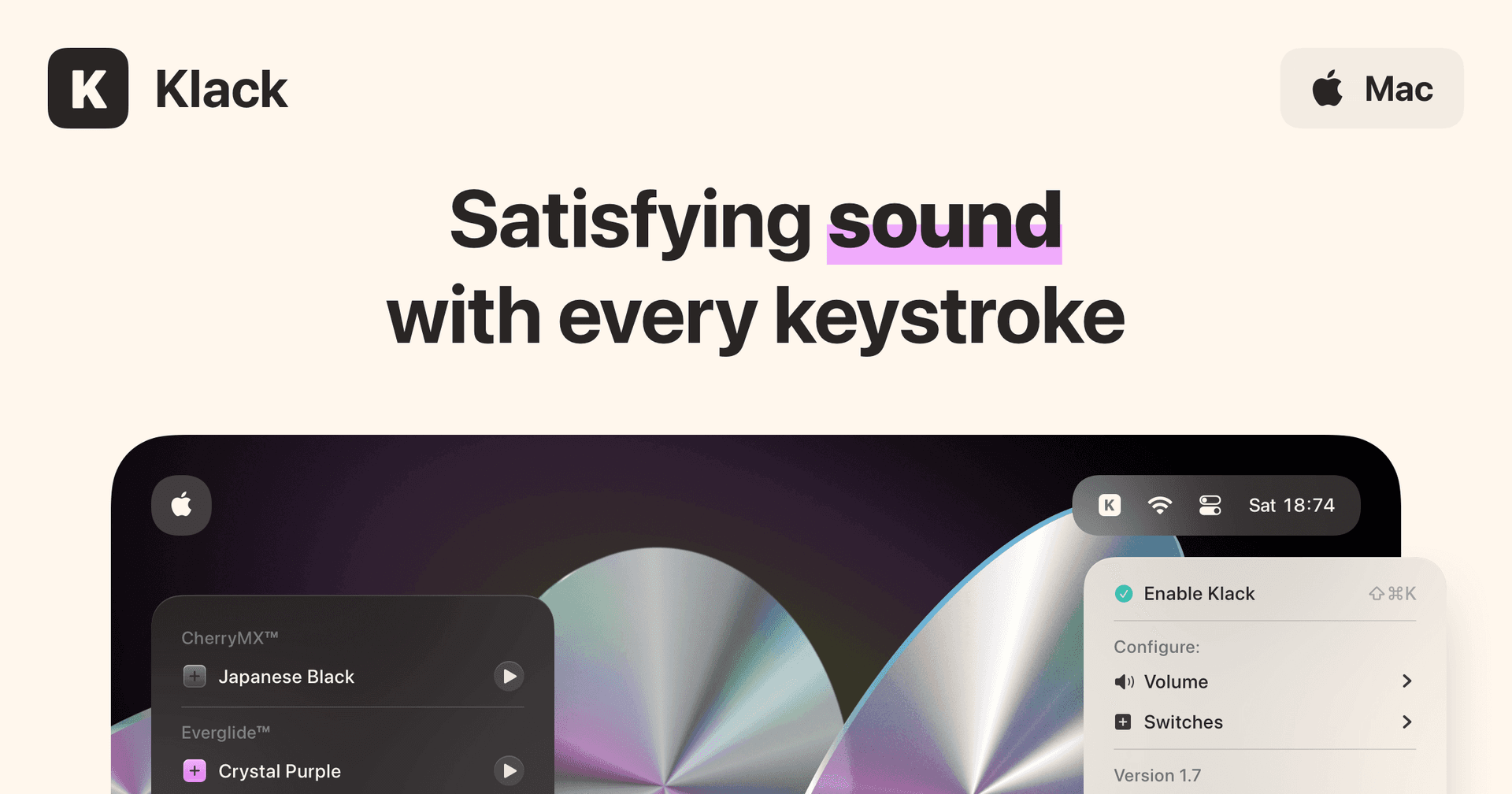
Klack is a macOS application designed to enhance the typing experience through high-fidelity sound for each keystroke. It provides features such as immersive spatial audio, instant feedback, and customizable sound options, making it suitable for writers, developers, and anyone who values an engaging typing environment. The app is easily accessible from the menubar and offers extensive configuratio
- Provides immersive spatial audio for enhanced typing feedback.
- Allows customization of keystroke sounds, pitch variations, and volume settings.
- Features a menubar interface for quick access to configuration options.
- Supports instant feedback with each keystroke for a more engaging experience.
- Designed for writers and developers seeking auditory feedback while typing.
Klack enhances the typing experience on Mac by providing high-fidelity sound for each keystroke.
SoftwaremacOS
TypoTab
TypoTab, the ultimate AI writing assistant for
Paid
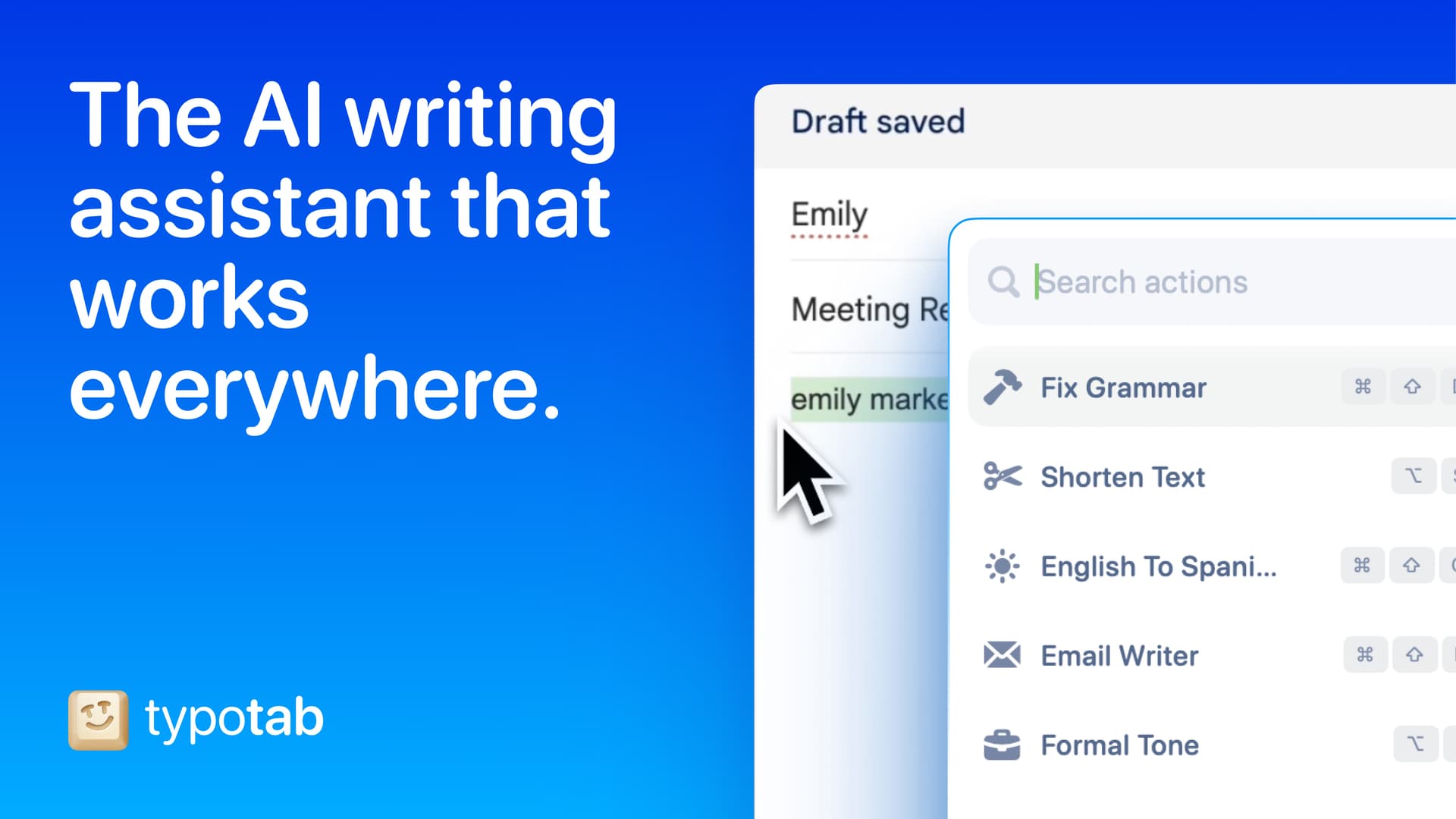
TypoTab is a macOS application that functions as an AI-driven writing assistant. It enhances writing efficiency by providing tools for grammar correction, text rephrasing, and content generation, all accessible from the menu bar without needing to switch applications. This tool is designed for writers, students, and professionals looking to streamline their writing process and improve productivity
- Provides grammar correction and text rephrasing directly from the menu bar.
- Allows text refinement in any application without switching contexts.
- Offers customizable actions to meet individual writing needs.
- Streamlines repetitive writing tasks for improved efficiency.
- Supports a wide range of applications, enhancing workflow across platforms.
TypoTab is a macOS application that enhances writing efficiency by providing grammar correction, text rephrasing, and content generation directly from the menu bar. It allows users to refine text in any application without switching contexts, offering customizable actions to suit individual writing needs.
SoftwareProductivitymacOS
Teebots
Local AI assistant with multiple bots
Free
Teebots is a desktop AI assistant for managing a group of bots with different roles and model providers. It stores conversations, files, and bot memory on your computer while sending model requests directly to your chosen provider.
- Create groups of bots, each assigned to tasks and models
- Compatible with Claude, OpenAI, DeepSeek, Kimi, or any OpenAI-compatible endpoint
- Runs the assistant workspace on your computer without a separate orchestration server
- Bots use your own API keys and make direct requests to providers
- Each bot has private memory and its own file and browser capabilities
- Bots can run commands, manage files, and perform scheduled jobs from the menu bar
Teebots is free to download and use. AI model usage requires users to supply their own API keys and pay for any model provider charges.
SoftwareAImacOS
Kana Speaker
Real-time Japanese kana pronunciation feedback
Freemium
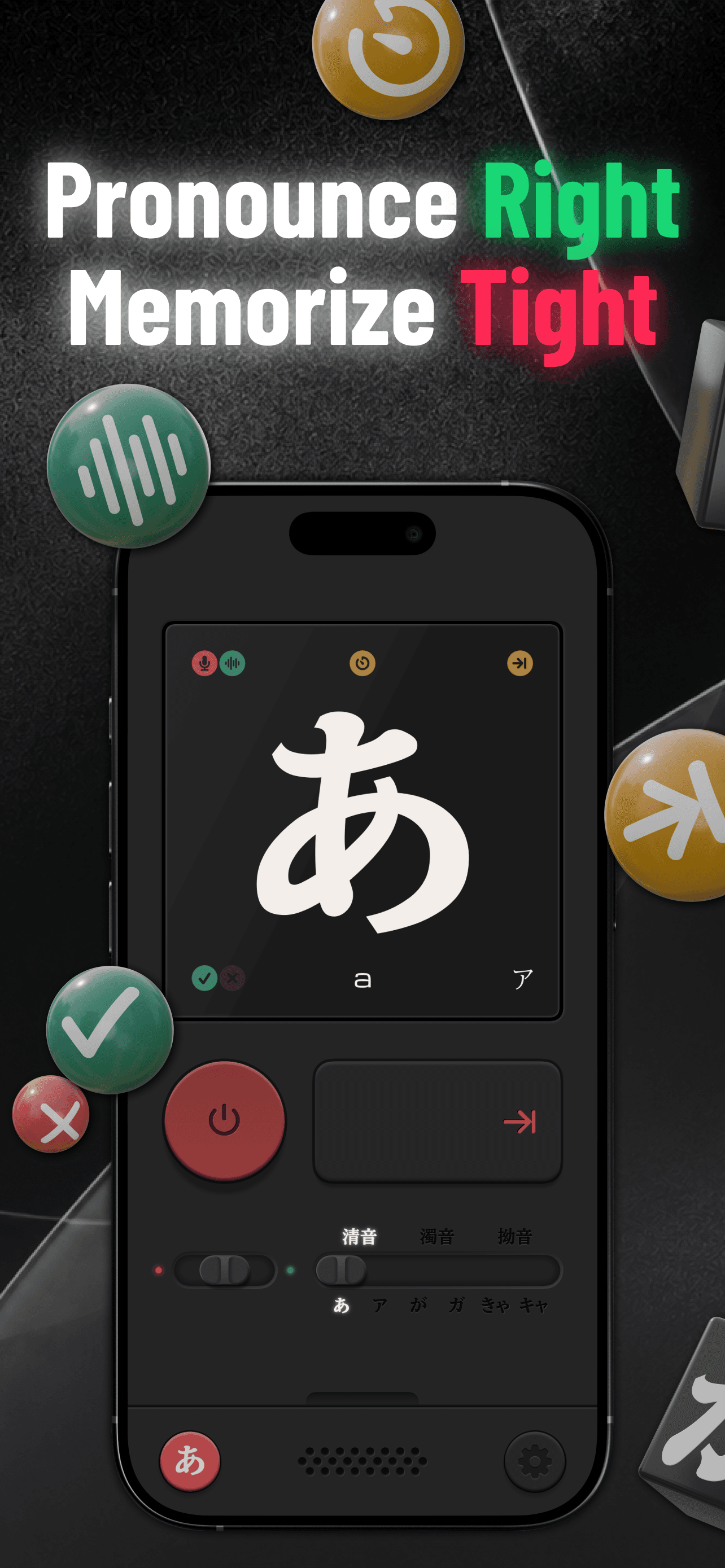
Kana Speaker is an iOS education app that uses real-time speech recognition to help users practice Japanese kana pronunciation, turning speaking practice into muscle memory.
- Provides real-time pronunciation test and instant feedback
- Includes all 104 kana: Hiragana and Katakana (Seion, Dakuon, Yoon)
- Tracks user performance with on-key indicator lights
- Features a 3D retro handheld device-inspired interface
Kana Speaker requires iOS 17.0 or later and uses speech recognition for pronunciation practice. It is free to download, with additional in-app purchases.
SoftwareEducationiOS & iPadOS
Art of Fauna
Puzzle game with historic wildlife art
Freemium
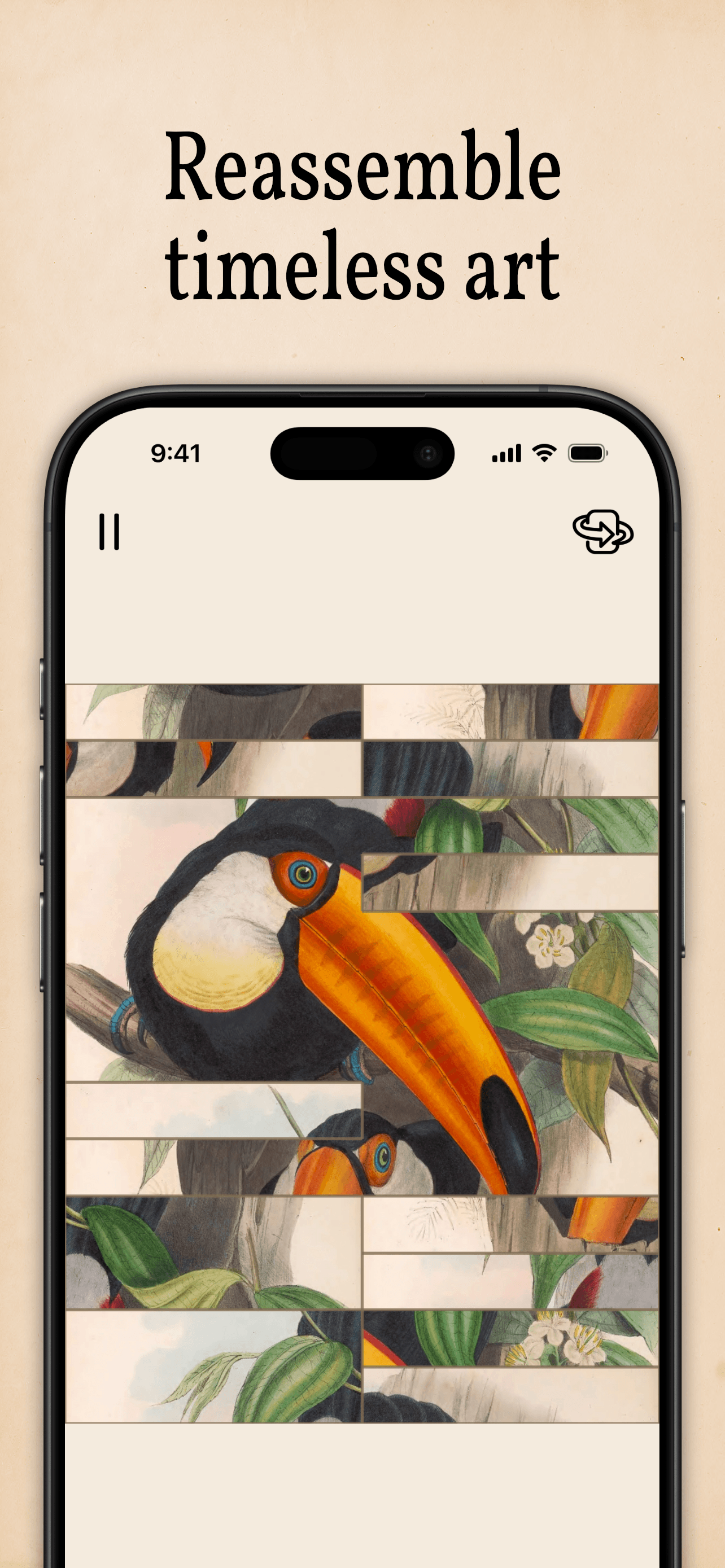
Art of Fauna is a puzzle game featuring natural history illustrations from the 18th and 19th centuries, each paired with a description of the depicted animal.
- Includes artworks by artists such as Joseph Wolf and Elizabeth Gould
- Contains two volumes with 110 puzzles each from five different regions
- First 10 puzzles in each volume are free; additional puzzles available via in-app purchase
- Features picture and text-based puzzle modes
- Accessibility options: simplified texts, dyslexia-friendly fonts, customizable color schemes, content filters, VoiceOver, VoiceControl, and Switch Control support
- Portion of each purchase supports wildlife conservation organizations
Art of Fauna is free to download with optional in-app purchases to unlock additional puzzles. Requires iOS 16.0 or later.
SoftwareCreativeiOS & iPadOS
Ascope
Daily App Store Keyword Ranking Tool
Paid
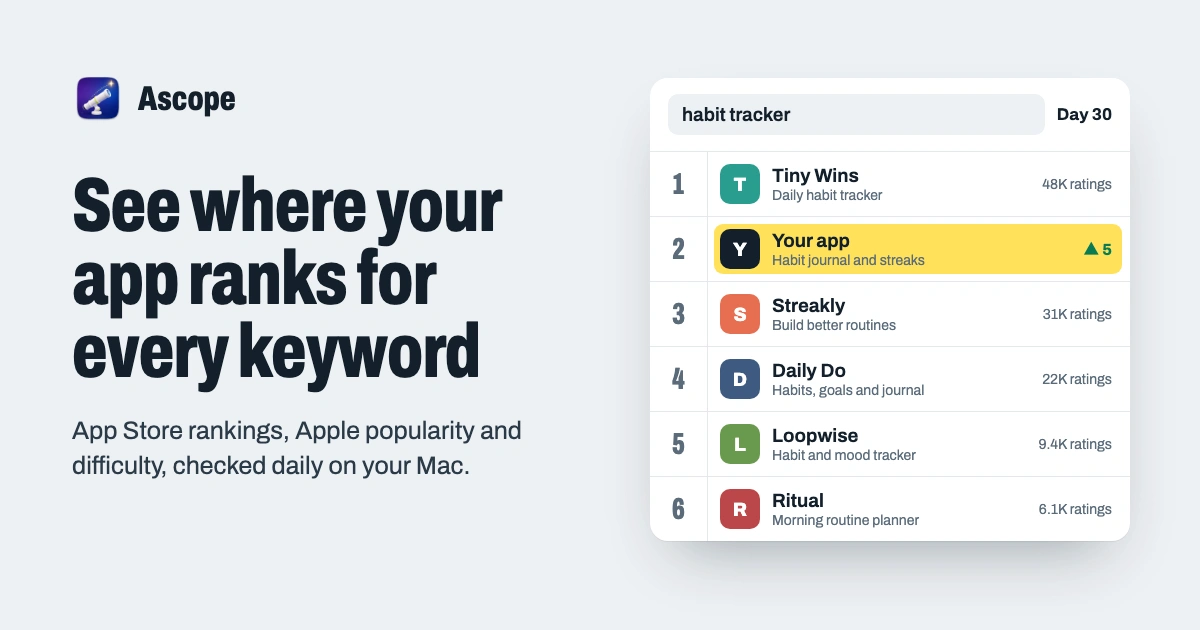
Ascope is a Mac application for tracking daily keyword rankings for iPhone and Mac apps in the App Store across 50+ countries.
- Tracks daily keyword rankings for any iPhone or Mac App Store app
- Displays Apple’s keyword popularity scores and estimated difficulty
- Compares keyword performance across multiple countries
- Stores all app, keyword, and ranking history locally on your Mac
- Supports tracking of competitor apps identified by Apple
- Includes a local MCP server for integration with Cursor, Claude, Codex, or Gemini
Ascope requires macOS 14 Sonoma or later and supports Apple silicon and Intel Macs. It is paid only, with pricing at $7.50/month (billed annually) or $9.99/month, and includes a 14-day money-back guarantee.
SoftwareDevelopmentmacOS
Joi
Calendar, task, and habit management app
Freemium
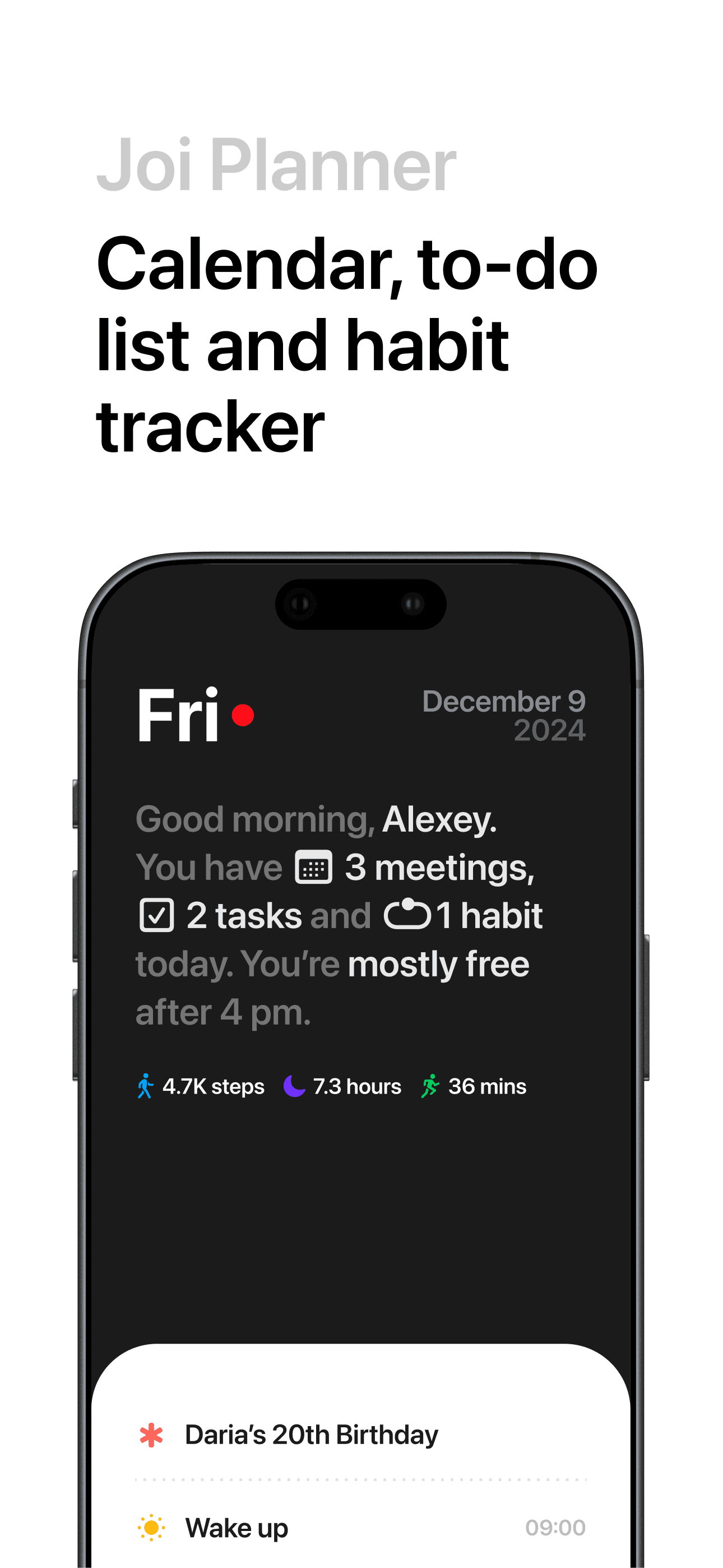
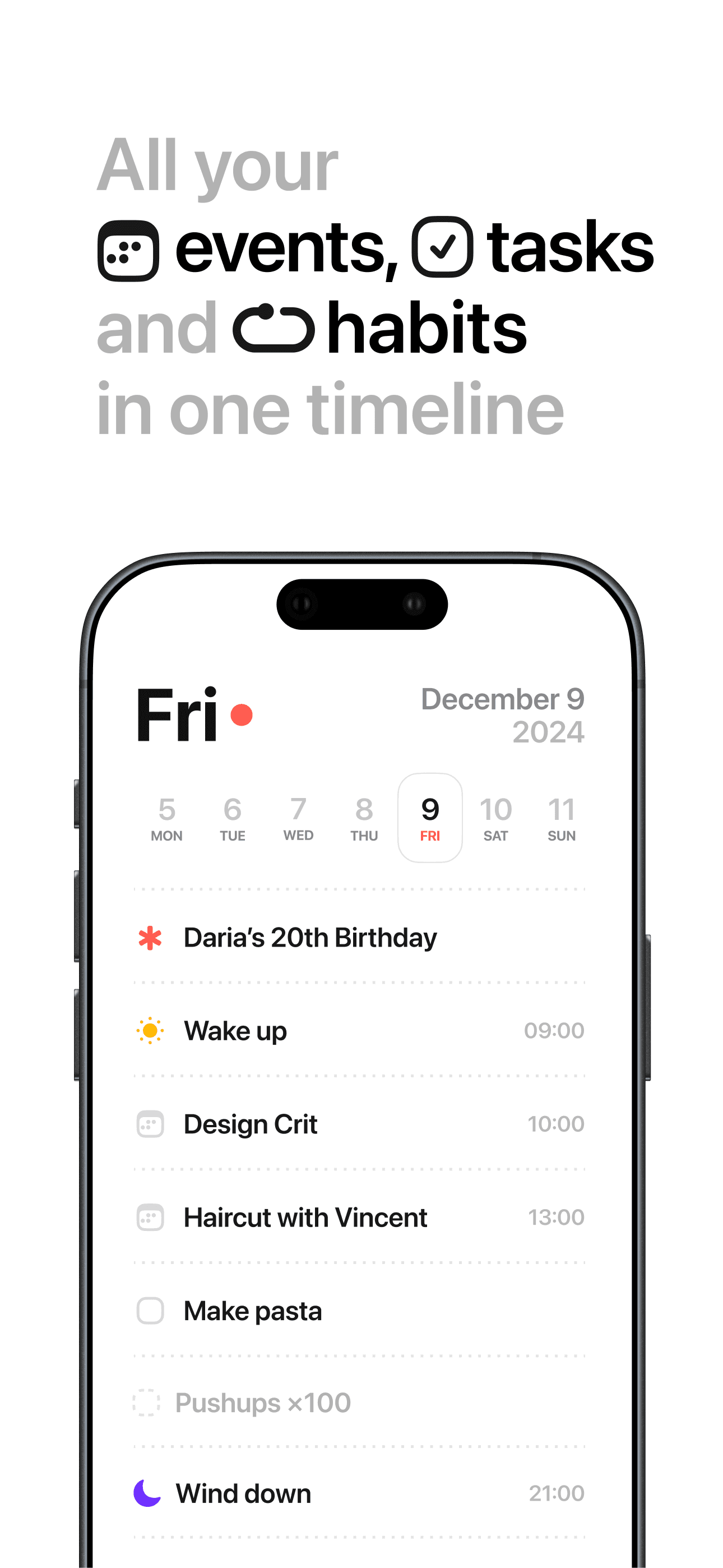
Joi is an app that combines a calendar, task manager, and habit tracker into a single timeline, aimed at helping users manage routines and activities efficiently.
- Create and adjust tasks and events quickly.
- Track daily or weekly habits in one place.
- View tasks, habits, and events on a single visual calendar.
- Synchronize with calendar and reminders for task transfer.
- Access and manage tasks and habits from any device.
- Receive notifications for important scheduled tasks.
Joi is free to download with in-app purchases available. The app requires iOS 17.6 or later for use on compatible devices.
SoftwareProductivityiOS & iPadOS
Winq
Gaze-based screen and window focus for Mac
One-time
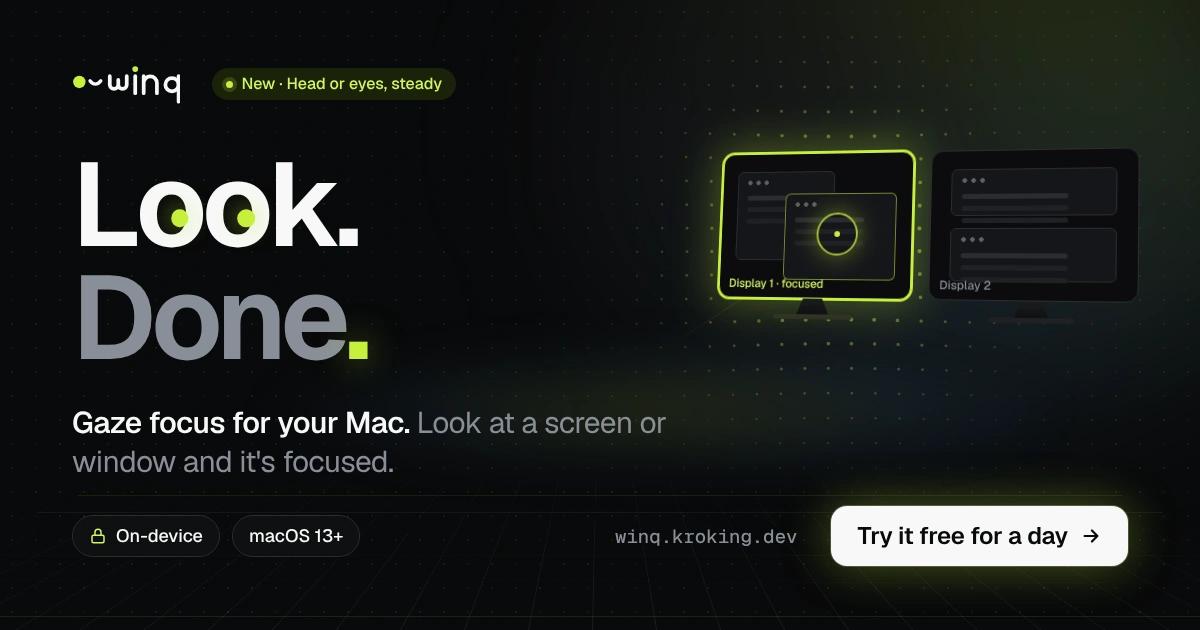
Winq is a macOS application that lets users switch focus between screens and windows using head and eye movements captured by your Mac's camera.
- Allows you to select and focus windows or screens just by looking at them
- Supports multiple monitors and overlapping windows; visible portions are counted and top windows take precedence
- Learns from your gaze patterns and interactions to improve accuracy over time
- Never switches focus while you type or use the mouse and can be paused any time
- Calibration takes about 20 seconds per screen and can be re-centred in two seconds as sitting position changes
- Processes camera data locally with Apple's Vision framework; no images or video are stored or sent anywhere
Winq offers a free trial for one day with full feature access. Continued use requires a one-time purchase per Mac, and all future updates are included. Requires macOS 13 or later and works on Apple Silicon and Intel Macs.
SoftwareProductivitymacOS
What you want
Shortcut
What happens
Whole screen
Shift-Command-3
Saves the full screen
Part of the screen
Shift-Command-4, then drag
Saves the area you select
A window or menu
Shift-Command-4, then Space, then click
Saves one window with its shadow
Window without the shadow
Hold Option while you click
Saves the window with no shadow
Screenshot toolbar
Shift-Command-5
Opens capture and recording options
Copy instead of save
Add Control to any shortcut
Puts the screenshot on the clipboard
How to screenshot the whole screen on Mac
Press Shift-Command-3 and let go.
A thumbnail appears in the corner of the screen. Click it to edit the screenshot, or wait a few seconds and it saves to your desktop. If you use more than one display, you get one screenshot per display.
How to screenshot part of the screen on Mac
1. Press Shift-Command-4. The pointer turns into a crosshair. 2. Click and drag to select the area. 3. Let go to take the screenshot.
While you drag, hold Space to move the selection without resizing it. Press Esc to cancel.
How to screenshot a window on Mac
1. Open the window or menu you want. 2. Press Shift-Command-4, then press Space. The pointer turns into a camera. 3. Click the window.
Hold Option when you click if you want the window without its drop shadow.
How to use the Screenshot toolbar (Shift-Command-5)
Press Shift-Command-5 to open the Screenshot app. Its toolbar has buttons to capture the screen, a window or a selection, and to record the whole screen or part of it.
The Options menu lets you:
Set a 5 or 10 second timer.
Choose where screenshots save.
Turn the floating thumbnail on or off.
Show the mouse pointer.
On supported Macs with macOS 26 Tahoe or later, pick SDR (PNG) or HDR (HEIF) capture.
You can also open the Screenshot app from Applications, then Utilities.
How to screenshot on a MacBook with a Windows keyboard
On a Windows keyboard plugged into a Mac, the Windows key acts as Command and Alt acts as Option. So the shortcuts become Shift-Windows-3, Shift-Windows-4 and Shift-Windows-5.
Screenshots save to your desktop by default, with a name like "Screenshot [date] at [time]".
To change it, press Shift-Command-5, click Options, and pick Desktop, Documents, Clipboard, Mail, Messages, Preview or Other Location. The Mac remembers your choice for every shortcut.
You can also drag the floating thumbnail straight into a Finder folder, an email or a chat.
How to copy a screenshot to the clipboard on Mac
Add Control to any shortcut. For example, Control-Shift-Command-4 copies a selection to the clipboard instead of saving a file. Then press Command-V to paste it into Slack, Mail, Notes or a document.
You can also Control-click the floating thumbnail and choose Save to Clipboard.
How to crop a screenshot on Mac
The fastest way is to capture only what you need with Shift-Command-4. If you already took a full screenshot:
1. Click the floating thumbnail, or open the file in Preview. 2. Drag a selection around the part you want to keep. 3. Press Command-K (Tools, then Crop) and save.
In the thumbnail editor, use the Crop button at the top instead.
How to edit a screenshot on Mac
Click the floating thumbnail to open Markup. You can draw, add text, shapes, arrows and a signature, highlight, rotate and crop, then click Done.
Markup is fine for a quick arrow. It has no blur tool, no backgrounds, no mockups and no capture history. That is where a screenshot app helps.
Why is my Mac screenshot not working?
Check the shortcuts: open System Settings, Keyboard, Keyboard Shortcuts, then Screenshots, and make sure they are turned on.
Check the save location: you may have set it to the clipboard or a folder you forgot. Open Shift-Command-5, then Options.
Protected content: some apps, such as the Apple TV app, block screenshots of their windows.
Restart the Mac if the thumbnail stops appearing.
Best screenshot app for Mac
The built-in tool is free, but it cannot capture a scrolling page, add backgrounds, blur secrets, or keep a searchable library. These apps can. All prices were checked in November 2026.
Shotbase: best screenshot app for Mac that replaces several tools
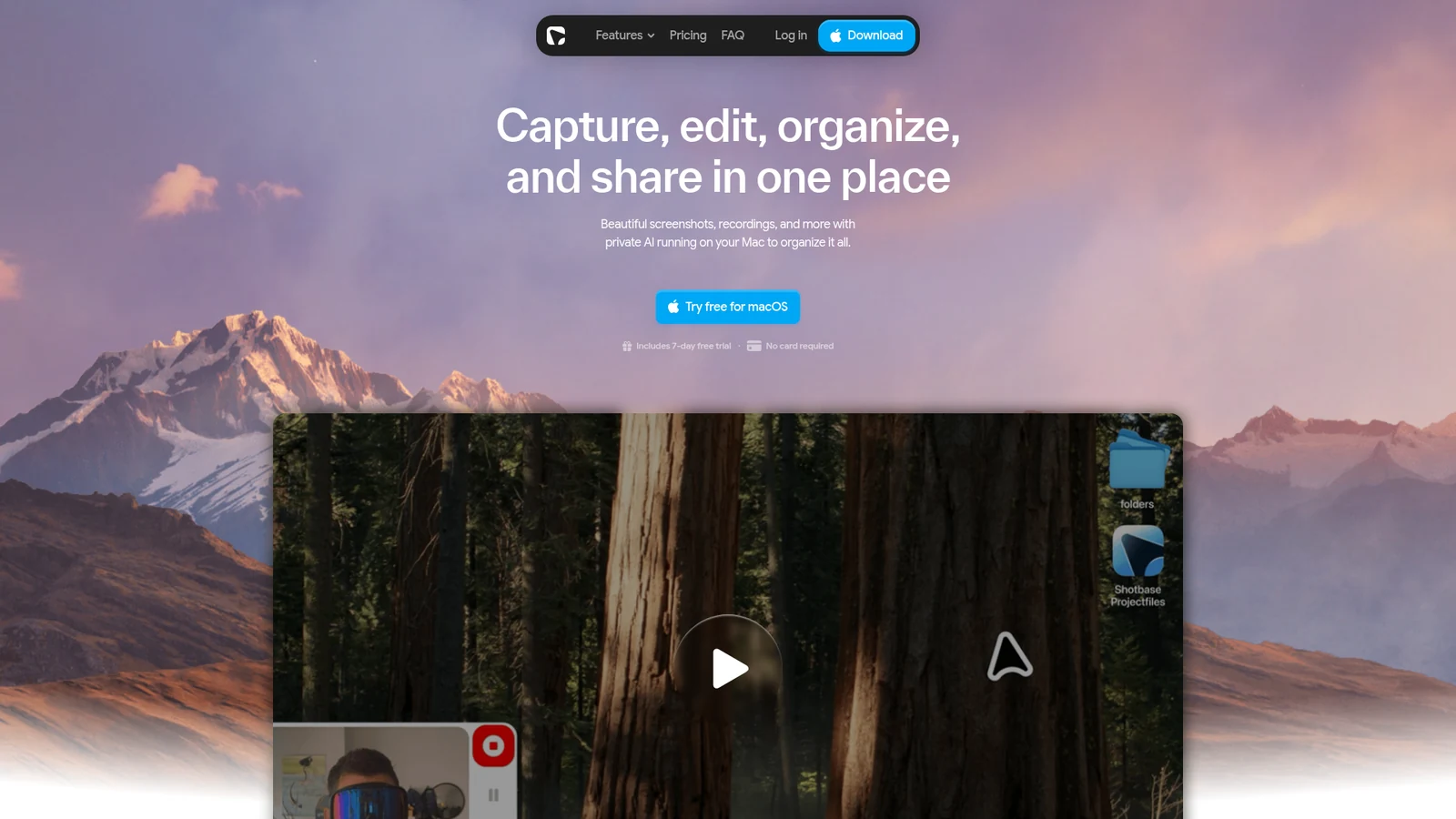
Shotbase handles screenshots, recordings and webpage captures in one library. Image: Shotbase
Price: $13 a month billed yearly ($156), or $25 month to month, with a 7-day free trial.
Shotbase is one app for capturing, editing, organizing and sharing. Instead of a screenshot tool, a mockup tool, a screen recorder and a webpage capture tool, you get all four in one place.
What it does that the built-in tool can't:
Annotation and mockups: arrows, text, highlights, shapes and callouts, plus backgrounds, frames, shadows, borders and watermarks.
Screenshot to video: turn a static screenshot into an animated clip in the same editor.
URL to screenshot: paste a web address and capture the full page or just the viewport, at mobile, tablet or desktop sizes, in light or dark mode.
Screen recording with auto zoom and 3D tilt, plus shareable links.
Local AI library: an on-device model names, tags and summarizes your captures so you can search them later.
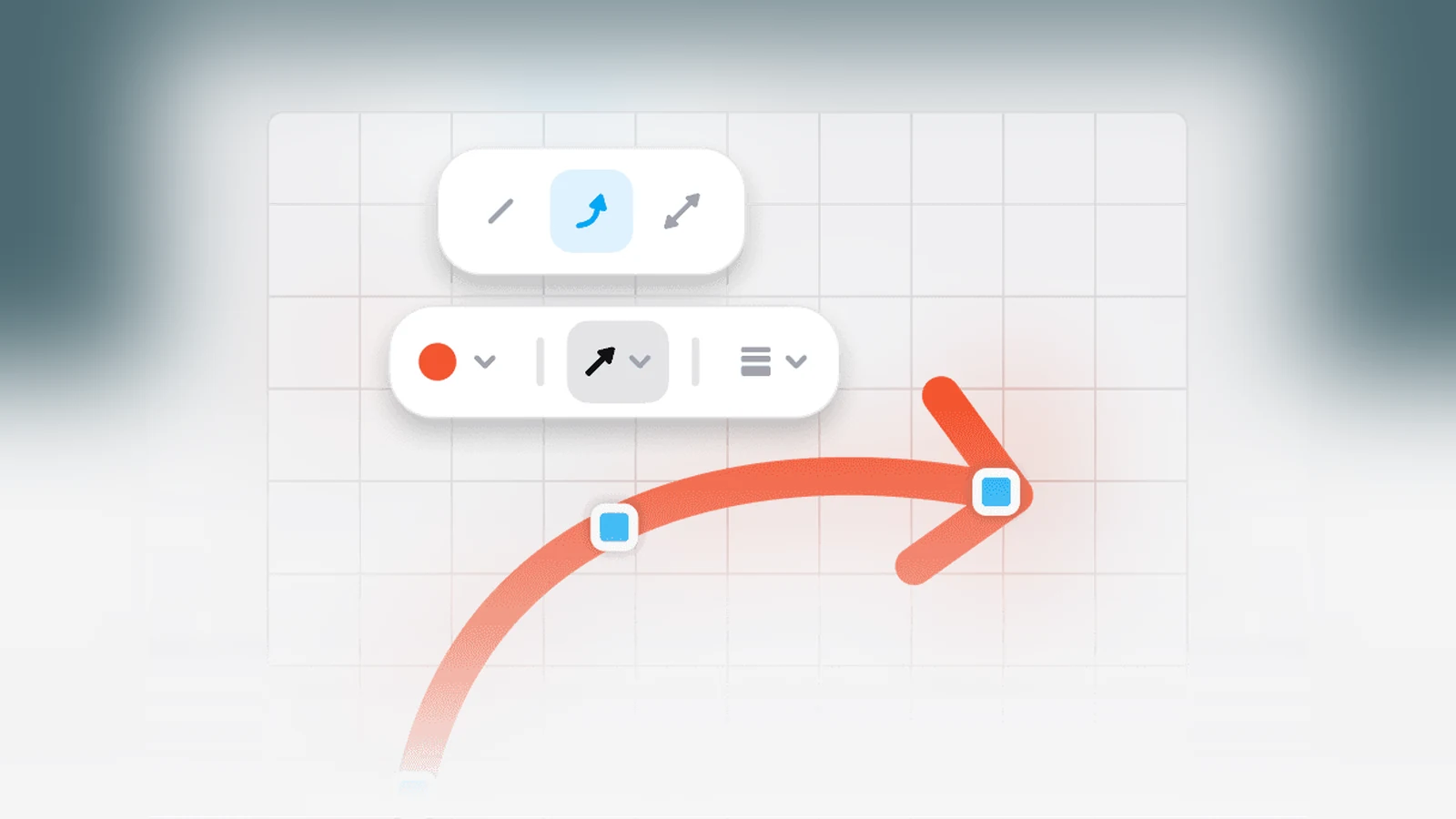
Annotation and mockup styling live in one editor. Image: Shotbase
Paste a URL to capture a whole webpage at any breakpoint. Image: Shotbase
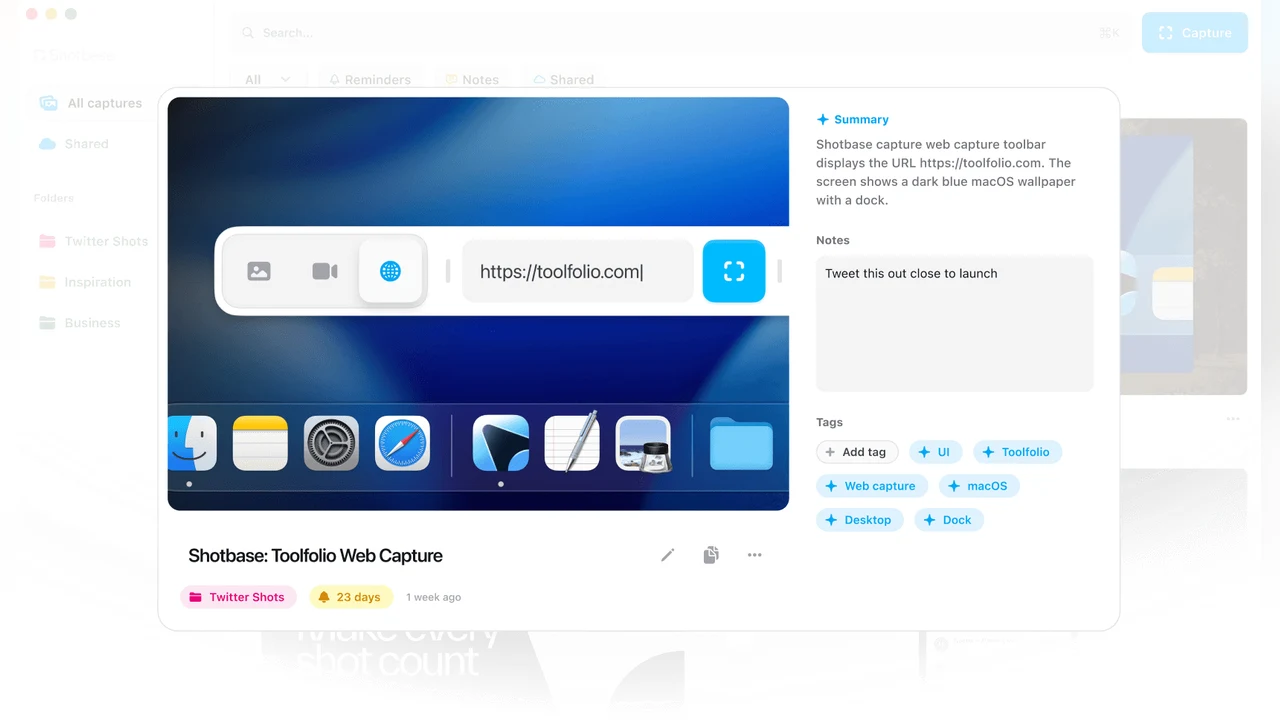
Captures get names, tags and summaries from AI that runs on your Mac. Image: Shotbase
Who it's for: anyone who takes screenshots for docs, launches, support or social posts, and also records their screen.
ShotbaseCapture, edit, organize, and share in oneVisit WebsiteShotbase is a comprehensive tool designed to capture and manage all your screen-based content effortlessly. With features like stunning screenshot capabilities, recording options that include cinematic effects, and an intuitive organizational structure powered by local AI, you can easily keep your multimedia assets organized and accessible. Shotbase not only allows you to capture specific areas, windows, or full screens on your Mac but also enables you to edit and enhance your captures with backgrounds, frames, and annotations. The integrated AI ensures your captures are automatically named and tagged for easy searching, making it an excellent choice for anyone looking to enhance their productivity and creativity in one seamless workspace.Visit Website
CleanShot X: best one-time screenshot app for Mac
CleanShot X is the capture app most Mac users know. Image: CleanShot
Price: CleanShot Basic is $35 once, with a year of updates and 1 GB of cloud storage. CleanShot Pro is $10 per user a month billed yearly.
CleanShot X adds scrolling capture, annotations, a background tool, OCR, capture history and cloud links to the Mac's shortcuts.
Better or worse than Shotbase? Cheaper if you only need screenshots. It has no URL-to-screenshot capture and no local AI library. See Shotbase vs CleanShot X vs Screen Studio for the full comparison.
CleanShot XComprehensive screen capture and annotation toolVisit WebsiteCleanShot X is a comprehensive screen capturing software designed for Mac users. It offers over 50 features, including screenshot and screen recording capabilities, making it suitable for professionals and casual users alike. With tools for quick sharing, annotation, and GIF creation, it enhances productivity by streamlining the process of capturing and editing visual content. Its intuitive interf
- Our overlay makes sharing a breeze.
- Instantly save, copy or drag & drop screenshots or screen recordings to other apps.
- You can annotate your screenshots quickly and easily, making it beloved by users who seek efficient and effective communication.
- It’s an essential swiss army knife for health and education professionals as well as content creators—anyone looking for an optimized way to capture and share their screen.
- Additional features like scrolling capture, screen recording, and clean backgrounds make it versatile for all your needs.
CleanShot X offers a comprehensive suite of over 50 features for screen capturing and recording on Mac. Its intuitive interface and versatile tools, including scrolling captures, annotations, and cloud integration, make it a valuable asset for users needing efficient screenshot management and sharing capabilities.Visit Website
Shottr: best free screenshot app for Mac
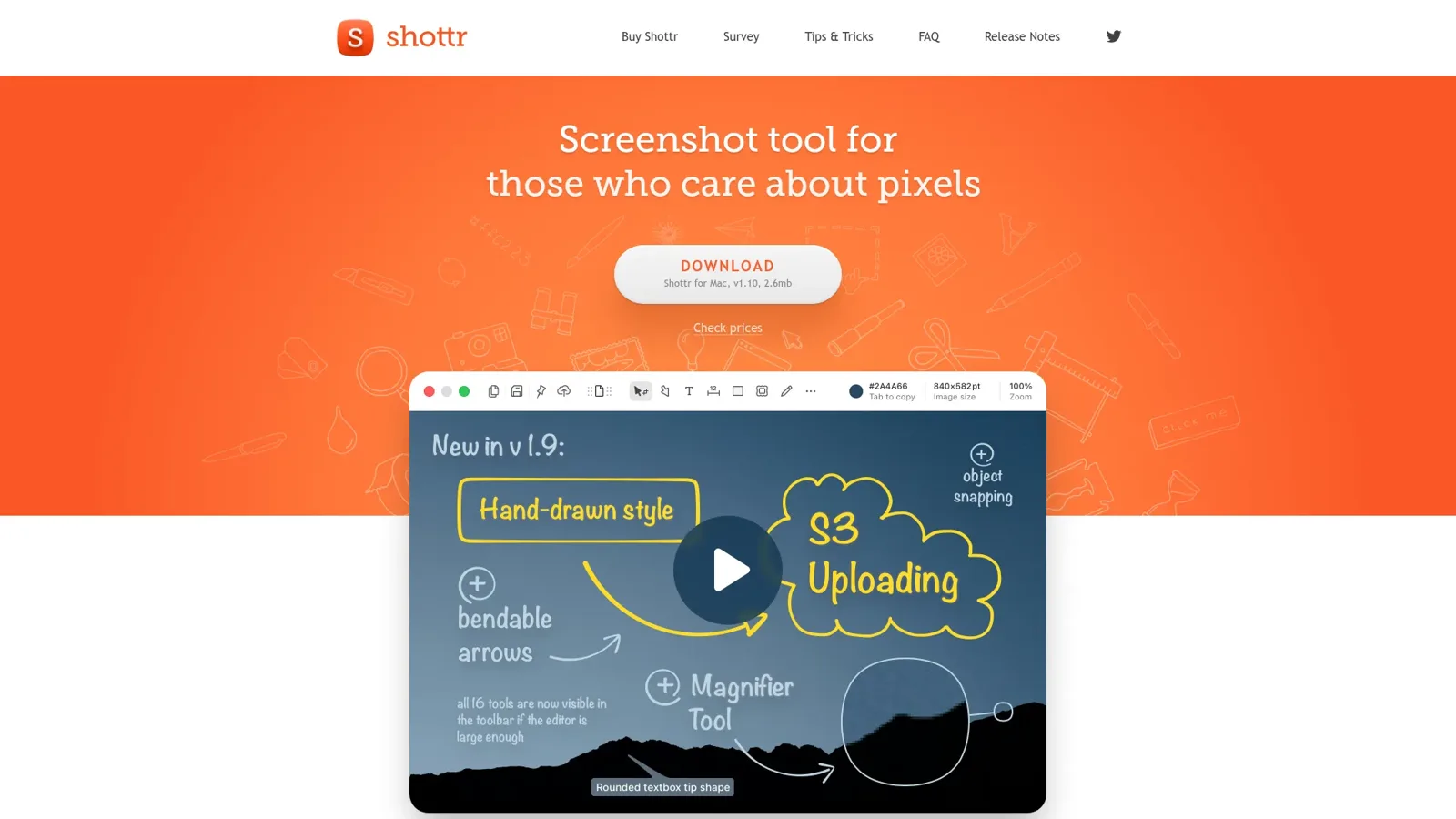
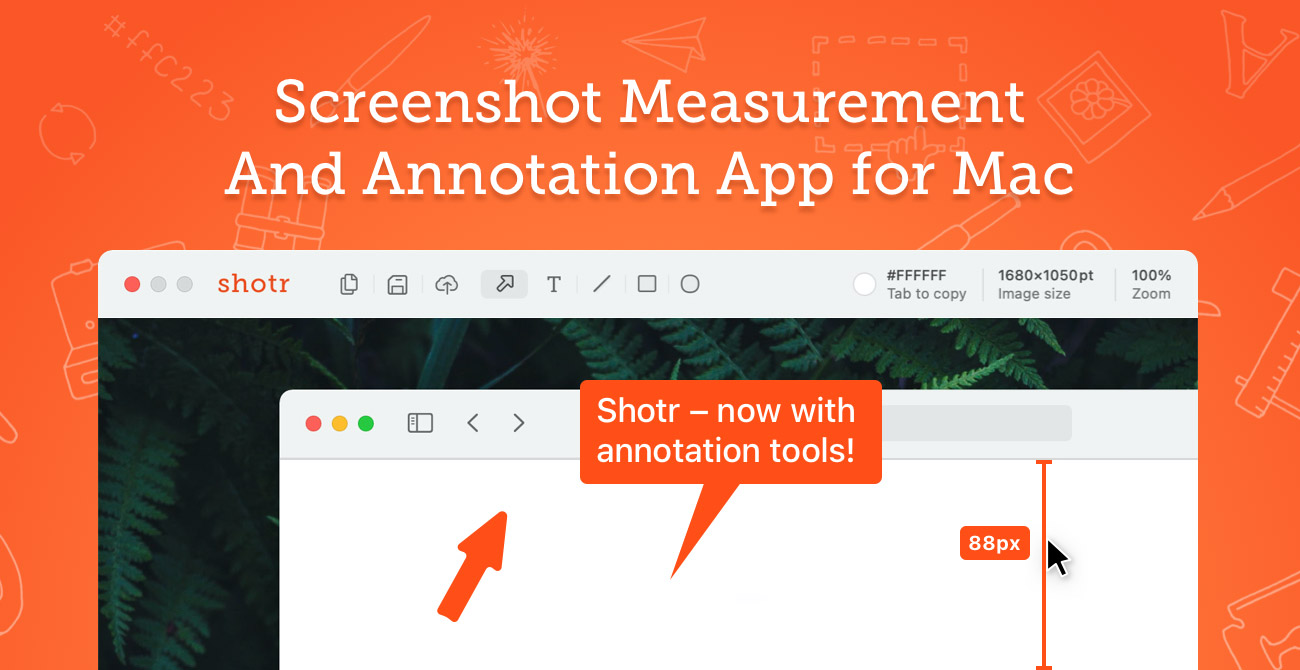
Shottr is small, fast and built for pixel work. Image: Shottr
Price: free to use, with an upgrade prompt after 30 days. Basic is $12 once.
Shottr is a tiny screenshot app with scrolling capture, backgrounds, OCR, a screen ruler, pixel zoom and a color picker. It does not record your screen.
ShottrTiny, fast screenshot and annotation tool for Mac.Visit WebsiteShottr is a small, fast screenshot app for macOS built for people who care about pixels.
- Captures areas, windows, and scrolling screenshots.
- Adds annotations, backgrounds, pixelation, and object removal.
- Recognizes text and QR codes with OCR.
- Includes a screen ruler, pixel zoom, and color picker.
- Uploads to S3 compatible storage when activated.
Shottr can be used for free, with one-time licenses for users who want the full experience and to support development.Visit Website
ScreenSnap Pro: best screenshot app with cloud links and no subscription
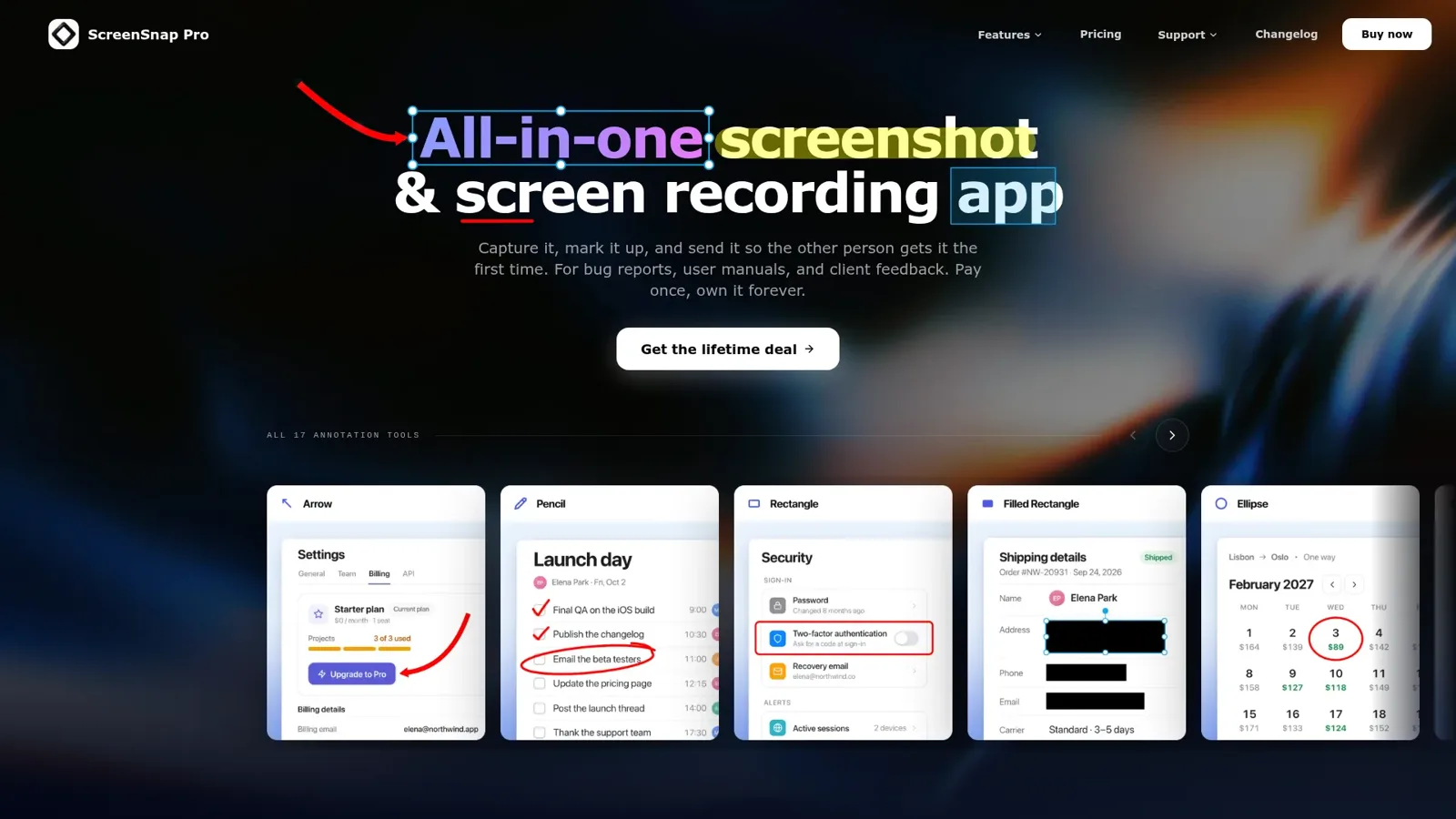
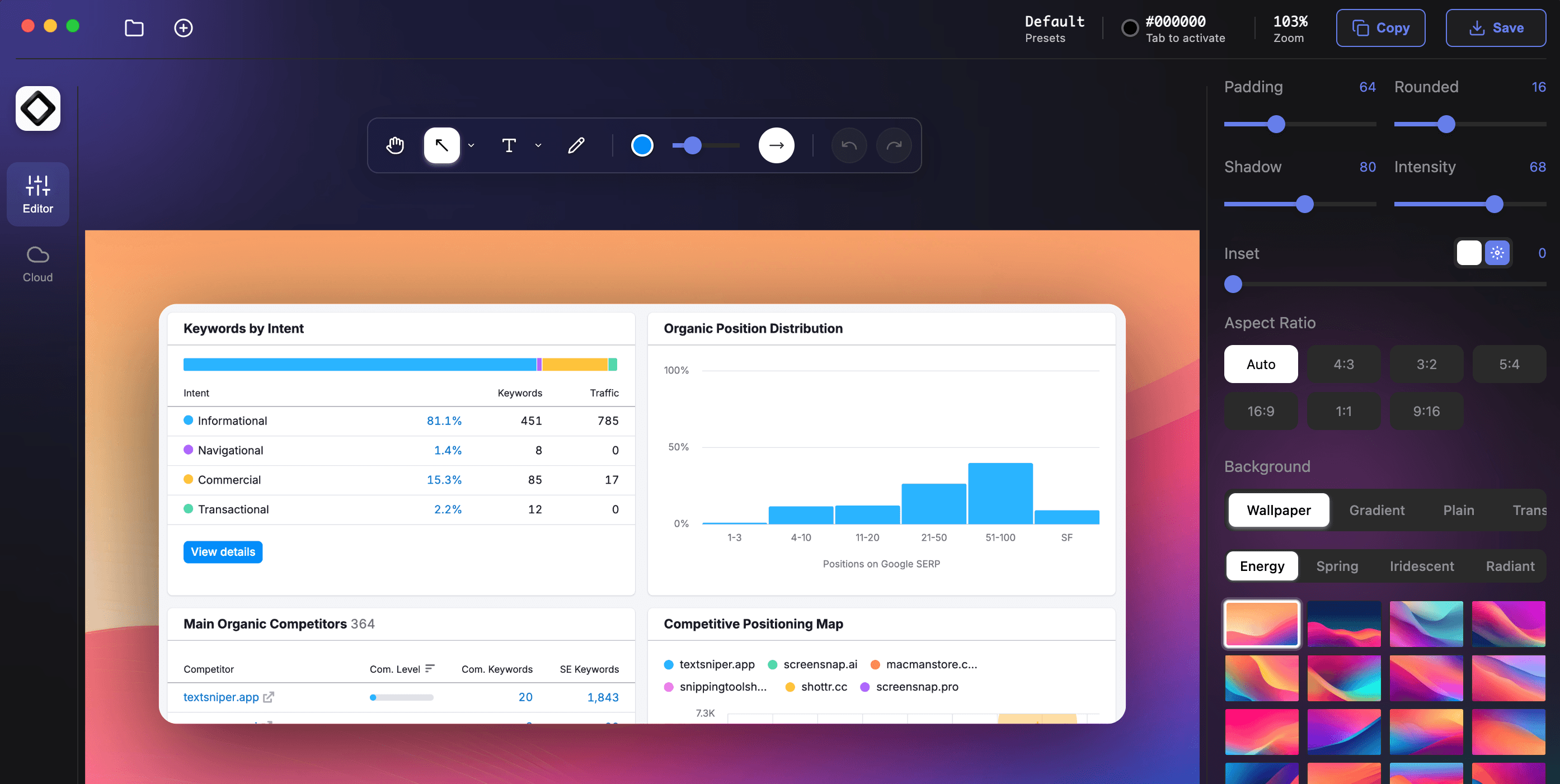
ScreenSnap Pro pairs a big background library with 17 annotation tools. Image: ScreenSnap Pro
Price: $39 once, for 2 computers, on Mac and Windows.
ScreenSnap Pro has 17 annotation tools, 500+ backgrounds and device presets, scrolling capture, screen and GIF recording, OCR, and optional short cloud links.
ScreenSnap ProEnhanced screenshots with backgrounds and annotationsVisit WebsiteScreenSnap Pro is a screenshot enhancement software designed for macOS. It allows users to capture, edit, and share screenshots with ease. The application features over 15 annotation tools and more than 160 customizable backgrounds, making it suitable for developers, designers, and creatives who need to produce visually appealing screenshots quickly. Users can also share their captures via instant
- Provides over 15 annotation tools, including arrows, shapes, and text for precise customization of screenshots.
- Offers more than 160 gradient backgrounds to enhance the visual quality of captured images.
- Enables instant cloud sharing with short links for quick distribution via email or messaging platforms.
- Supports screen recording with options for webcam, system audio, and microphone audio, exporting as video or GIF.
- Features a quick access overlay for immediate editing and sharing without interrupting workflow.
ScreenSnap Pro offers a comprehensive solution for capturing and enhancing screenshots. With features like customizable annotations, a variety of backgrounds, and instant cloud sharing, it caters to the needs of developers, designers, and creatives.Visit Website
TextSniper: best app to copy text from a screenshot on Mac
TextSniper copies text from anything on screen. Image: TextSniper
Price: from $7.99 for one Mac. It is also on Setapp and the Mac App Store.
TextSniper lets you drag over any part of the screen and paste the text, from images, videos, PDFs and apps that block text selection. It also reads QR codes and barcodes.
TextSniperCapture non-selectable text instantly from various sources.Visit WebsiteTextSniper allows users to quickly and easily capture text from YouTube videos, PDFs, images, screencasts, presentations, and more. With a simple built-in snipping tool for Mac, recognizing and copying text has never been easier. Simply start TextSniper, select the area you want to capture, and paste the text where you need it. It also includes advanced features like QR code and barcode reading, as well as a text-to-speech option making it a versatile tool for both productivity and learning. Whether you're a student, professional, or just a casual user, TextSniper streamlines the process of working with text. Enjoy the speed, simplicity, and efficiency of extracting text at your fingertips!Visit Website
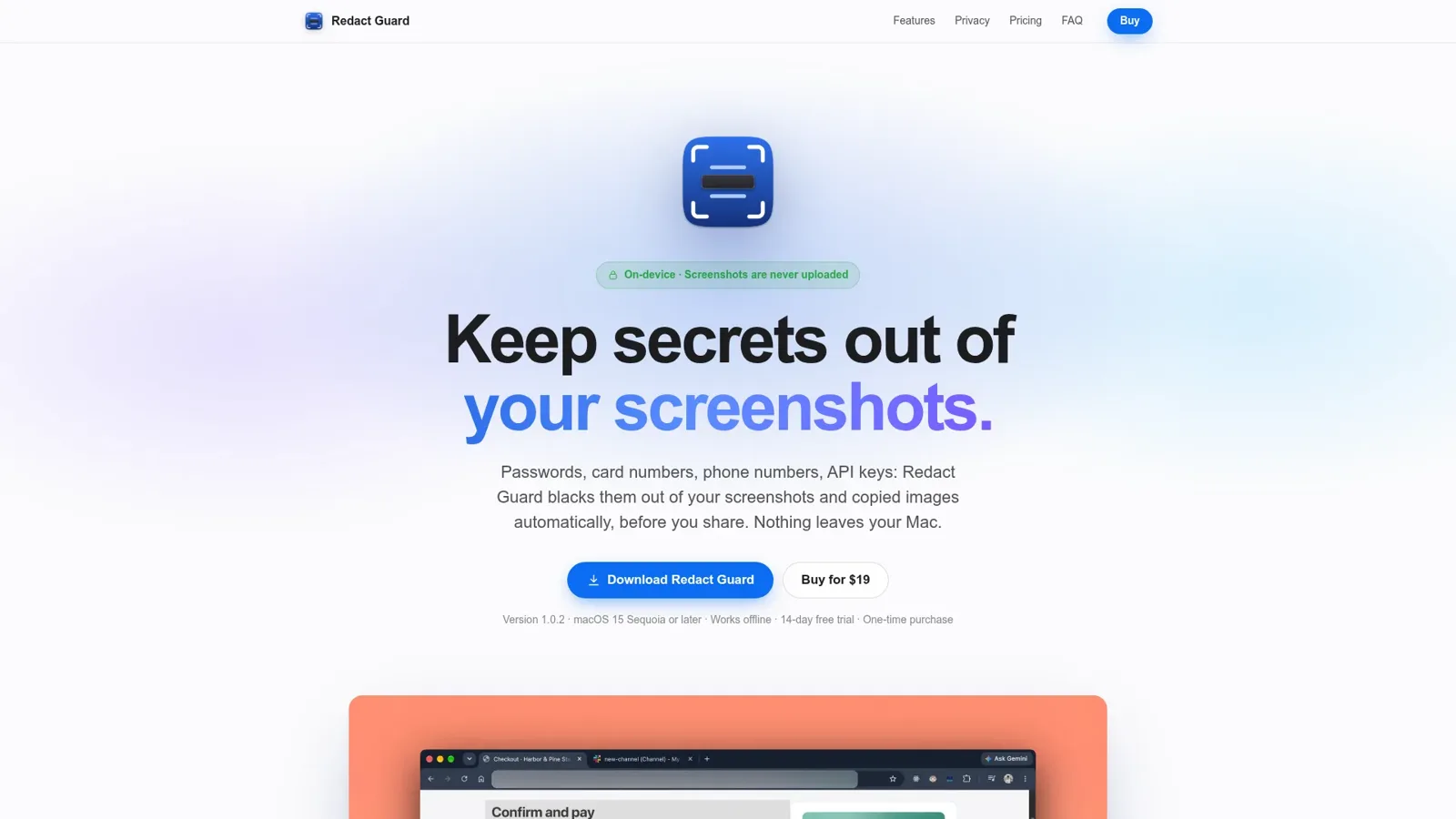
Redact Guard: best app to blur sensitive info in Mac screenshots
Redact Guard hides API keys, tokens and passwords before you share. Image: Redact Guard
Price: $19 once, for 2 Macs, with a 14-day trial. It needs macOS 15 or later.
Redact Guard watches new screenshots and hides secrets automatically, with 35+ built-in detectors. Text recognition runs on your Mac.
macOS has no built-in scrolling screenshot. Shift-Command-5 only captures what is on screen.
To capture a long webpage, chat or document in one image, use Shotbase, CleanShot X, Shottr or ScreenSnap Pro. Our step-by-step guide shows each method: how to take a scrolling screenshot on Mac.
FAQ
What is the shortcut to screenshot on a Mac?
Shift-Command-3 captures the whole screen. Shift-Command-4 captures a selection. Shift-Command-5 opens the Screenshot toolbar.
How do I screenshot on a MacBook Air or MacBook Neo?
The shortcuts are the same on every Mac: Shift-Command-3, Shift-Command-4 and Shift-Command-5. MacBooks have no Print Screen key.
How do I screenshot just part of my screen on Mac?
Press Shift-Command-4, then drag over the area you want. Let go to save it.
Where do screenshots go on a Mac?
To your desktop by default. Change the location in Shift-Command-5, then Options.
How do I take a screenshot and copy it on Mac?
Add Control to the shortcut, for example Control-Shift-Command-4. Then paste with Command-V.
Can I record my screen with the same tool?
Yes. Shift-Command-5 has Record Entire Screen and Record Selected Portion buttons. For audio and better results, see how to screen record on Mac with audio.
What is the best screenshot app for Mac?
Shotbase if you want one app for screenshots, mockups, recordings and webpage captures. Shottr if you want free. For a deeper comparison, read our best screenshot tool for Mac guide.
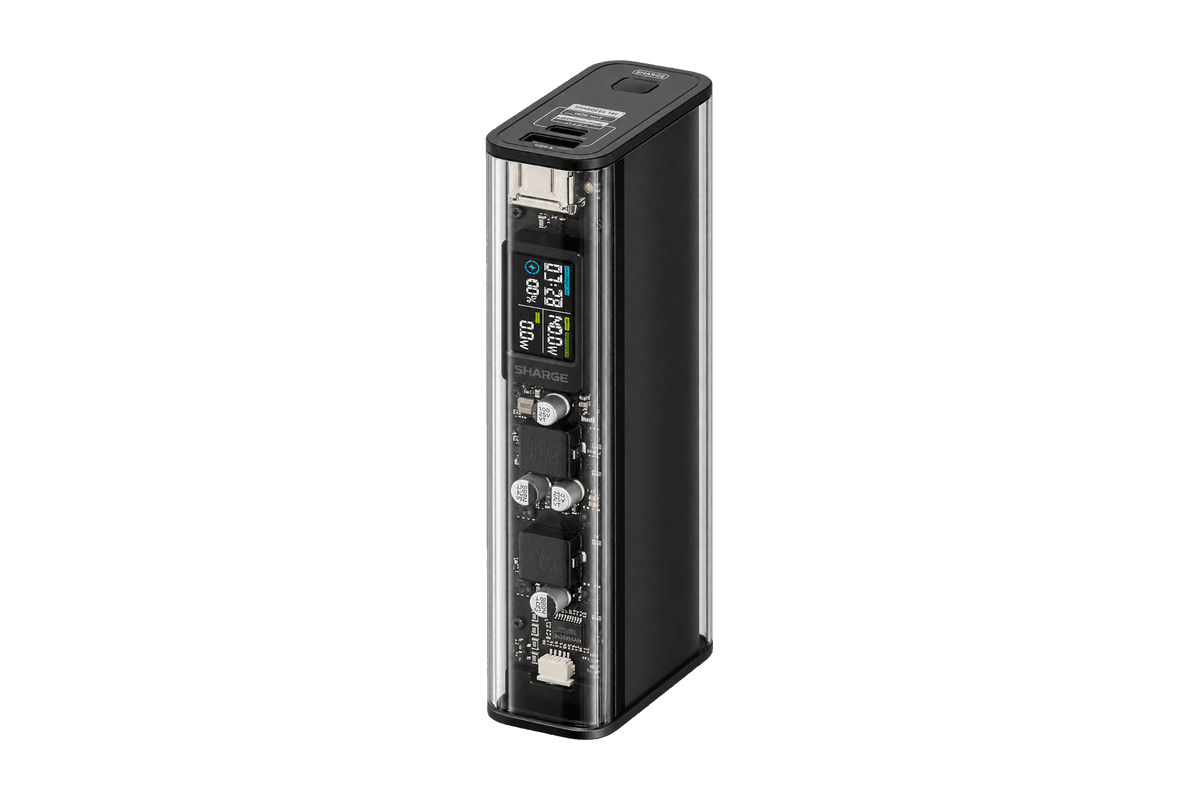
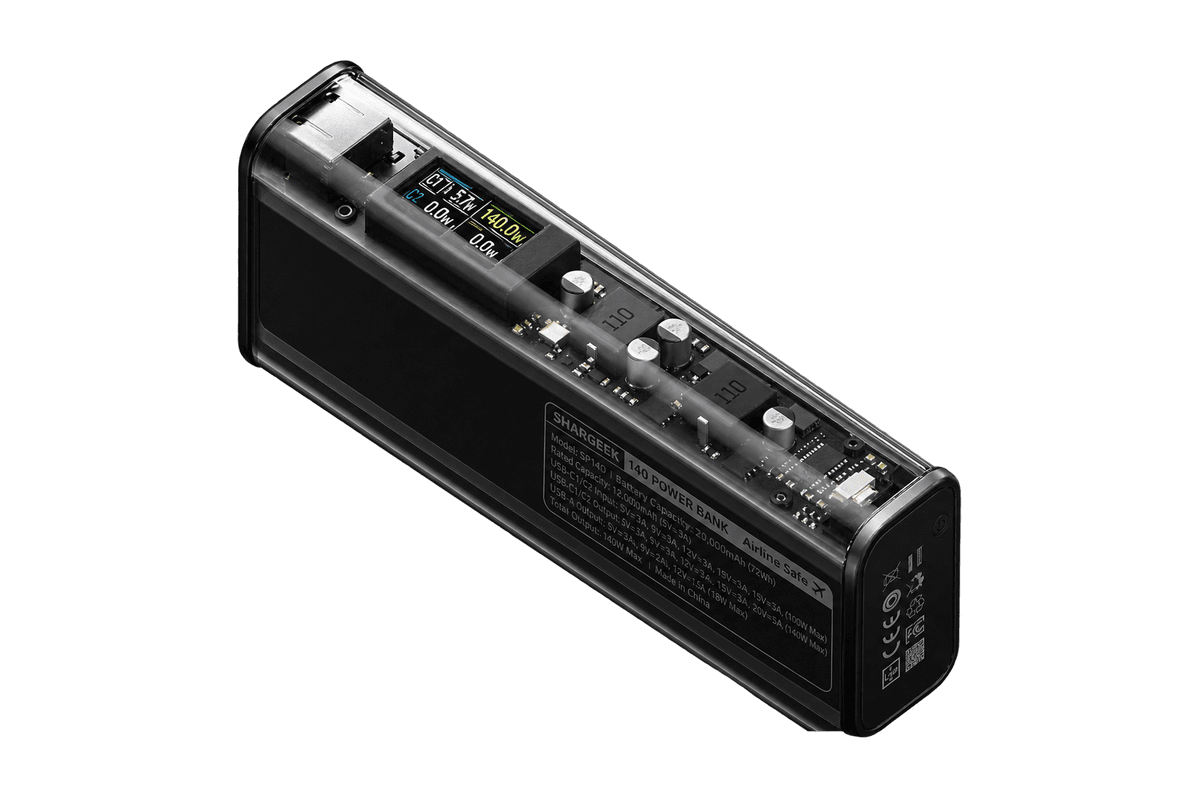
A transparent 20,000 mAh power bank with a status display and up to 100W USB-C output.
HardwarePowermacOS & iOS & iPadOS
Teebots
Local AI assistant with multiple bots
Free
Teebots is a desktop AI assistant for managing a group of bots with different roles and model providers. It stores conversations, files, and bot memory on your computer while sending model requests directly to your chosen provider.
- Create groups of bots, each assigned to tasks and models
- Compatible with Claude, OpenAI, DeepSeek, Kimi, or any OpenAI-compatible endpoint
- Runs the assistant workspace on your computer without a separate orchestration server
- Bots use your own API keys and make direct requests to providers
- Each bot has private memory and its own file and browser capabilities
- Bots can run commands, manage files, and perform scheduled jobs from the menu bar
Teebots is free to download and use. AI model usage requires users to supply their own API keys and pay for any model provider charges.
SoftwareAImacOS
Kana Speaker
Real-time Japanese kana pronunciation feedback
Freemium
Kana Speaker is an iOS education app that uses real-time speech recognition to help users practice Japanese kana pronunciation, turning speaking practice into muscle memory.
- Provides real-time pronunciation test and instant feedback
- Includes all 104 kana: Hiragana and Katakana (Seion, Dakuon, Yoon)
- Tracks user performance with on-key indicator lights
- Features a 3D retro handheld device-inspired interface
Kana Speaker requires iOS 17.0 or later and uses speech recognition for pronunciation practice. It is free to download, with additional in-app purchases.
SoftwareEducationiOS & iPadOS
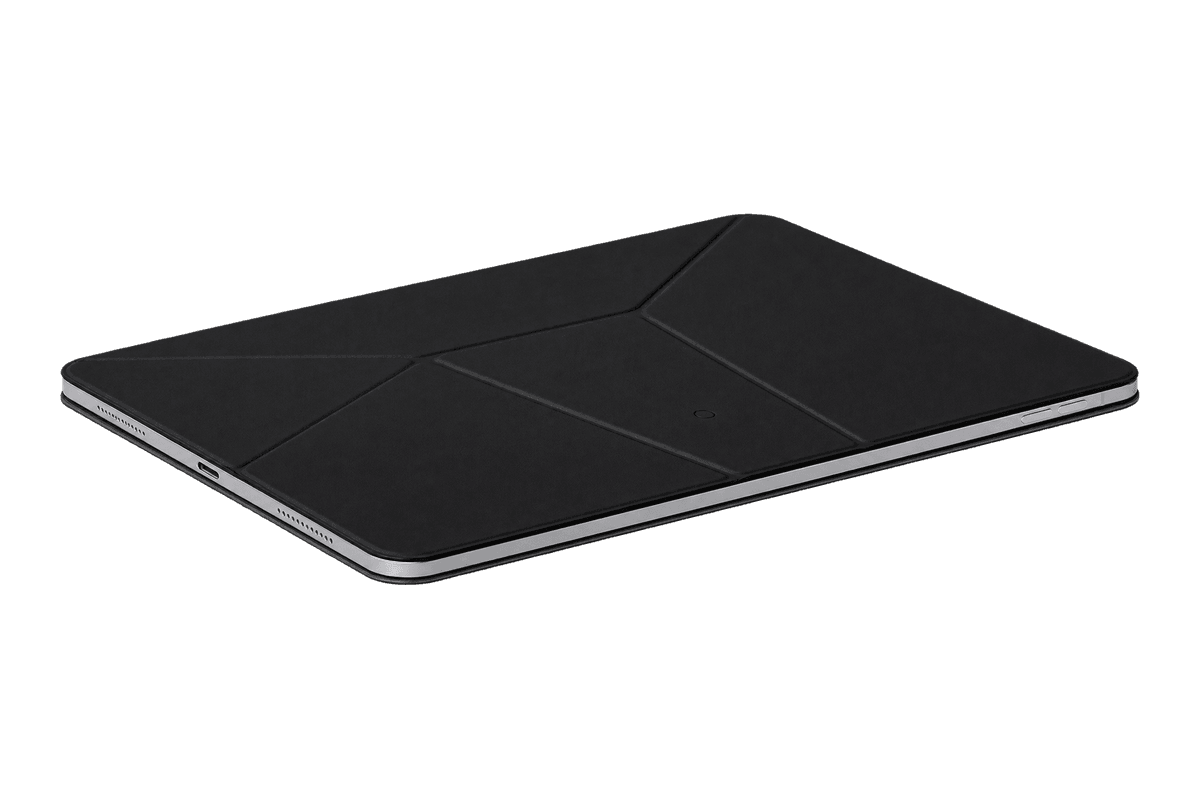
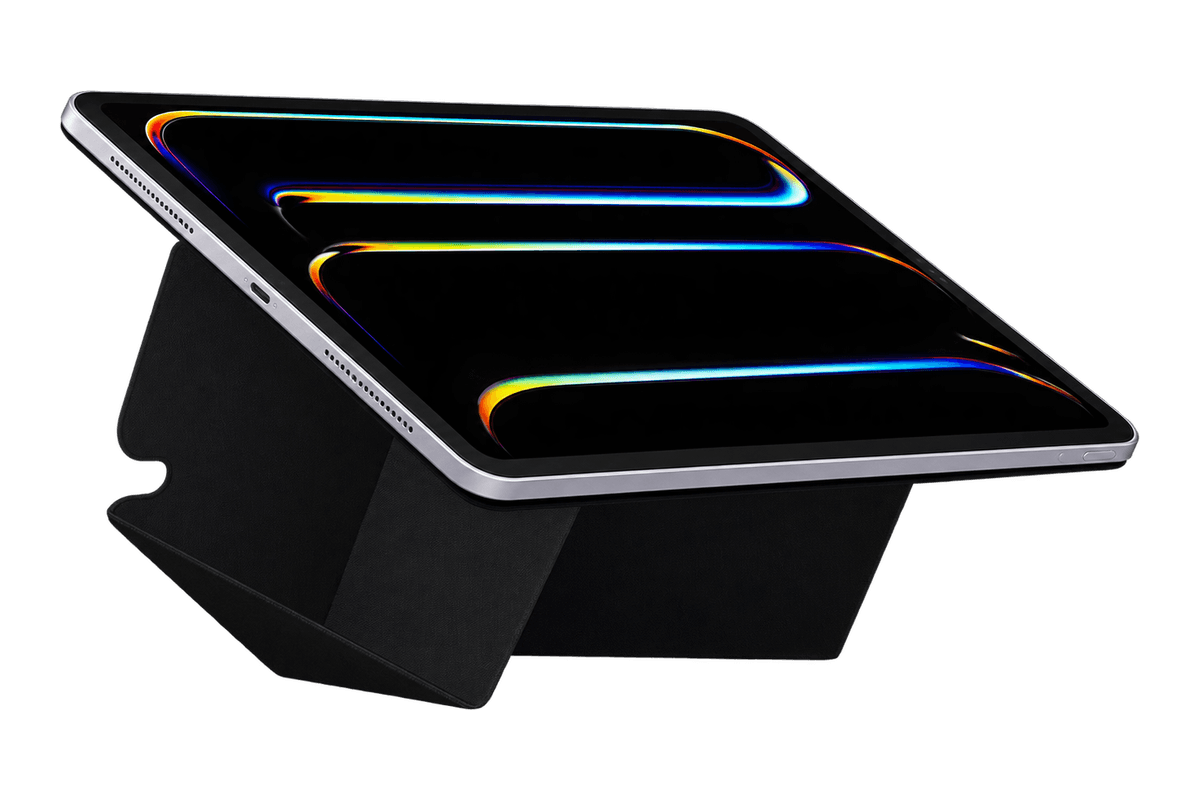
Dynamic Folio for iPad Pro 11″
A folding magnetic folio with viewing and drawing positions for the 11-inch iPad Pro M4/M5.
HardwareAccessoriesiPadOS
Art of Fauna
Puzzle game with historic wildlife art
Freemium
Art of Fauna is a puzzle game featuring natural history illustrations from the 18th and 19th centuries, each paired with a description of the depicted animal.
- Includes artworks by artists such as Joseph Wolf and Elizabeth Gould
- Contains two volumes with 110 puzzles each from five different regions
- First 10 puzzles in each volume are free; additional puzzles available via in-app purchase
- Features picture and text-based puzzle modes
- Accessibility options: simplified texts, dyslexia-friendly fonts, customizable color schemes, content filters, VoiceOver, VoiceControl, and Switch Control support
- Portion of each purchase supports wildlife conservation organizations
Art of Fauna is free to download with optional in-app purchases to unlock additional puzzles. Requires iOS 16.0 or later.
SoftwareCreativeiOS & iPadOS
Ascope
Daily App Store Keyword Ranking Tool
Paid
Ascope is a Mac application for tracking daily keyword rankings for iPhone and Mac apps in the App Store across 50+ countries.
- Tracks daily keyword rankings for any iPhone or Mac App Store app
- Displays Apple’s keyword popularity scores and estimated difficulty
- Compares keyword performance across multiple countries
- Stores all app, keyword, and ranking history locally on your Mac
- Supports tracking of competitor apps identified by Apple
- Includes a local MCP server for integration with Cursor, Claude, Codex, or Gemini
Ascope requires macOS 14 Sonoma or later and supports Apple silicon and Intel Macs. It is paid only, with pricing at $7.50/month (billed annually) or $9.99/month, and includes a 14-day money-back guarantee.
SoftwareDevelopmentmacOS
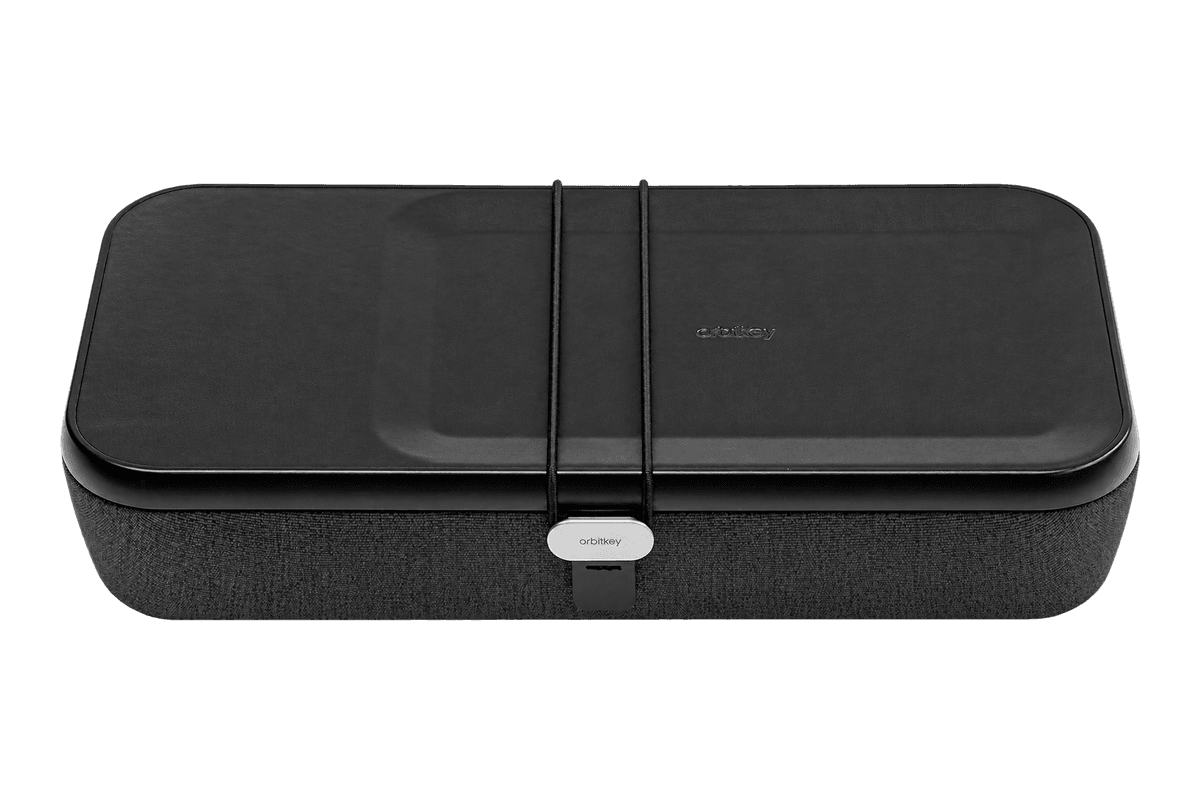
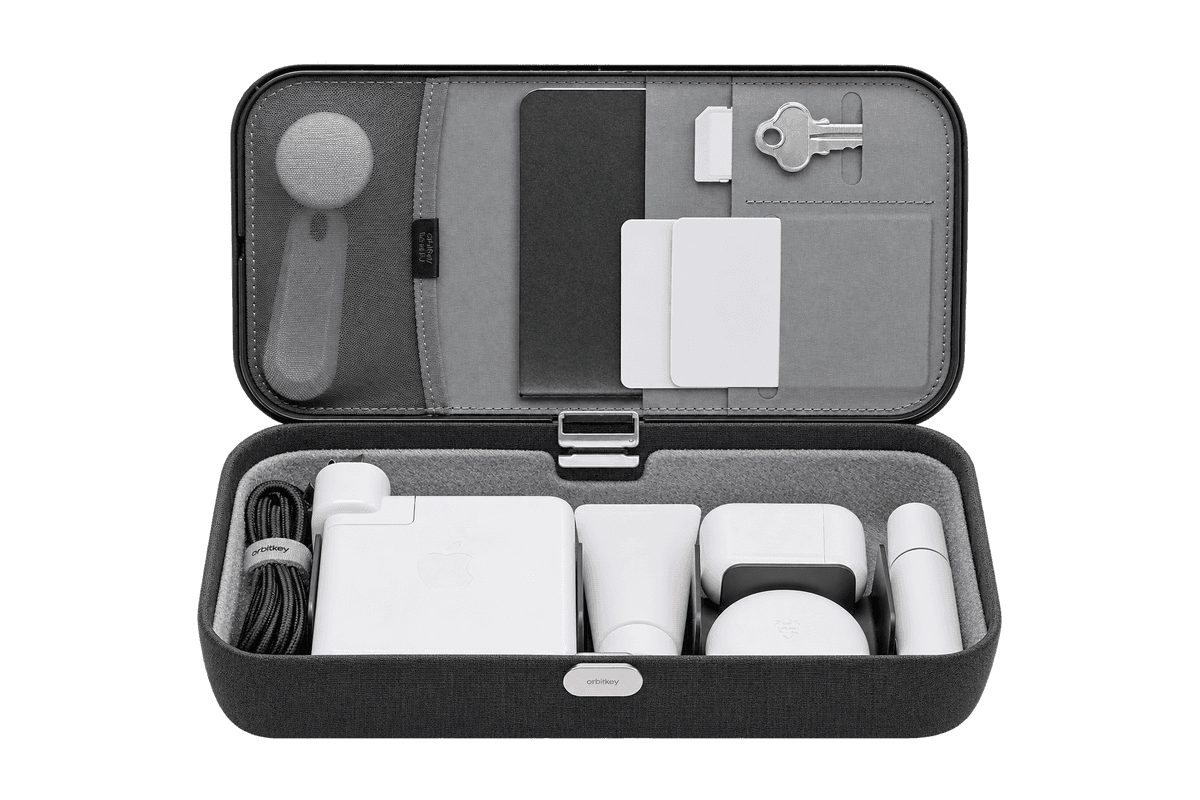
Nest V2
A portable organizer for desk essentials with a wireless charging pad in the lid.
WorkspaceOrganization
Joi
Calendar, task, and habit management app
Freemium
Joi is an app that combines a calendar, task manager, and habit tracker into a single timeline, aimed at helping users manage routines and activities efficiently.
- Create and adjust tasks and events quickly.
- Track daily or weekly habits in one place.
- View tasks, habits, and events on a single visual calendar.
- Synchronize with calendar and reminders for task transfer.
- Access and manage tasks and habits from any device.
- Receive notifications for important scheduled tasks.
Joi is free to download with in-app purchases available. The app requires iOS 17.6 or later for use on compatible devices.
SoftwareProductivityiOS & iPadOS
Winq
Gaze-based screen and window focus for Mac
One-time
Winq is a macOS application that lets users switch focus between screens and windows using head and eye movements captured by your Mac's camera.
- Allows you to select and focus windows or screens just by looking at them
- Supports multiple monitors and overlapping windows; visible portions are counted and top windows take precedence
- Learns from your gaze patterns and interactions to improve accuracy over time
- Never switches focus while you type or use the mouse and can be paused any time
- Calibration takes about 20 seconds per screen and can be re-centred in two seconds as sitting position changes
- Processes camera data locally with Apple's Vision framework; no images or video are stored or sent anywhere
Winq offers a free trial for one day with full feature access. Continued use requires a one-time purchase per Mac, and all future updates are included. Requires macOS 13 or later and works on Apple Silicon and Intel Macs.